
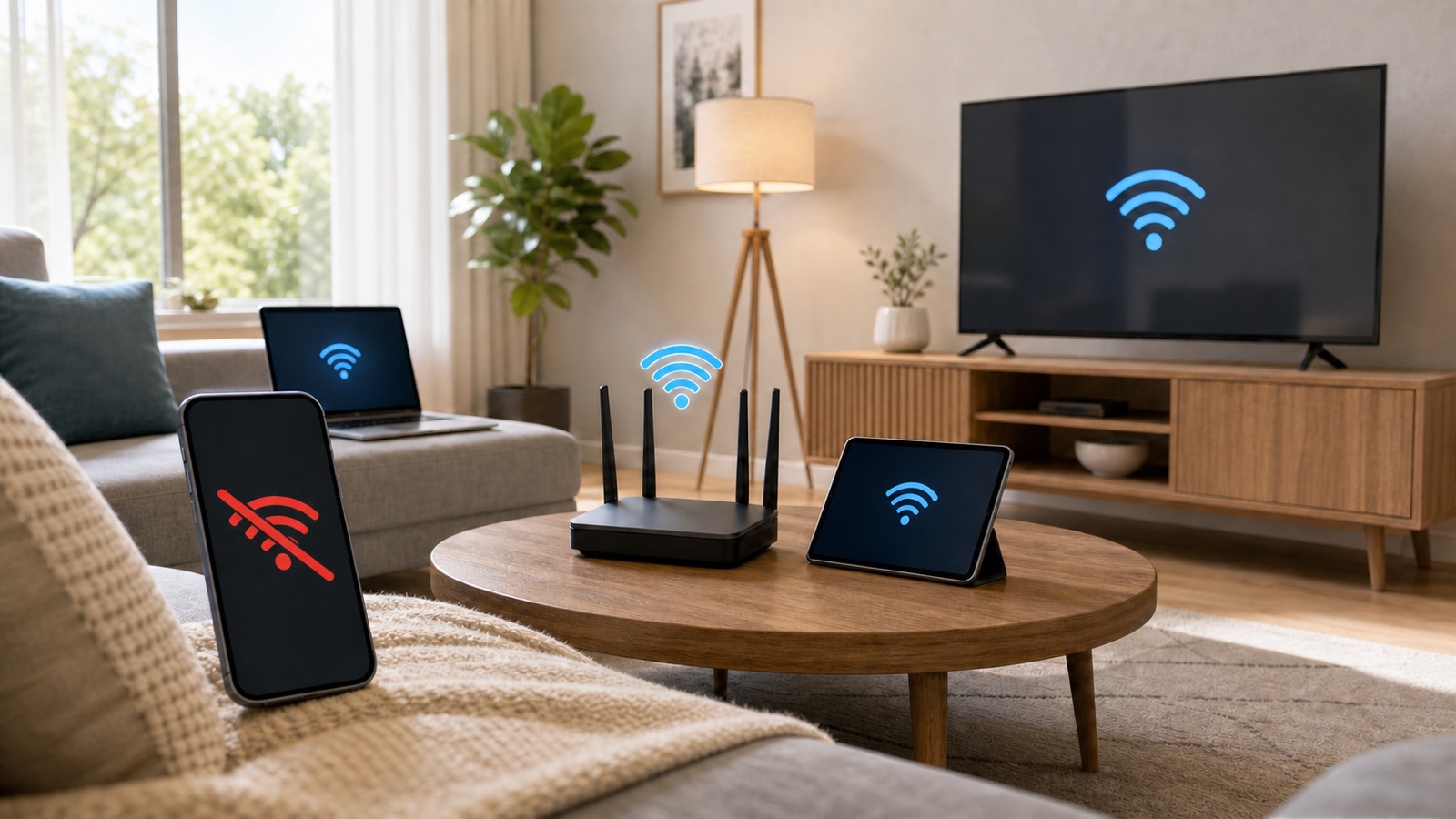
If WiFi works on every device except one, start with the failing phone, computer, TV, printer, or smart device. Restart it, forget the network, and join again before changing the router. Then test that device on a phone hotspot. If it fails everywhere, the device is probably at fault. If it fails only on your home WiFi, check its IP settings, router access controls, and WiFi compatibility.
If the one problem device is a new PC and the WiFi control is missing before you reach the desktop, follow the dedicated steps for Windows 11 setup with no WiFi option. That situation usually calls for the correct wireless adapter driver, not a router reset.
Other working devices tell you that the internet service and most of the home network are up. They do not prove that every router setting is correct for the problem device. A router can pause one client, reject one address, or use a WiFi band or security mode that an older device cannot handle.
Identify the exact failure first
Do not treat every connection message as the same problem. Spend a minute checking what the device can and cannot do. This determines whether you should work on the device, the router, or a single app.
| What you see | Most likely area to check | Best first test |
|---|---|---|
| Your home network is missing from the WiFi list | Range, WiFi band, hidden network, or device adapter | Move next to the router and check whether the device can see a phone hotspot |
| The network appears, but the device cannot join | Saved password, damaged WiFi profile, access control, or security compatibility | Forget the network and enter the password again |
| The device says connected, but websites do not load | IP address, DNS, VPN, proxy, parental control, or a paused client | Open two different websites, then test a phone hotspot |
| The device works near the router but not in its usual room | Weak signal or an unsuitable WiFi band | Try 2.4 GHz or move the device closer |
| The device fails on home WiFi and a phone hotspot | Device software, driver, adapter, or hardware | Restart the device and check for system or driver updates |
On a phone, temporarily turn off cellular data while testing. Otherwise, the phone may silently use mobile data and make a broken WiFi connection look healthy. Also try more than one app or website. If only one service fails, the WiFi connection may be fine.
1. Restart the device and its WiFi connection
Start with the one device that is failing. Turn WiFi off, wait a few seconds, and turn it back on. On a phone or tablet, switch Airplane Mode on for about 10 seconds, then turn it off. Save any open work and restart the device if it still cannot connect.
This is a better first move than restarting the whole home network. A router restart disconnects everyone, while a device restart clears the local WiFi process and temporary network state without disturbing other users.
2. Forget the network and join it again
A saved WiFi profile can hold an old password or settings that no longer match the router. Remove that saved network, select it again, and type the current password carefully. WiFi passwords are case sensitive.
- iPhone or iPad: Open Settings > Wi-Fi, tap the information button beside the network, and choose Forget This Network.
- Android: Open Settings > Network & internet > Internet, select the saved network, and tap Forget. Menu names vary by phone maker.
- Windows 11: Open Settings > Network & internet > Wi-Fi > Manage known networks, choose the network, and select Forget.
These paths follow the current connection guidance from Apple, Android Help, and Microsoft Support. Do not factory-reset the device or router at this stage.
3. Compare home WiFi with another network
Connect the problem device to a phone hotspot or a different trusted WiFi network. This single test separates many device failures from home-router problems.
- If it works on the hotspot, its WiFi hardware is probably functioning. Focus on the saved home network, router access controls, IP assignment, band, and security mode.
- If it fails on the hotspot too, update or repair the device before changing the home router.
- If it connects only when very close to the router, read the WiFi signal and range guide and test the 2.4 GHz band.
4. Put IP and DNS settings back on automatic
Most home devices should receive their IP address, gateway, and DNS settings automatically from the router. A static address copied from another network can let the device join WiFi while blocking internet access.
Open the network details on the failing device. Unless you intentionally assigned a static address, set IP assignment to Automatic or DHCP and set DNS to Automatic. On Windows, an address beginning with 169.254 means the computer did not receive a usable address from the router. Microsoft recommends the Network and Internet troubleshooter and an IP renewal before a full network reset.
If the router has a very small DHCP pool or an unusually large number of saved clients, it may have no address left to offer. That is a router-side exception even when every existing device still works. Check the connected-device list or restart the router later in this guide.
5. Test VPN, proxy, and custom DNS settings
A VPN, manual proxy, custom Private DNS provider, content filter, or security app can break internet access on one device while the rest of the home stays online. Turn off the custom connection setting long enough to test, then restore it. If the connection returns, update the app or ask its provider which setting needs to change. On Windows 11, use the DNS server not responding checklist to compare the current resolver with a public one before a network reset.
Do not remove a work or school profile from a managed device. Contact the organization that manages it. Apple specifically recommends testing without VPN or security software when an iPhone or iPad still cannot connect, then contacting that software provider if removing it fixes the problem.
6. Make sure the router has not blocked the device
Open the router app or administration page and find its client list. Look for a paused device, bedtime schedule, parental-control profile, access-control rule, or MAC address filter. Remove only the rule affecting the problem device. Do not turn off the router firewall.
Modern phones and computers can use a private or randomized WiFi address. The privacy feature should normally stay enabled, but a router allowlist may treat the private address as a new device. Update the allowed-device entry to match the address the phone is using on that network. Apple’s Private Wi-Fi Address guidance explains why the address can differ or rotate. TP-Link also lists access control and MAC filtering among the checks when only one device cannot connect.
7. Check the WiFi band and security mode
An older printer, television, camera, or smart-home device may support only 2.4 GHz. Some older devices also cannot join a WPA3-only network. If the device cannot see the network or rejects the correct password, check its manual for supported bands and security standards.
- Make sure the router still broadcasts 2.4 GHz if the device requires it.
- Use WPA2/WPA3 Transitional mode when you need WPA3 for newer devices and WPA2 compatibility for older ones.
- If transitional mode is unavailable, WPA2 Personal with AES is the reasonable compatibility fallback.
- Do not enable WEP, WPA, or TKIP to connect an old device. Those settings are obsolete and insecure.
Apple’s current recommended router settings also favor WPA3 Personal or WPA2/WPA3 Transitional, with WPA2 Personal using AES when newer modes are not practical. Save one router change at a time and test the device after each change.
8. Use the device-specific last resorts
Network resets can erase useful settings, so keep them near the end. Update the operating system or device firmware first.
| Device | Try before a reset | Last resort and its cost |
|---|---|---|
| Windows 11 PC | Run the Network and Internet troubleshooter, install Windows updates, and update the WiFi driver from the PC maker | Network reset removes network adapters and their settings; VPN software and virtual switches may need setup again |
| iPhone or iPad | Install iOS or iPadOS updates and test without VPN or security software | Reset Network Settings removes saved WiFi networks and passwords, cellular settings, VPN settings, and APN settings |
| Android phone or tablet | Restart, use the Internet panel’s Reset option, or forget and rejoin the network | Use the maker’s network-reset option only after reading the on-screen list of settings it will remove |
| TV, printer, camera, or smart device | Install firmware updates, remove and add the network again, and confirm 2.4 GHz and WPA compatibility | Factory-reset only that device, then repeat its setup from the manufacturer’s instructions |
Microsoft calls Network reset the final Windows step because it restores adapters to default settings and may require other networking software to be reinstalled. Apple gives a similar warning for Reset Network Settings. Read the confirmation screen before continuing.
9. Restart the router without factory-resetting it
If the device works on other networks and the checks above did not fix home WiFi, restart the router. Unplug its power, wait about 30 seconds, and reconnect it. If you have a separate modem or fiber gateway, let that device finish starting before powering the router back on. Everyone in the home will lose service during the restart.
A normal restart can clear a stuck client record or DHCP lease. A factory reset is different: it erases the WiFi name, password, internet settings, and other configuration. Do not factory-reset the router for a one-device problem unless you have its setup information and have ruled out the device.
Know when the problem is no longer a WiFi setting
- If the device cannot see or join any WiFi network, including a phone hotspot, contact the device maker or repair provider.
- If the WiFi switch is missing or gray, check system updates, the hardware wireless switch, and the network adapter in Device Manager before assuming the router is faulty.
- If several devices start failing, switch to the broader WiFi connected but no internet checklist and check the modem, router, and ISP.
- If one device fails only in one room, the connection is probably a coverage problem rather than a damaged device.
The hotspot result is the clearest stopping point. A device that fails on every network needs device support. A device that works elsewhere but not at home needs a closer look at its saved profile, router client rules, IP assignment, and WiFi compatibility.
Use a hotspot test before resetting the router
Connect the problem device to a phone hotspot for one short test. If it works on the hotspot, the device WiFi hardware is probably fine and the home network profile, band, or router access rule deserves attention. If it fails on both networks, update the device, check its date and time, and test another WiFi network before considering hardware support.
On the home router, check whether the device is paused, blocked, placed in a guest network, or limited by parental controls. Reconnect it after changing one setting at a time. A full router reset should be the last step because it erases working settings for every device.


