
A WiFi adapter Code 10 message means Windows has reported a device-start failure. It does not tell you that the adapter is broken, and changing the router password will not make the device start. Confirm the full message on the wireless adapter, save the correct replacement driver, then work through the PC checks below.
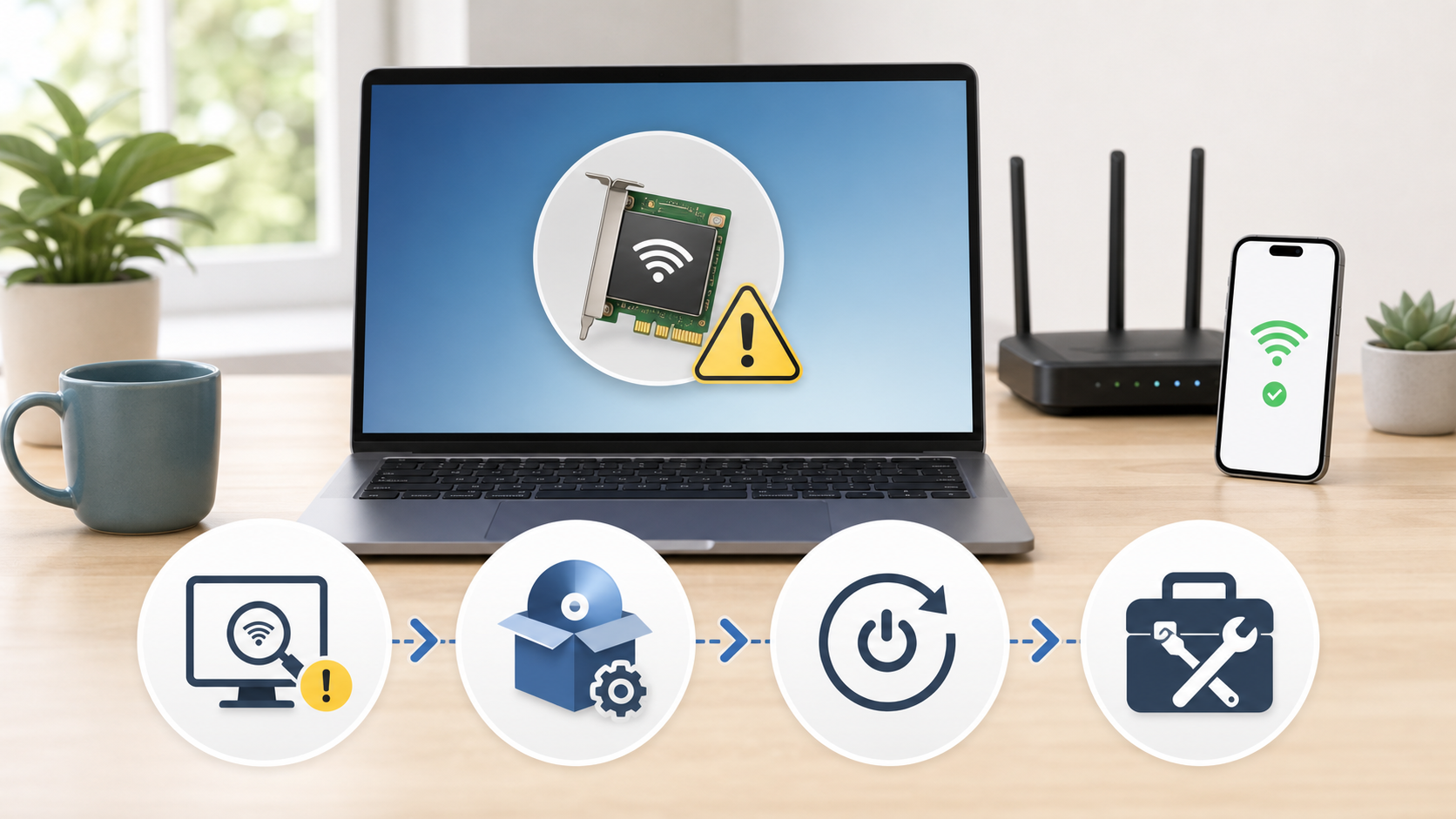
Confirm that the WiFi adapter really shows Code 10
Right-click Start, open Device Manager, expand Network adapters, then right-click the wireless adapter and select Properties. Read the full text under Device status on the General tab. Microsoft defines Code 10 as “This device cannot start.” A missing adapter, Code 22, Code 28, Code 43, or a normal device with no internet needs a different path.
| What you see | What it tells you | Best next check |
|---|---|---|
| Wireless adapter with a yellow warning and Code 10 | Windows detects the device but cannot start it | Record the model, driver version and full message |
| Adapter is disabled | The device may simply be turned off in Windows | Use Enable device once |
| Adapter is absent from Device Manager | Windows may not detect the hardware | Check the PC maker’s hardware guidance |
| Adapter starts normally, but one network fails | This is no longer a Code 10 start failure | Troubleshoot the saved network and internet path |
| WiFi and Bluetooth fail together | A shared card, driver package or hardware path may be involved | Record both Device Manager states |
If the adapter has no warning and Windows can scan for networks, use the one-device WiFi troubleshooting path. If Windows connects to WiFi but says there is no internet, follow the connected-without-internet checklist.
Save the adapter and PC details before changing drivers
Write down the PC maker, exact model, Windows version, wireless-adapter name, driver provider, driver date and driver version. On a laptop, the PC maker’s support page is usually the safest first source because its package may include model-specific power, Bluetooth or platform components. An Intel, Realtek, MediaTek or Qualcomm name alone does not identify the complete laptop configuration.
Before uninstalling anything, download the current supported wireless driver to the PC or a USB drive. Match the exact PC model, Windows version and architecture. If the computer has no working connection, use another PC to obtain the package from the manufacturer. Avoid third-party driver-download sites and unfamiliar driver-updater utilities. On a work or school computer, ask IT to provide or approve the package before making changes.
Restart Windows once
Save open work and choose Start > Power > Restart. Reopen Device Manager after Windows returns. If Code 10 is gone, test WiFi before making any other change. A normal restart is a low-disruption first check, not a promise that it will fix the underlying fault.
For Intel wireless devices, Intel also recommends a cold reboot. That is different from an ordinary restart: it involves a full shutdown and power removal. Follow the PC maker’s procedure for your exact model. Do not open a sealed laptop to remove its battery, hold the power button to force an abrupt shutdown, or copy a power-drain procedure for a different computer.
Do not factory-reset the router for a Device Manager Code 10 message. The adapter has to start before it can use the router. Another phone or laptop connecting normally to the same WiFi is useful confirmation that the home network is not the first repair target.
Install Windows and PC-maker updates
Check Windows Update and the support page for the exact PC model. In Windows 11, relevant optional drivers appear under Settings > Windows Update > Advanced options > Optional updates, when available. Microsoft’s optional-driver instructions distinguish them from automatically installed recommended drivers. Select the matching wireless update, not every unrelated driver in the list, and follow its restart instructions.
Microsoft’s Device Manager error-code guide recommends updating the driver for Code 10. Intel’s current wireless error-code guidance also tells users to check with the original equipment maker for the latest supported driver before using a generic package.
Roll back a driver only when the timing fits
If Code 10 began immediately after a wireless-driver update, open the adapter’s Driver tab and check whether Roll Back Driver is available. Microsoft’s driver rollback procedure requires administrator permissions. Choose the reason when prompted, confirm, then restart if asked. If the button is unavailable, do not download an arbitrary older package; ask the PC maker or IT which supported version to use.
If the error began after a larger Windows update, do not install a random old driver. Check the PC maker’s support notices and current package first. Managed work or school computers should be handed to the administrator because policy and approved driver versions may control the adapter.
Reinstall the WiFi adapter driver safely
Use this step after you have a backup driver. In Device Manager, right-click the wireless adapter and choose Uninstall device. If Windows offers to remove the driver package, use that option only when you already downloaded the correct replacement. Restart the PC. Windows may reinstall a working driver automatically. If it does not, run the saved package from the PC maker.
Microsoft’s Windows WiFi repair guide uses the same backup, uninstall and restart order. If Code 10 returns with the saved supported package, record that result and contact support instead of repeatedly removing the same device.
Use the error timing to narrow the cause
- If the error started after a driver update, compare the current package with the PC maker’s version.
- If it appears after sleep or wake, give the PC maker that timing and ask about model-specific wireless, chipset or firmware fixes.
- If WiFi and Bluetooth fail together, record both device states because they may share one card.
- If the adapter disappears completely, stop treating the problem as an ordinary saved-network failure.
- If a USB WiFi adapter works while the internal adapter stays on Code 10, the internet and router can be tested separately from the internal hardware.
A USB adapter is a useful diagnostic or temporary connection, but it does not prove whether the internal card, its connector, firmware or driver is at fault. Use a product supported by your Windows version and follow its maker’s installation instructions.
If the adapter starts normally and only the wireless controls remain stuck, use the separate Windows 11 airplane-mode troubleshooting guide. A working adapter with a stuck toggle is not the same finding as an active Code 10.
Keep network reset late
Windows Network reset removes installed network adapters and returns their settings to defaults. It can also require you to reinstall VPN software or virtual switches and reconnect saved networks. That is why Microsoft treats it as a late step.
For a persistent Code 10, a correct driver reinstall and hardware check matter more than TCP/IP, DNS or router settings. Consider Network reset only after the adapter can start or when Microsoft or the PC maker’s support flow specifically calls for it. Registry cleaners, copied device keys and unofficial firmware are not reasonable first-line repairs.
Before any reset, have the WiFi credentials, offline driver installer and a way to restore required VPN or virtual-network settings. Ask the administrator on a managed PC; do not remove required protection or access software as a test.
When the adapter may need hardware service
Contact the PC maker or a qualified repair provider when Code 10 remains after the correct supported driver, Windows updates and a restart, especially if the adapter vanishes intermittently, Bluetooth fails with it, the problem follows a drop or liquid exposure, or the maker’s own hardware test reports a fault.
Do not open a laptop, reseat an internal card or change firmware settings unless the manufacturer provides a procedure for that exact model and you understand the warranty and safety implications. For a work or school PC, report the full Code 10 message, adapter name, driver version and when the failure began to the administrator.
A short Code 10 repair order
- Confirm Code 10 on the wireless adapter and record the full device details.
- Verify that another device can use the home WiFi.
- Download the exact PC-maker driver before removing anything.
- Restart Windows once and recheck Device Manager.
- Check relevant supported Windows and wireless-driver updates.
- Roll back only when the error began with a recent driver and the option is available.
- Uninstall the adapter once, restart, and install the saved supported driver if needed.
- Use a supported USB adapter, if available, to test the connection separately.
- Seek model-specific service if Code 10 persists.
After a change, check both results: does Device Manager now report that the adapter is working, and can the PC connect to a known, authorized WiFi network and load a page? Keep a note of which change helped. If the device status is normal but internet access still fails, move to connection troubleshooting rather than repeating the Code 10 repairs.
Sources and method
- Microsoft: Error codes in Device Manager
- Microsoft: Fix WiFi connection issues in Windows
- Intel: Error-code guidance for Intel WiFi and Bluetooth devices
This guide uses the official Microsoft and Intel documents linked above, checked in October 2026. It is not a hands-on test of every adapter or a diagnosis of your PC. Intel’s instructions apply to its listed hardware, not every wireless card. BIOS resets, firmware work and operating-system reinstallation need model-specific support; they are not routine steps in this article.


