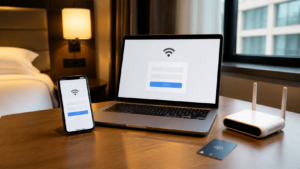
To connect a PS5 to hotel Wi-Fi, select the hotel’s network in the console’s internet settings, then complete any sign-in page required by the hotel. If a “How to Authenticate” prompt appears, follow its directions using your phone. The Wi-Fi password and the room sign-in page can be separate steps. Ask the front desk for the correct network name and login details before changing advanced settings.
This guide covers a PS5 console, not the separate PlayStation Portal handheld. Hotel portals and console software can differ; we have not tested every hotel’s network or a specific PS5 software version.
Before you connect: ask the hotel these questions
Confirm the exact guest Wi-Fi name, whether there is a network password, and whether a separate page asks for a room number, surname or access code. Ask whether consoles are supported, how many devices your booking allows, and whether gaming, a wired socket or a travel router is permitted. A network name that resembles the hotel’s is not proof that it belongs to the hotel.
If the hotel charges per device or sells upgraded internet, find out the total and any renewal period before accepting. Do not share your room details or account password with another guest or an unverified support contact.
Connect the PS5 to the guest network
- On the console, open Settings > Network > Settings > Set Up Internet Connection.
- Select the guest network confirmed by the hotel. If prompted for a Wi-Fi password, enter it as supplied.
- Follow the screen’s instructions. If a sign-in page appears, complete the hotel’s required terms or room verification. If the console offers How to Authenticate, use the phone method below.
- Return to the console and run its connection test. A Wi-Fi connection alone does not prove that the hotel has granted internet access.
PlayStation’s network setup instructions confirm the menu path and explain how to choose a wireless network. They also describe an Ethernet setup if the hotel explicitly offers a usable wired connection. Do not assume the socket behind the TV is an approved internet port.
Use your phone if “How to Authenticate” appears
A wikiHow PS5 hotel connection guide describes a phone-assisted flow. It is not a guarantee that every property or software version offers the same prompt. Follow the instructions on your own console rather than entering a code from a website.
- After the guest network connection attempt, select How to Authenticate if the PS5 displays it.
- On your phone, open Wi-Fi settings and choose the temporary network named on the console screen. Enter the passcode shown on that same screen. This temporary connection is for the authentication flow; it is not necessarily the hotel’s normal Wi-Fi name.
- If the phone presents a sign-in notification or page, open it and complete the hotel’s own login. Follow the displayed instructions, then wait for the console to finish.
- Run the connection test again. Reconnect the phone to your preferred network afterward, because it may still be joined to the temporary PS5 network.
If there is no prompt, the phone cannot see the temporary network, or the portal refuses the details, do not assume the account is broken. Note the exact message and ask hotel support whether that network supports console authentication. The hotel may be able to register the console under its own policy.
Find out where the connection stops
| What happens | What to check next |
|---|---|
| Guest network is missing | Confirm its exact name and ask whether service reaches the room. |
| Wi-Fi password is rejected | Check capitalization and whether the hotel changed the password. |
| Wi-Fi joins but internet fails | Look for the separate sign-in page, device limit or expired session. |
| Internet works but PSN fails | Check PlayStation service status and ask about network restrictions. |
Test the same hotel network on a phone if the property’s rules allow it. If the phone cannot get online either, tell the front desk before changing the PS5. If the phone works but the console does not, the portal may need a separate authorization for the console. Signing in on the phone alone does not necessarily authorize another device.
If the console connects and then repeatedly drops, compare its behavior with another device and use our PS5 Wi-Fi disconnection checklist. That is a different problem from a login page that has not been completed.
Ask support to register the console
Some hotel network providers can register a device that cannot complete their portal. Ask the front desk for the property’s approved process and whether it requires the PS5’s Wi-Fi MAC address. That address identifies the console’s network adapter to the network; it is not your PlayStation password. Use the address shown in the console’s connection information and follow the hotel’s instructions. Registration depends on the provider and is not available everywhere.
Do not copy another guest’s device address or try to evade a device limit or charge. If a registration expires during the stay, ask how to renew it rather than changing your console’s security settings.
Alternatives when the portal cannot be completed
Approved Ethernet: If the hotel offers a wired guest connection and confirms the port works for consoles, connect an Ethernet cable and select Set Up Wired LAN in the same PS5 network menu. A wired connection may still require the hotel’s authorization.
Phone hotspot: If your cellular plan allows tethering, turn on the phone’s hotspot and connect the PS5 to that network. First check remaining hotspot data and roaming charges. Game downloads and updates can be large, and hotspot speeds vary with signal, congestion and plan rules. Pause unnecessary downloads before testing.
Travel router: If the hotel permits one, a compatible travel router can connect to the property’s network and provide a separate local network for your console. You still have to complete the hotel’s login and follow its device and payment rules. Confirm that your particular router supports the hotel’s connection and portal before buying.
If PSN or one game still will not connect
Open the PlayStation Network service status page on another connected device. If the PS5 can access the internet but PlayStation services or one game’s online features fail, record any error code and ask the hotel’s network provider whether its network restricts gaming traffic. A guest usually cannot change the property’s router or port settings, and changing DNS is not a substitute for completing a hotel portal.
Before leaving, disconnect from the guest network if you do not want the console to rejoin automatically. Keep a copy of any paid Wi-Fi confirmation until you have checked the hotel bill.