If AirDrop is not working, start on both devices: turn on Wi-Fi and Bluetooth, disconnect Personal Hotspot, and bring the devices close together. Then wake the receiver and check who is allowed to send to it. A missing name, a request waiting for approval, and a transfer that fails after it begins are different problems, so note which one you see before changing settings.
This guide covers sharing between Apple devices. It uses Apple’s support instructions, not a claim that we tested your particular iPhone or Mac. If you are trying to send from an Android phone, use our Android-to-iPhone sharing guide instead; the setup can differ.
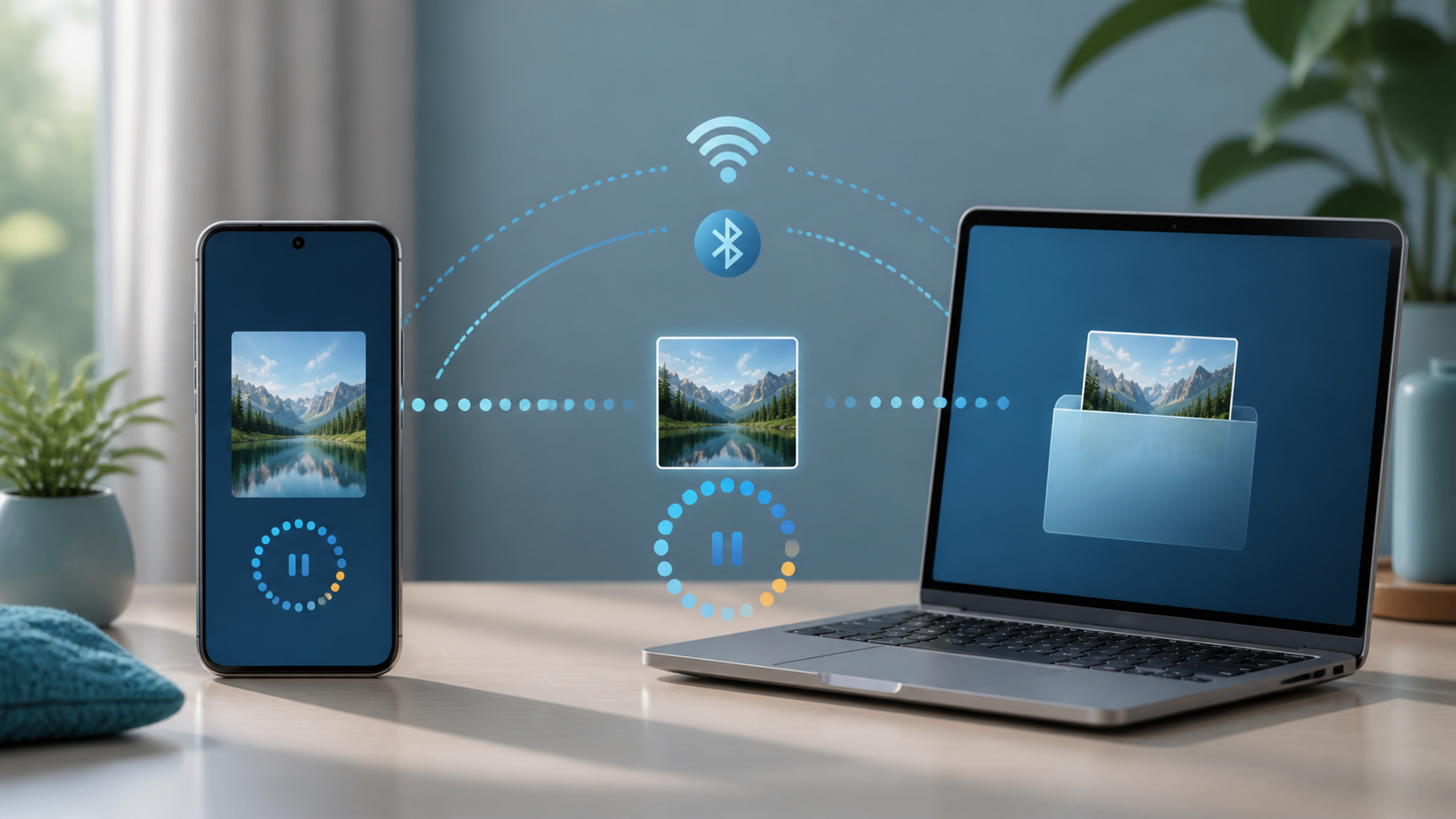
Find where the transfer stops
| What happens | Check first |
|---|---|
| The recipient is missing | Distance, both wireless radios and the receiver’s AirDrop setting. |
| The name appears but says Waiting | Unlock the receiver and look for an acceptance prompt or AirDrop code. |
| The transfer starts and fails | Try one small file, then test the other direction. |
| It says sent but the item seems missing | Look in the receiving app, Files or the Mac Downloads folder. |
| Only one device has a problem | Compare it with another sender or receiver before resetting anything. |
1. Bring the devices together and check both radios
Keep the iPhone, iPad or Mac nearby. Apple’s Mac guide specifies within 30 feet (10 meters); for the initial test, put them in the same room and keep the receiver awake and unlocked. Open the photo or document again and try a single small item.
On each device, check that Wi-Fi and Bluetooth are on. A working internet connection alone does not prove both are enabled: a phone may be using cellular data and a Mac may be connected by cable. AirDrop uses these wireless features even when you are not browsing the web.
If either device has Personal Hotspot on, Apple says to disconnect it before trying AirDrop. Check both sides, then reopen the share sheet. If a laptop connects to a phone hotspot but cannot browse, that is a different problem; follow the hotspot connected without internet checklist.
2. Make the receiving device discoverable
On iPhone or iPad, open Control Center, touch and hold the connectivity controls, tap AirDrop, and choose Everyone for 10 Minutes for the test. On Mac, open Control Center, select AirDrop and check its receiving options. The exact controls can vary with the system version.
Apple says the iPhone or iPad option reverts after ten minutes: to Contacts Only when signed in to an Apple Account, or Receiving Off when not signed in. Check again if a longer troubleshooting session runs past that window. Return to the privacy setting you prefer when finished.
If Everyone works but Contacts Only does not, inspect the sender’s contact card on the receiver. Apple’s Mac guide says that card needs the sender’s Apple Account email address or phone number. Confirm the detail with the sender, update the card if needed, then retry with Contacts Only.
3. Look for Accept or an AirDrop code
If the recipient appears but the sender sees Waiting, check the receiving screen for the request. The recipient may need to tap or click Accept. Apple notes that transfers between devices signed in to the same Apple Account are accepted automatically, so the prompt may not appear in that case.
For someone not in your contacts, newer software may request an AirDrop code. Apple’s current iPhone instructions say that when both devices use iOS 26.2 or later, the recipient can tap Get AirDrop Code and tell the sender the code to enter. The person is added to the Other Known List for 30 days; Apple explains how to mark them unknown sooner. Do not send a code to someone you do not trust.
On a Mac, a request can appear in the AirDrop window in Finder instead of Notification Center. Open Finder and select AirDrop if you cannot find the prompt. If the devices remain stuck, cancel the attempt and send one small photo again rather than waiting on a large batch.
4. Test the other direction and another file
Send a small item from device B back to device A. If one direction works, compare the original receiver’s visibility and approval with the other device’s settings. If possible, try a third compatible device: one sender failing with multiple receivers suggests a different place to look than several senders failing with the same receiver. These tests narrow the problem; they do not prove a hardware fault.
A single photo is easier to observe than a long video or a folder of files. If a small item works but a particular file does not, note its size and where it is stored. Make sure the item can actually be opened on the sending device, then try again. Avoid deleting the original while troubleshooting.
5. Restart, update and check restrictions
Restart the device that appears to be failing, or both if the comparison was inconclusive. Apple’s Mac guide recommends a restart when AirDrop does not work. Afterward, recheck Wi-Fi, Bluetooth and the receiving setting before repeating the same small-file test.
Check for available software updates on each device. Back up important data and allow enough time for an update to finish. If AirDrop or its receiving control is unavailable on a child’s, school’s or employer’s device, ask the person who manages it about restrictions. Do not remove a management profile just to run a test.
Where did a successful transfer go?
Apple says many items open or save in the app that handles them. Photos may appear in Photos; some items on iPhone or iPad may be in Files. On Mac, check Downloads and the receiving app. Search for the file name before sending another copy.
AirDrop can continue over the internet after a transfer begins and the devices leave wireless range on supported devices. That is separate from finding a nearby device in the first place. For what this may mean for a cellular allowance, see whether AirDrop uses mobile data.
When to contact Apple
Record the device models and software versions, whether the recipient appears, and whether the failure happens before approval or during transfer. Tell support which direction worked, whether a small file succeeded, and whether disconnecting Personal Hotspot changed anything. Avoid a factory reset or network reset as a first step: those changes can remove useful settings without identifying the cause.
Apple’s iPhone and iPad AirDrop instructions cover nearby sharing and the code flow. Its Mac AirDrop guide covers receiving settings, the Finder window and the restart check.