
If your Roku keeps disconnecting from WiFi after it has already been set up, check what else fails at the same moment. A Roku can leave the wireless network, stay on WiFi while the internet drops, or remain online while one streaming service fails. Those problems look similar on a television but need different fixes.
Do not start with a factory reset. Use Roku’s connection check, compare another device and record whether the drop follows a room, time, app or restart.
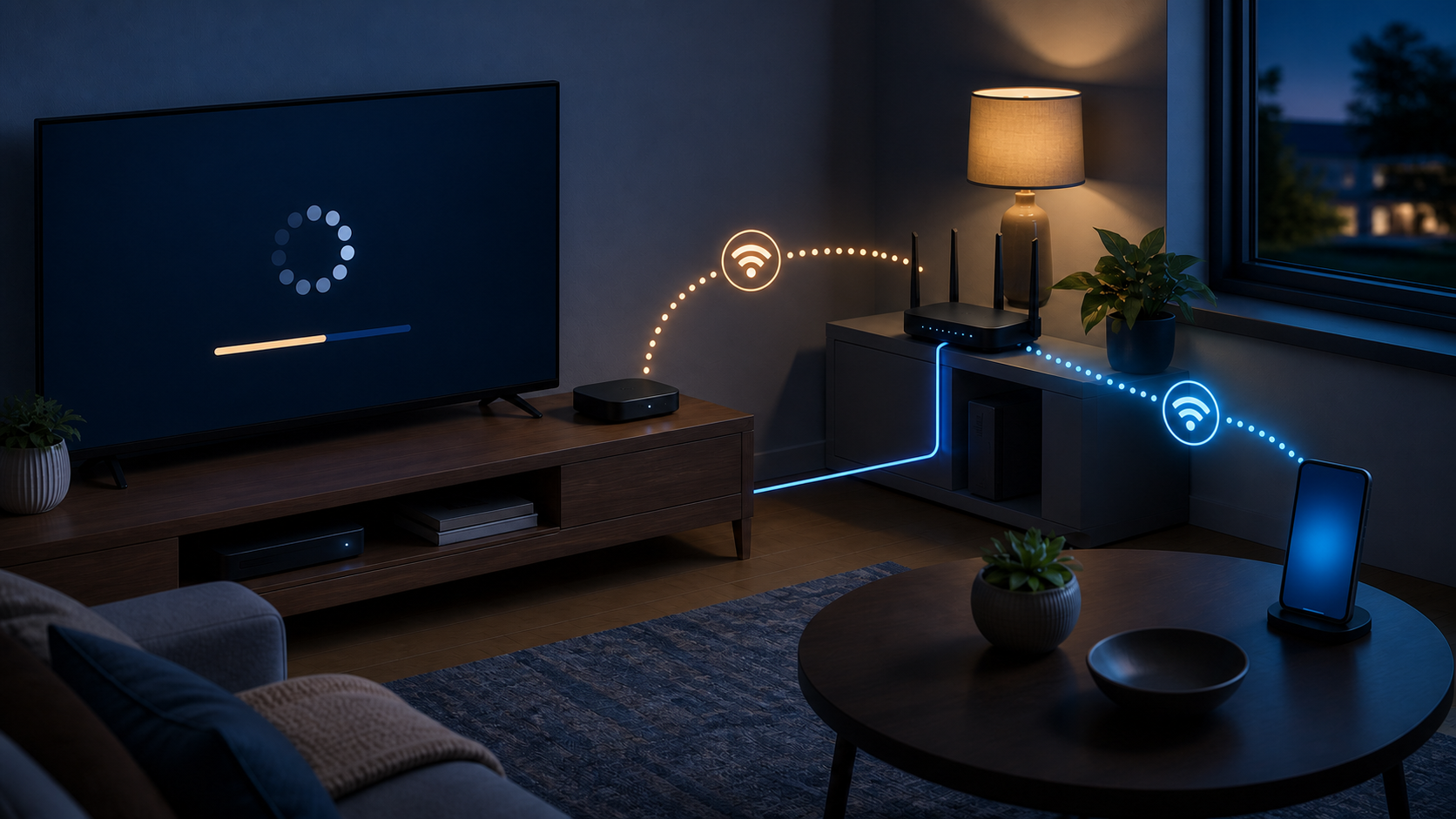
What stops working when Roku disconnects?
| What happens | Likely area | Best first check |
|---|---|---|
| Roku loses WiFi but a nearby phone works | Roku, signal or saved network | Run Roku’s connection check |
| Every device loses internet together | Router, modem or provider | Check equipment and provider status |
| Only one channel stops playing | Channel, account or streaming service | Open another channel |
| Roku buffers and reports weak signal | Wireless path around the television | Test placement and signal |
| Drop begins after sleep or power-on | Roku software, power or router reconnect | Record the wake pattern and restart once |
| Ethernet works through the failure period | WiFi path | Focus on placement and router wireless |
1. Run the built-in connection check
Press Home, then open Settings > Network > Check connection. Roku’s connection-test guide explains that this checks the home-network link and internet access separately. Record which step fails and any displayed error code. If Roku is disconnected, use Set up connection in the Network menu to reconnect, then check again.
- A failed wireless step points toward the Roku-to-router link.
- A successful wireless step with a failed internet step points toward the router, modem or provider path.
- A successful check while one channel fails points toward that channel or service.
- A result that changes by room or device position points toward signal or obstruction.
2. Compare another device immediately
On a computer connected to the same WiFi, open two ordinary websites while Roku is failing. A phone also works for comparison, but confirm it is using WiFi rather than silently falling back to cellular data.
- If several devices fail, use the whole-home WiFi disconnect checklist.
- If only Roku fails, follow the one-device WiFi comparison for the broader device path.
- If every device works and only one Roku channel fails, check that service before changing the router.
A successful test on one device is useful, but it does not prove that every corner of the room has the same reception. Compare close to the television before ruling out the wireless link.
3. Separate buffering from a WiFi disconnect
A spinning loading circle is not the same evidence as a failed wireless connection test. Roku’s playback troubleshooting guide recommends checking other titles when one movie or show will not play.
Watch the displayed message, rerun Check connection and try another channel. If the network check passes but video pauses in one service, work on that service. If the wireless check fails, continue with placement and signal tests.
4. Test the area behind the television
Open Settings > Network > About and note the signal rating. A player tucked behind a TV or inside a cabinet may receive a different signal from a phone held in front of the screen. Roku’s wireless improvement guide recommends checking placement and obstructions.
Try a more open position using only the mounting method or compatible extension allowed for that model. Do not move a wall-mounted TV, stretch cables or block ventilation. Compare the signal rating and watch through the usual failure period; opening the home screen once is not a useful stability test.
5. Check the repeating pattern
| Pattern | What to compare |
|---|---|
| After the Roku wakes | System restart, software update and router reconnect timing |
| Same time each evening | Household traffic, provider congestion and router schedules |
| Only during high-quality video | Signal, internet stability and Ethernet result |
| After a router replacement | Network name, password, security and client rules |
| Only one Roku in the home | Player location, power and device software |
| All Roku devices but not phones | Router compatibility and recent network changes |
Record the time, connection-check result, affected channels and whether another device failed. Also note whether the Roku recovered by itself or needed a restart. Two or three observations are more useful than changing several settings at once.
6. Restart Roku and the network once
Use Settings > System > Power > System restart. If there is no Power submenu, go directly to System restart. Roku’s system-restart instructions distinguish this from simply turning a Roku TV off with its power button.
Roku’s WiFi troubleshooting instructions also include restarting the router and modem or combined gateway. Follow your provider’s restart instructions, and wait until nobody depends on the connection for a call, safety device or update. Do not power-cycle a fiber terminal unless the provider directs it. Never confuse Restart with a recessed Reset button that can erase network settings.
If a restart helps only briefly, record how long the improvement lasts. Repeating it every evening may hide the pattern without addressing the cause.
Does it drop WiFi or restart when the TV turns on?
Look for the Roku startup logo rather than assuming every delay is a new WiFi fault. Roku explains that players powered from a TV’s USB port can lose power with the TV; some TV USB ports also cannot provide enough power. This applies to an external player, not the power supply inside a Roku TV.
For a compatible player, use the manufacturer-specified power cable and wall adapter as instructed for that model. Do not substitute an unknown charger or dismantle the device. A low-power warning or repeated startup deserves a power check; a WiFi error by itself does not establish a bad power supply.
7. Check for a Roku software update
When the connection is stable, open Settings > System > Software update > Check now. Some software versions label this System update. Roku’s manual-update instructions explain that this checks device software and app updates. Keep power connected until installation and any restart finish.
If the problem began immediately after an update, record the software version and exact model. Do not install unofficial firmware or use a hidden menu from an old forum post. Check current Roku support and known-issue notices.
8. Compare Ethernet when the model supports it
Use the built-in Ethernet port if your model has one. Otherwise check Roku’s USB-to-Ethernet compatibility instructions before buying an adapter. A USB socket does not mean every Roku player or TV supports wired networking.
- If wired playback stays stable through the usual failure time while wireless playback does not, investigate the wireless path next. This comparison alone does not identify a faulty part.
- If other wired and WiFi devices lose internet together, check the home connection and provider status.
- If both connection tests pass but one channel fails, check that channel and account.
Keep temporary cables out of walkways and do not force an unsupported adapter into a television or player.
9. Review only recent router changes
A replacement router, changed network name, new password, guest-network move, firmware update or security change can explain a problem that started suddenly. Confirm the intended network and password on another device first.
- Check whether Roku is on the intended home network rather than an old or guest network.
- Review any device-pause rule or bedtime schedule that could match the drop time.
- Check router updates with the manufacturer, not an unofficial download site.
- Do not disable encryption, the firewall or other security protections as a broad fix.
- If a setting must change, document one reversible change at a time and compare the result.
10. Reset the network connection before the whole device
If only Roku still fails after these checks, consider its network-only reset rather than erasing the whole device. Roku lists Settings > System > Advanced system settings > Network connection reset > Reset connection in its wireless guide. Use the instructions for your exact model and have the WiFi password and a working remote ready so you can reconnect afterward.
Retest through the usual drop time after reconnecting. Do not select Factory reset by mistake. That is a separate, destructive step requiring setup again; it is not the next automatic response to every connection error. Ask Roku support before taking it if you are unsure.
When to contact Roku, the router maker or the ISP
- Contact Roku when one updated device drops from more than one known-working network while other devices stay connected.
- Contact the router maker when several Roku devices fail after a specific firmware or security change while other clients remain stable.
- Contact the ISP when WiFi and Ethernet devices lose internet together or the modem or fiber terminal loses its online state.
- Contact the streaming service when Roku remains connected and only that channel fails.
Provide the Roku model, software version, error code, connection-check result, timestamps, router model and tests already completed. Never send account passwords or router administration credentials.


