
If your AirPods play sound but nobody can hear you, do not start by resetting the router. First find out whether the microphone fails in one app, every app, one source device or only one earbud. That distinction usually points to the next useful check.
This guide covers AirPods and AirPods Pro earbuds on iPhone/iPad, Mac and Windows 11, not AirPods Max. Check that the calling app is not muted, then confirm its microphone input and access. Resetting belongs near the end: it cannot grant an app permission or choose the right input for it.
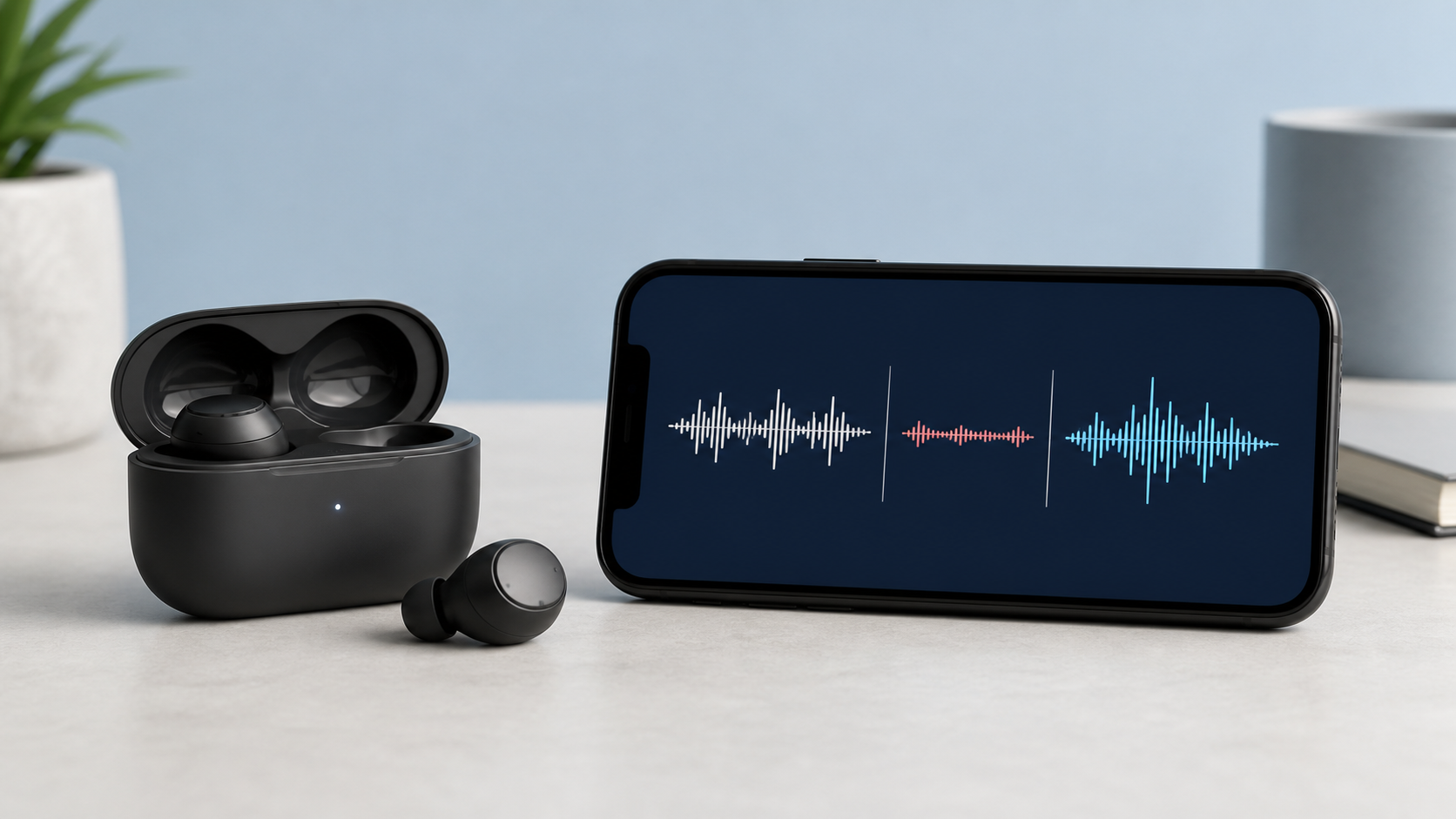
Match the symptom to the first test
| What happens | First place to look | Useful test |
|---|---|---|
| One app cannot hear you | App access or its input setting | Record in a second app |
| Every app fails on one phone | Device input or Bluetooth pairing | Try the AirPods on another device |
| Only one AirPod works as a microphone | Microphone side selection or one earbud | Test left and right separately |
| Your voice is faint or muffled | Blocked microphone openings or fit | Compare a short recording before cleaning |
| Audio also cuts out | Wireless link rather than input alone | Test close to the source device |
1. Make a short microphone test
Connect and wear the AirPods. Confirm that they are the selected input wherever the device or app exposes that control, then record a non-private test sentence. Apple’s Voice Memos guide supports recording through a compatible headset. That does not mean every recording automatically uses AirPods: check the input or call-audio route rather than relying on a moving waveform.
Keep the earbuds in the same position and use the same phrase for each comparison. Play back at a low, comfortable volume. A good recording proves that the selected recording path worked, not that every calling app uses it. Do not upload private conversations to an unfamiliar microphone-test website.
2. Compare another app
Try one recorder and one communication app. If the recorder hears you but a meeting or calling app does not, leave the AirPods pairing alone. Open that app’s audio settings and select the AirPods microphone if an input menu is available.
Finish calls and save recordings before quitting and reopening the failing app. A browser meeting may also need permission for that specific site. Grant access only to the service you intend to use; on a managed device, ask IT about a blocked control rather than bypassing its policy.
3. Check microphone access
Apple’s iPhone microphone-access guide, Mac recording-permission guide and Microsoft’s Windows microphone troubleshooting describe these controls. Select the app you actually use, not every app in the list.
| Device | Microphone permission | What to check |
|---|---|---|
| iPhone or iPad | Settings > Privacy & Security > Microphone | The intended app has access |
| Mac with Ventura or later | System Settings > Privacy & Security > Microphone | Quit the recording app, allow it, then reopen it |
| Windows 11 | Settings > Privacy & security > Microphone | Device access, app access and the relevant desktop-app control |
The iPhone list contains apps that requested access. If your app is absent, start its documented microphone setup and review the request. Windows desktop apps may not appear as individual switches; Microsoft’s guide explains the broader desktop-app access setting. Do not assume every operating-system version has identical controls.
4. Select the correct input device
A computer can send sound to AirPods while taking voice from another microphone. On Mac, use System Settings > Sound > Input and select AirPods if listed. Apple’s sound-input instructions distinguish this from the Output panel.
On Windows 11, open Settings > System > Sound > Input. Select the device for speaking or recording, then open its properties and use Microphone test: Start test, speak normally, Stop test and play the recorded sample. If available, adjust input volume rather than speaker volume. If AirPods do not appear as an input, check pairing using Microsoft’s linked guide. Avoid random driver utilities or removing every audio device.
Some calling apps override the system choice. Check the app’s microphone menu after confirming the operating system setting. If the input name changes when you reconnect the AirPods, select it again rather than assuming the app followed automatically.
5. Check the AirPods microphone setting
Wear the connected earbuds. On iPhone or iPad, open Settings and tap your AirPods near the top; on Mac, open System Settings and choose AirPods. Open Microphone, or Audio & Routing first if Microphone is hidden. Apple’s AirPods settings guide describes Automatically Switch AirPods, Always Left AirPod and Always Right AirPod.
Automatic allows either earbud to be the microphone. A fixed Left or Right setting keeps that side selected even if you remove it or put it in the case. Note your original choice, try Automatic and repeat the recording with the earbuds worn normally. This is a microphone choice, not the left-right playback balance.
6. Charge both AirPods and the case
Use Apple’s AirPods charging guide: put the earbuds in their case and close the lid. Check the battery status on your paired Apple device rather than judging both earbuds from a Bluetooth connection label alone. Charge the case with a compatible method if needed.
After charging, test with both AirPods, then with one at a time. Keep the test phrase and app the same so you are comparing the earbuds rather than two different call conditions.
7. Test the left and right AirPod separately
With both earbuds charged, connected and worn, set Microphone to Always Left AirPod and record. Repeat with Always Right AirPod in the same app. A consistent difference is useful evidence for support, but does not prove that a particular component has failed or rule out every software issue.
Return the setting to Automatic after the comparison unless you have a reason to keep one side selected. The AirPods user guide is the safest place to confirm controls that differ by model and software version.
8. Inspect and clean the microphone openings
Look for visible debris without poking at it. Use Apple’s model-specific instructions for cleaning AirPods or cleaning AirPods Pro. The approved mesh areas and methods differ by generation.
Do not push sharp objects into openings, run the earbuds under a tap or put liquid in charging ports. Do not improvise a soaking method. Follow the correct guide’s tools, permitted areas and drying time before charging or testing. If you cannot identify the model or the openings are damaged, ask Apple rather than trying a generic cleaning trick.
9. Restart the source device
Save work and finish calls, recordings and updates before restarting the source device. Reconnect AirPods and repeat the same input test. A restart can be worth trying, but a successful result does not establish which process caused the fault.
If one app still fails, check for a supported update and follow its publisher’s troubleshooting. Back up local recordings and confirm account access before any reinstall; do not delete app data as the first test.
10. Forget and pair the AirPods again
Try unpairing only after the smaller checks. Apple’s unpairing guide warns that Forget This Device on iPhone or iPad removes AirPods from all devices signed in to the same Apple Account. Make sure you can pair again and have another way to read the instructions before confirming.
After pairing again, reselect the input in the computer and calling app. Do not switch off a whole computer’s Bluetooth just to test the earbuds; that can disconnect a keyboard or mouse too. A separate one-device WiFi failure needs its own checks, not an AirPods reset.
11. Try a second source device
Use another compatible device you control and repeat the recording with AirPods selected as input. Normal input there gives you a reason to revisit the first device’s settings. A failure on both is useful to report, but still does not prove hardware damage. Keep the test close to the source and check the actual input each time.
If local recordings are clear but internet calls break up, record that as a different symptom. Only use the home WiFi disconnection checklist if the source device also loses WiFi. If you cannot hear playback at all, follow the separate AirPods connected but no sound guide.
12. Reset only after the smaller tests
If the microphone fails in every app on more than one device, both earbuds are charged, the openings are clean and pairing again did not help, use Apple’s model-specific reset guide. The sequence and light behavior can differ across AirPods models.
After the reset, pair to one source device and test a recorder before restoring every call app and device connection. That clean test shows whether the reset changed the input problem.
When to ask Apple for service
Contact Apple if the same microphone fault remains after the documented checks, or the earbuds or case are damaged. The linked cleaning guides include a service route when cleaning does not help. Do not open an earbud or use unofficial firmware software to investigate.
Bring the result of your left and right tests, the devices tried and whether playback still works. Those details are more useful than saying only that calls sound bad, and they reduce the chance of repeating the same basic checks.
This guide uses the linked Apple and Microsoft instructions, not measured tests of every AirPods generation. A waveform illustration or one comparison is not a diagnosis. Controls and supported features depend on your earbuds, source device and software version.


