
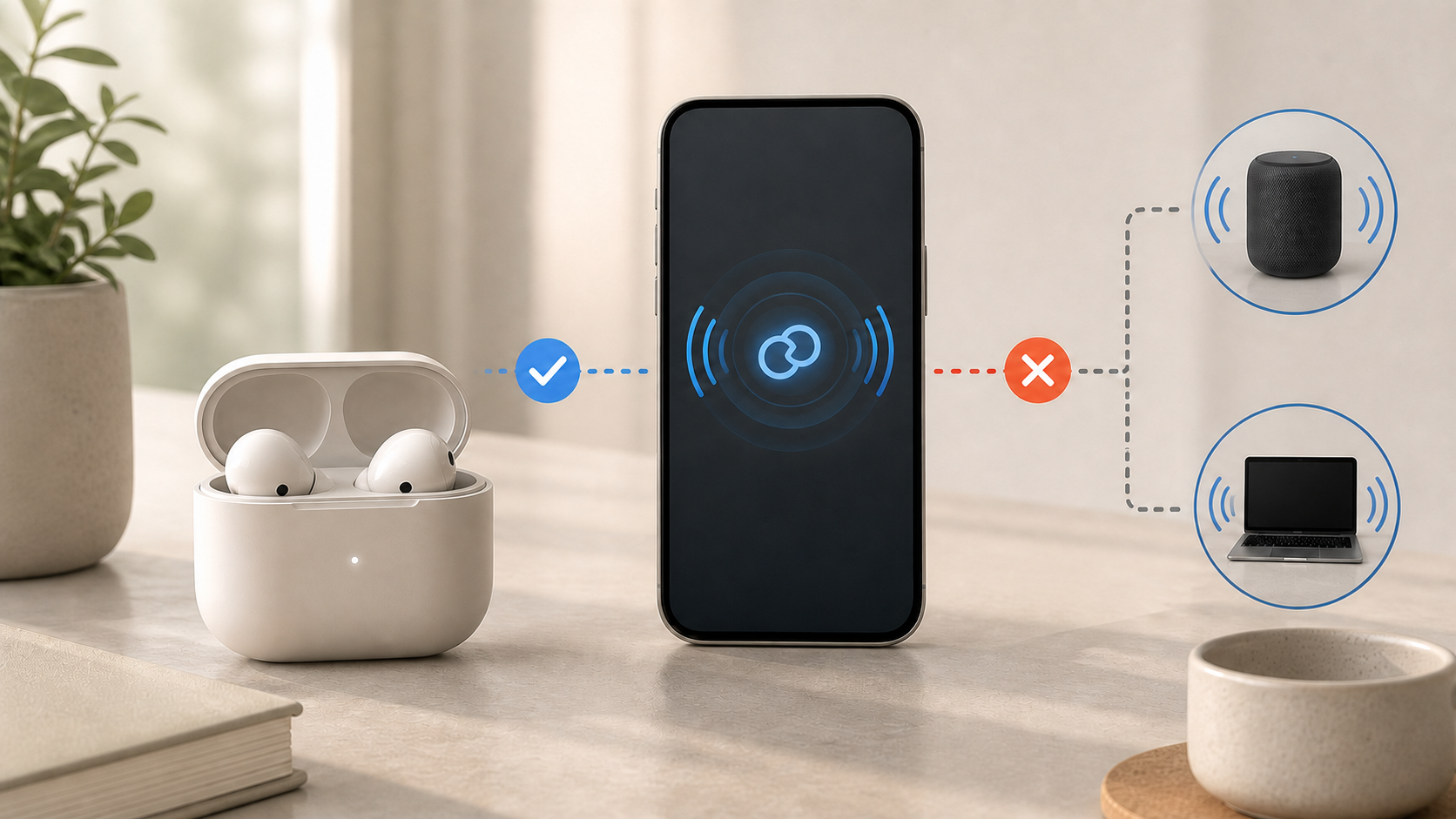
AirPods can show as connected while your device sends sound elsewhere. Play a downloaded track, select the AirPods as the current audio output and gradually raise the media volume from a low level. If only one earbud is silent, check that both are charging and compare the left and right sides before resetting them.
These checks are for AirPods and AirPods Pro earbuds, not the over-ear AirPods Max. The output steps cover iPhone/iPad, Mac and Windows 11. A Bluetooth status label alone does not confirm that an app is playing or that the earbuds are the selected sound destination.
Match the symptom to the first test
| What happens | First check | What the comparison tells you |
|---|---|---|
| Both AirPods are silent in every app | Select AirPods as the audio output | Whether sound was going to a different destination |
| Only one AirPod is silent | Check charging, then test each side | Whether the problem affects one earbud or the pair |
| One app is silent | Play a local file in another app | Whether to focus on that app before changing pairing |
| Sound changes devices | Select the source manually | Whether output selection or automatic switching is involved |
| The Bluetooth connection also drops | Test near the source device | Whether this is a separate connection problem |
1. Confirm that audio is playing
Pause the current app and play a downloaded track you know works. Use non-private audio because it may play through speakers while you change outputs. If playback is paused or the app is buffering, fix that first. A moving progress control is useful, but it does not prove the selected output is correct.
Try a second app. If another app plays normally, check the failing app’s playback, volume and own speaker selector before changing Bluetooth. Finish calls or recordings and save work before closing an app or restarting the device.
2. Select AirPods as the current audio output
Select the destination on the device actually playing the audio. A connected monitor, speaker or other headset may still be selected. Use the sound output control, not just the Bluetooth list.
Apple’s AirPods switching guide covers iPhone and iPad selection. Its Mac sound-output guide and Microsoft’s Bluetooth connected but no sound guide provide the computer checks below.
| Source device | Where to select AirPods | Then check |
|---|---|---|
| iPhone or iPad | AirPlay/output button in Now Playing, the Lock Screen or Control Center | AirPods are selected and media volume is audible |
| Mac | System Settings > Sound > Output | AirPods, output volume and Mute |
| Windows 11 | Settings > System > Sound > Output | AirPods rather than monitor or laptop speakers |
If the AirPods are absent from the output list, use the platform’s connection troubleshooting first. On Windows 11, Microsoft’s guide also covers the Get Help Bluetooth troubleshooter and supported driver updates. Use Windows Update or the PC maker’s support, not a random AirPods driver download. On a work-managed computer, ask IT before changing drivers or pairing policy.
3. Raise media volume carefully
Check the source device and the playing app’s volume, not just the ringtone or alert level. On Mac, Apple distinguishes the output volume, Mute control and app volume. A quiet or muted app can stay silent even when the earbuds are selected.
Start low and increase gradually while the track plays. Do not turn everything to maximum or bypass hearing-protection settings to diagnose silence. If you use customized accessibility audio settings, note them and preserve the settings you need.
4. Put both AirPods in the case and check charge
Apple’s one-AirPod sound checks say to charge the case fully, then both earbuds for 30 seconds. Open the case near the paired iPhone or iPad and confirm that both are charging.
If a charging connection needs cleaning, follow the exact model’s cleaning guide below. Do not put metal tools or liquid in a charging port. Stop using damaged earbuds or a damaged case and ask Apple for help.
5. Test the left and right AirPod separately
Put the affected AirPod in its appropriate ear. Keep the other in the case with the lid closed, confirm the connection and play the test track. Repeat for the other side if needed.
If the affected earbud works, return both to the case for another 30-second charge and retest the pair, as Apple describes. Record the result; it does not identify a failed component.
6. Center the left-right audio balance
On iPhone or iPad, check Settings > Accessibility > Audio & Visual > Balance. Apple’s one-earbud guide recommends the center position for an unexpected left-right difference.
Note any intentional adjustment before testing and restore it if it serves your needs. Do not compensate for a silent earbud by making the other side much louder. Mac users can also review Balance in the Sound output settings described above.
7. Inspect the speaker mesh without using sharp tools
Compare the visible speaker meshes under good light. Debris can make one side sound extremely quiet rather than completely disconnected. Do not push a pin, blade or other sharp object into the mesh, and do not run the AirPods under water.
Use the correct Apple guide for cleaning AirPods or cleaning AirPods Pro. Permitted areas and methods vary by generation. Do not improvise a soaking method or put liquid in charging ports; follow the exact instructions and drying time before use or charging.
8. Check automatic switching without disabling other controls
Pause other playback you control, then manually select the AirPods on the intended source. On compatible Apple devices, automatic switching depends on the supported setup and the same Apple Account. Do not assume that any nearby television or someone else’s phone is using that feature.
If unwanted switching is the symptom, Apple’s switching guide shows the device-specific Connect to This iPhone/iPad or Mac preference and the When Last Connected option. Note the original choice so you can restore Automatically. Avoid switching off a whole computer’s Bluetooth radio, which could disconnect its keyboard or mouse as well.
9. Restart the source device and reconnect
Save work and finish calls, recordings or updates before restarting the source device. Then select the AirPods as output and retest. A restart is a troubleshooting step, not proof that a particular audio process caused the problem. Do not reset the router or erase saved networks for this symptom.
If smaller checks fail, consider unpairing and pairing again. Apple’s restart, unpair and reset guide warns that forgetting AirPods on iPhone or iPad removes them from the other devices using the same Apple Account. Make sure you can pair again and have another way to follow the instructions before confirming. Do not do this in the middle of a call.
10. Test the AirPods with another trusted device
Use another compatible device you control and the same local track, if available. If the earbuds work there, revisit the original source’s output and app settings. If the same fault persists, report both results to Apple. One successful or failed comparison does not prove which hardware part is responsible.
Keep the Bluetooth audio connection separate from internet playback. A downloaded file can help distinguish the audio path from a streaming app waiting for data. Avoid changing a required work VPN or security setting merely because streaming audio has stopped.
11. Reset AirPods only after the smaller checks
Apple’s current model-specific reset guide separates cases with a rear setup button from generations using timed taps on the front. Follow the instructions for your exact model and reconnect afterward. Do not copy a rear-button sequence onto a case that has no such button. Note any custom settings you need to restore.
Do not install unofficial firmware utilities or repeatedly reset every device in the home. If the documented reset does not help, contact Apple with the model, source device and software, whether one or both sides fail, and the checks already completed. If you recently replaced one earbud, use Apple’s linked replacement setup instructions rather than treating it as an ordinary silent pair.
When this is a connection problem instead
If the AirPods repeatedly disconnect, record that separately from silence while they remain selected as output. Test near the source without changing the whole household network. For a Windows PC, the linked Microsoft guide provides Bluetooth troubleshooting; use its steps for your version rather than a generic registry fix.
If the source device also loses WiFi and other wireless functions, use the one-device WiFi checklist. If many devices lose home WiFi together, follow the whole-home disconnection guide. Do not change router channels solely because AirPods are connected but silent.
Sources and scope
This guide uses the linked Apple and Microsoft documentation, not hands-on tests of every AirPods generation or a measured success rate. Menu labels and features depend on the device and software. Cleaning, replacement pairing and reset procedures must match the exact earbuds and case; AirPods Max needs its own instructions.


