
If airplane mode is stuck on in Windows 11, compare the taskbar control with Settings > Network & internet > Airplane mode, check the laptop’s documented wireless switch, then save your work and restart. If it still will not turn off, check whether Windows detects the WiFi and Bluetooth adapters before changing drivers. A missing adapter and a stuck control need different follow-up checks.
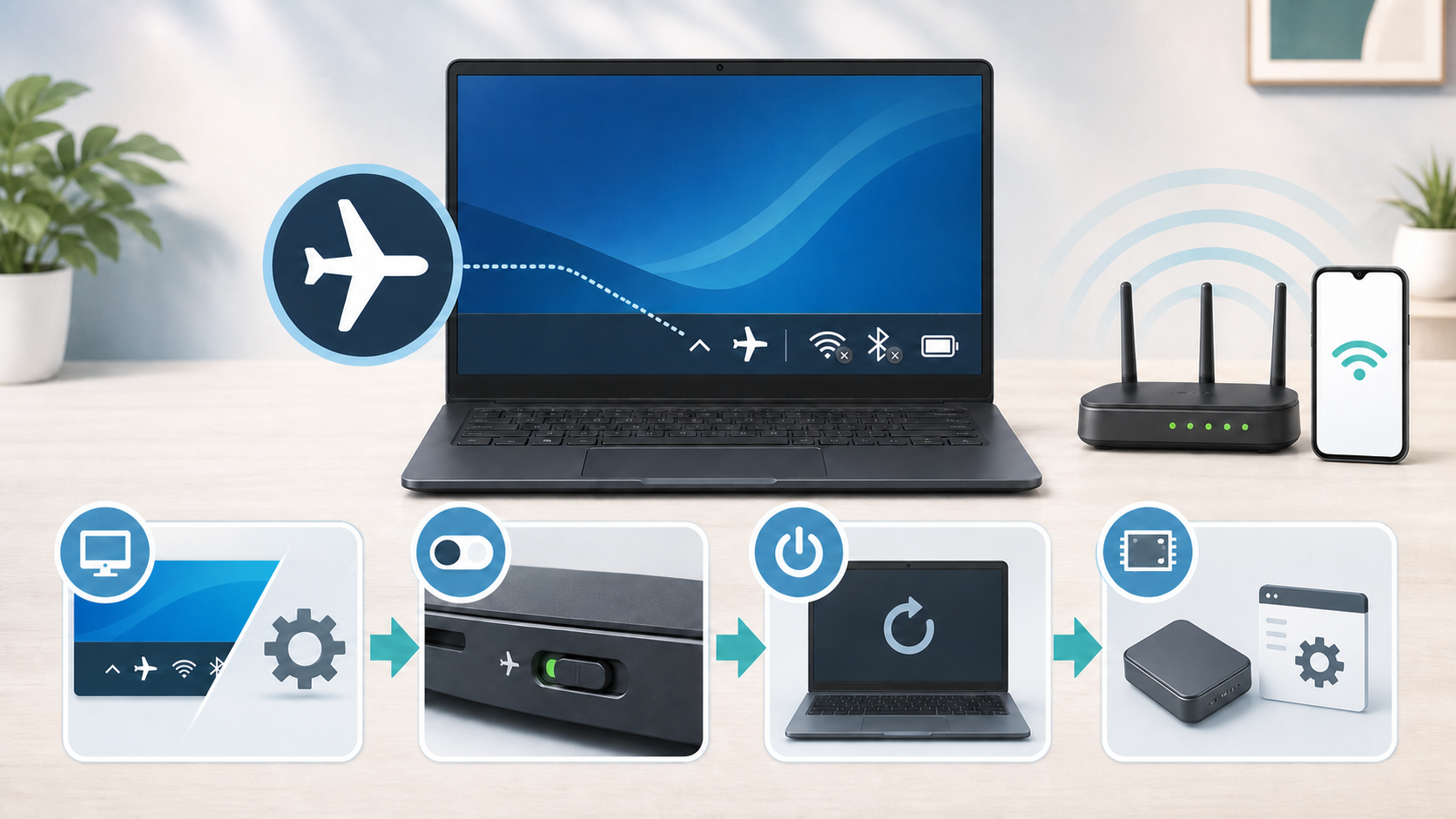
A router restart cannot operate the laptop’s airplane-mode switch. Start on the PC. On a work or school laptop, stop at any managed-setting message and contact the administrator. If you are still aboard an aircraft, follow the crew’s wireless instructions before enabling any radio.
First, confirm what is stuck
Open Quick Settings with Windows + A, or select the taskbar’s network, sound or battery area. Note whether the Airplane mode control is on, greyed out or missing. Then compare the Airplane mode page in Settings. Microsoft documents both control locations in its airplane-mode settings guide. A disagreement is useful to record, but it does not prove a particular cause.
| What you see | Next check |
|---|---|
| Quick Settings says on, Settings says off | Close and reopen the panel; save work and restart if they still disagree |
| Both controls stay on | Try the Settings toggle once, then the model’s documented wireless switch |
| The control is greyed out or unavailable | Record any management message and check the hardware and adapter state |
| Airplane mode is off, but WiFi or Bluetooth is off | Check that radio’s own switch separately |
| Airplane mode is off, but an adapter is missing | Follow the adapter’s detection and driver checks |
Microsoft also notes that Windows remembers the WiFi and Bluetooth state used with airplane mode. Airplane mode can therefore be off while WiFi or Bluetooth remains off. Check those two controls separately before assuming the airplane-mode switch failed.
Use the hardware wireless control once
Some laptops have a physical wireless switch, a side slider or a function-key shortcut marked with an airplane or antenna symbol. The exact key varies by model. Check the keyboard and the laptop manual instead of trying a random key combination. Dell’s wireless-controls guide includes a physical-switch check for affected Dell laptops; it is not evidence that every laptop has one.
If you find a switch, move it to the enabled position once. If it is a function key, press the documented combination once and give Windows several seconds to update. Repeatedly tapping the key can leave you unsure which state you selected.
Restart Windows, not just the lid
Save your work, close open apps, then choose Start > Power > Restart. Closing the lid is not the same as selecting Restart. Use the normal Windows control rather than holding the power button to force the laptop off.
After the restart, compare Quick Settings with the Airplane mode page again. If the toggle now works, turn WiFi on and reconnect. If the laptop sees your network but cannot join, use the narrower steps in our guide to fix WiFi that fails on one device.
If Bluetooth itself is missing or greyed out, Microsoft’s current missing-Bluetooth guide gives a separate full-power-off test for Windows 11: save your work, hold Shift while selecting Start > Power > Shut down, wait one minute after the PC turns off, then power it on. This is not a forced shutdown or a guaranteed cure for airplane mode. Use the maker’s instructions instead if your managed device has a different procedure.
Run the built-in troubleshooter
For missing WiFi, open Get Help and run the Network and Internet troubleshooter. Use its Bluetooth troubleshooter when that radio is missing instead. Microsoft recommends these Windows 11 tools in the linked support pages. Follow the prompts and record the result before applying another change.
Read the result before accepting a broad reset. A troubleshooter that says no wireless hardware was found points you toward the adapter or its driver. A result about a network password or IP address belongs to a later connection stage and does not explain a stuck airplane-mode control.
Check whether Windows can see the radios
Right-click Start and open Device Manager. Expand Network adapters and look for the WiFi adapter. Expand Bluetooth as well if Bluetooth disappeared at the same time.
- If an adapter has a down-arrow icon, right-click it and choose Enable device.
- If it has a yellow warning, open Properties and record the Device status message before changing anything.
- If the adapter appears only under View > Show hidden devices, Windows may not currently detect the hardware.
- If both WiFi and Bluetooth are missing, check the laptop’s hardware switch and manufacturer support page before blaming your home network.
If you use an external USB WiFi adapter, check its connection and supported USB-port requirements. Leave internal wireless-card work to the manufacturer or a qualified repair service; opening a laptop is not a normal next step for a greyed-out control.
Install the driver for the exact laptop model
Use a device you control to visit the laptop manufacturer’s support page. Match the exact laptop model and Windows version before downloading the appropriate WiFi or Bluetooth driver. Do not assume two drivers or two similar laptop models are interchangeable. Avoid unrelated driver-download sites.
If supported updates and a restart do not help, follow the maker’s adapter-reinstallation procedure. Have the correct installer available offline before removing anything; automatic driver recovery is not something to rely on without a backup. On a school or work PC, leave driver changes to the administrator. Do not uninstall every network adapter as a general cleanup.
Check Windows Update and optional driver updates
Open Settings > Windows Update for normal pending updates. Under Advanced options > Optional updates, check whether a driver matches the affected hardware. Microsoft’s optional-driver instructions explain that these drivers do not install automatically. Select relevant updates and restart after installation. Treat BIOS or firmware updates as a separate, model-specific support procedure, not a box to check blindly.
If Bluetooth disappeared immediately after an update, Microsoft’s Bluetooth driver guide describes Properties > Driver > Roll Back Driver when that option is available. Record the current version and use the instructions for the affected adapter. Do not remove a Windows security update simply because the timing is similar.
Use Network reset only for a broader Windows network failure
Microsoft places Network reset last in its WiFi troubleshooting sequence. In Windows 11, it is under Settings > Network & internet > Advanced network settings > Network reset. It removes and reinstalls network adapters and returns related settings to defaults. It is not a documented guarantee for a physical switch or a missing radio.
Before considering it on a personal PC, make sure you have network details and a way to restore required VPN or virtual-network software. Microsoft warns that this software may need reinstallation and network profiles can change to Public. Ask IT on managed devices. If you cannot restore the required setup, get support instead of resetting; do not work without protections your device requires.
When the router is actually relevant
The router becomes relevant only after airplane mode is off, the WiFi adapter is present and Windows can see or join wireless networks. If the laptop joins WiFi but reports no internet, compare another device before changing the router. Our WiFi connected but no internet guide covers that later stage.
If every other device works, keep the diagnosis on the laptop. If no device has internet, check the modem, router and provider. These are different failures even though both leave the laptop offline.
When to contact the laptop maker or administrator
Contact the laptop manufacturer when the physical switch will not change state, the supported drivers cannot detect the radio, Device Manager repeatedly reports a hardware error or WiFi and Bluetooth vanish together after each restart. Have the exact model, Windows version, driver version and Device Manager status ready.
For a managed work or school device, airplane mode may be controlled by policy. Do not edit the registry or firmware settings to work around that control. The administrator can tell you whether the state is intentional and can deploy the correct driver or policy change.
If the problem began after travel or an update
After a flight, check the physical switch and the separate WiFi and Bluetooth controls before changing drivers. Windows can remember the radio choices last used with airplane mode, so the main airplane switch may be off while one radio remains off.
After a Windows or manufacturer update, record its date and the affected driver version. Use a supported driver rollback only when the maker or the matching Microsoft guide recommends it. If power, keyboard shortcuts or several devices changed together, give the laptop maker those details. Do not post serial numbers, account details or a full diagnostic report publicly.
Sources and method
- The linked Microsoft pages cover Windows 11 radio controls, WiFi and Bluetooth recovery, and driver updates.
- The Dell example covers supported Dell laptops; hardware keys and switches differ by model.
This guide follows official support instructions checked in October 2026. It is not a hands-on test of every laptop or a claim that one change fixes all stuck airplane-mode controls. Match the steps to what Windows displays and stop when the device reconnects. If a control remains unavailable, report the exact state and adapter message to the maker or administrator.


