
If your smart TV says it is connected to WiFi but apps will not load, first check whether the problem is limited to the TV. Open a webpage on a phone using the same network, then run the TV’s built-in network test. Those two checks separate a home internet outage from a TV connection, DNS, or app problem.
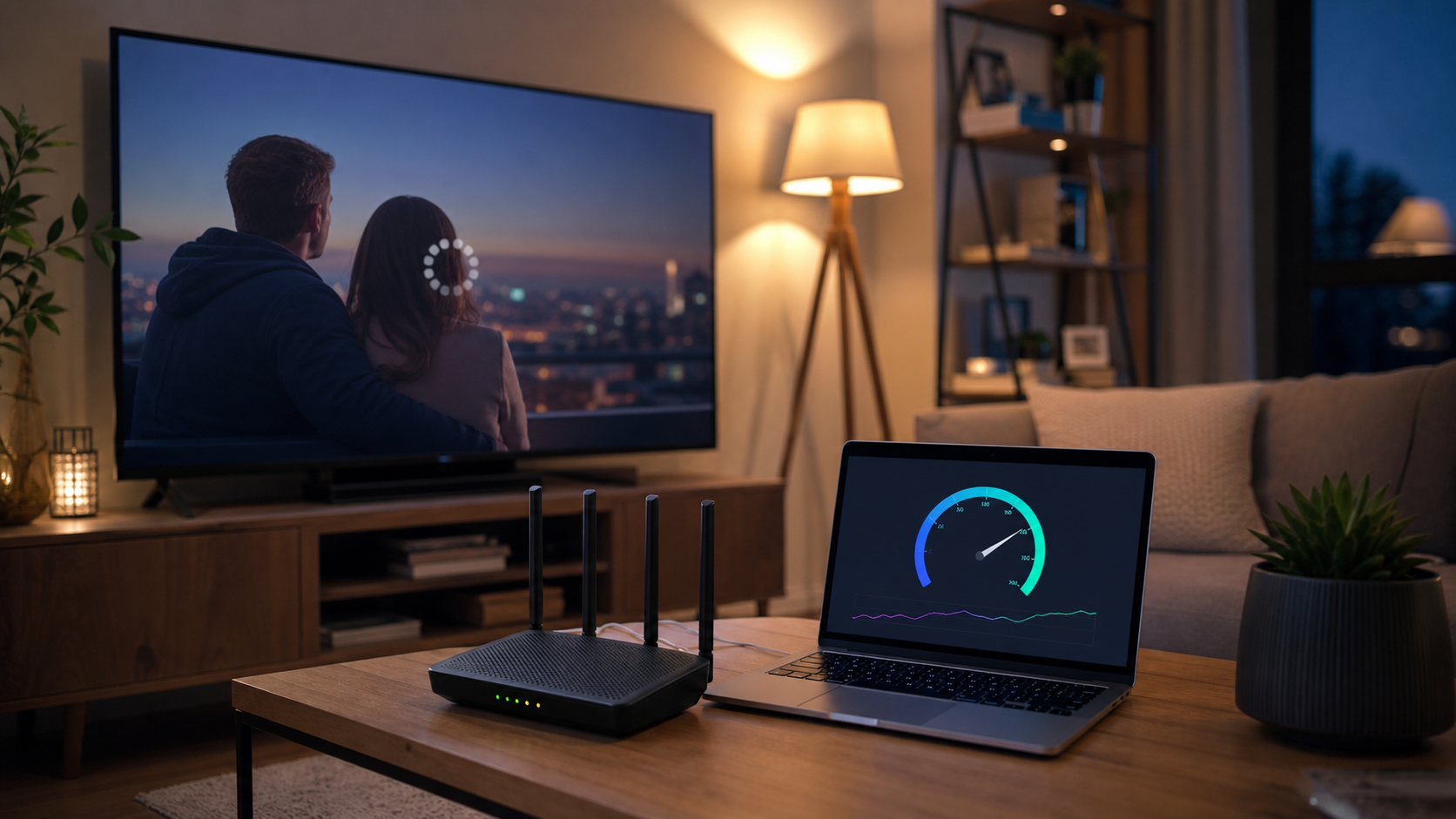
Check another device first
Connect a phone or laptop to the same WiFi name and try a normal webpage. If other devices also fail, use the broader WiFi connected but no internet checklist to check the modem, router, and service. If the phone works while the TV fails, keep troubleshooting the TV instead of resetting the whole network.
Run the TV connection test
Open the TV’s Network or Connection menu and run its test. Note where it stops: the TV to router step, the router to internet step, or the app service. A TV that cannot reach the router needs a local WiFi fix. A TV that reaches the router but not the internet may have a DNS, time, gateway, or service path problem.
Restart in the right order
Turn the TV off, unplug it for about a minute, and start it again. If the phone also has trouble, unplug the modem and router, wait until their normal lights return, then test again. Avoid pressing the router reset button during this check because a factory reset removes the network settings you may need.
Forget the network and join again
In the TV’s WiFi settings, remove the saved network, restart the TV, and enter the WiFi password again. Check the network name carefully if your router broadcasts separate 2.4 GHz and 5 GHz names. Keep the TV and router in the same room for this test. If the TV joins close by but fails in its normal location, placement, walls, or interference are more likely than an account problem.
Check date, time, and software
Set the TV date and time to automatic if that option exists. Incorrect time can make secure app connections fail. Install any available TV firmware update while the TV has a working connection, or use the manufacturer’s offline update instructions for your model. Also update or reinstall only the app that fails. If one app works and another does not, the issue may be the app service rather than WiFi.
Try a simple comparison
Use a phone hotspot for a short test if your plan allows it. If the TV works on the hotspot but not on home WiFi, the home router settings, DNS, or band compatibility deserve attention. If it fails on both networks, focus on the TV, its software, or the app. Do not leave the TV on a hotspot for streaming unless you know the data allowance and cost.
Use Ethernet as a diagnostic
If the TV has an Ethernet port, connect it temporarily to the router. Wired internet working while WiFi fails points to signal, band, or compatibility issues. Wired internet failing too points toward the TV, router, DNS, or service path. Disconnect the cable after the test and return to the setting that matches how you use the TV.
When to contact support
Contact the TV maker when the network test fails on both home WiFi and a phone hotspot, or when the TV cannot complete a firmware update. Contact your internet provider when several devices fail, the modem shows an error, or wired and wireless tests stop at the router’s internet step. TCL’s TV connection troubleshooting guide also recommends separating the local network connection from the internet connection.
Quick decision table
| What you see | Most useful next step |
|---|---|
| Every device is offline | Check modem, router, and provider status |
| Phone works, TV cannot join WiFi | Forget the TV network and test nearby |
| TV works on hotspot only | Check home WiFi band, DNS, and router controls |
| One app fails | Update or reinstall that app and check its service |
Once the TV is online, repeat a stream test in its normal location. If only this device continues to fail, our single-device WiFi troubleshooting guide can help you check compatibility and device settings without changing a working network for everyone else.


