
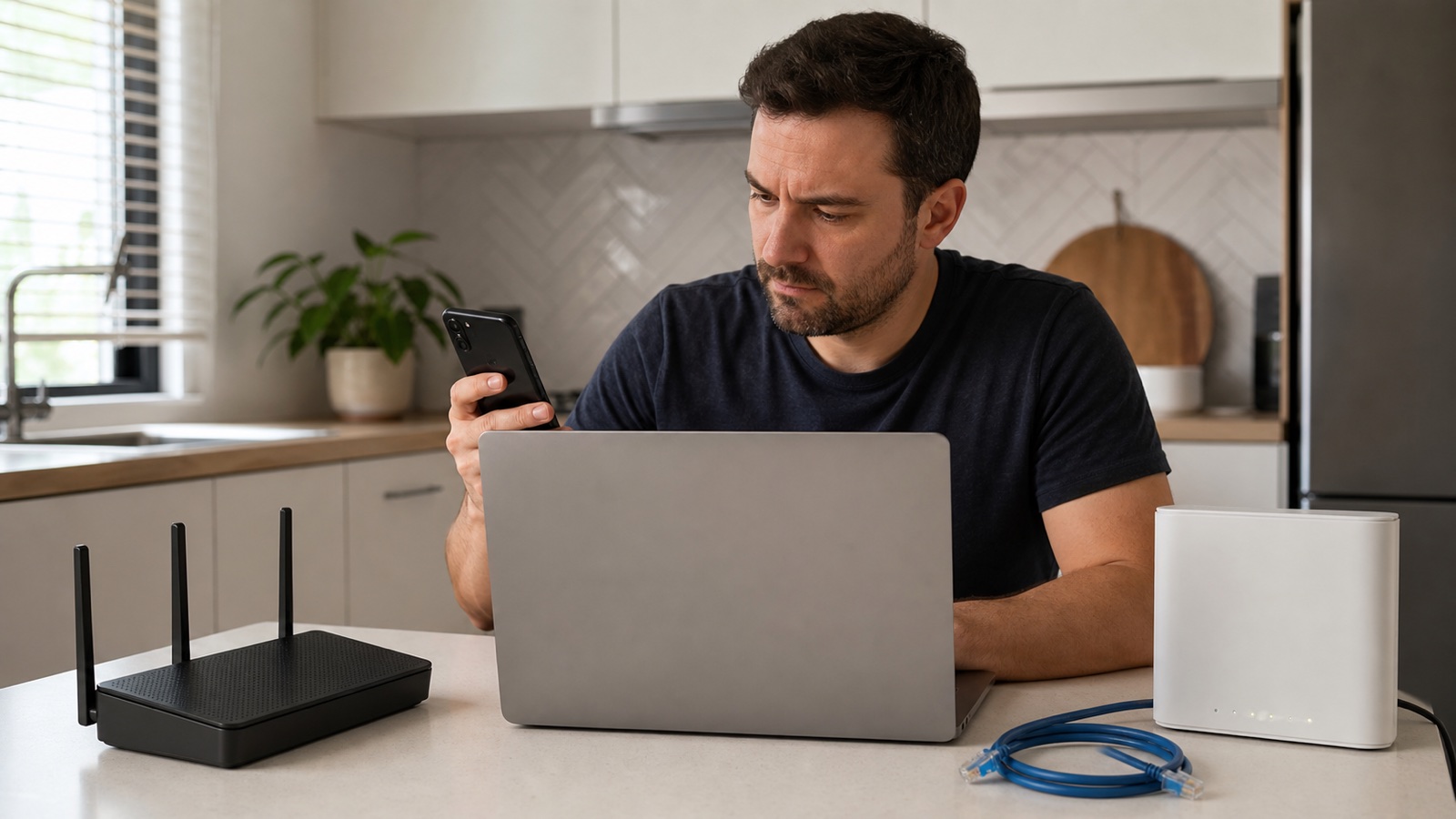
A red Internet or WAN light usually means the router is not detecting a usable connection to the modem, ONT, or ISP. The WiFi radio can stay on because it is a separate local function. Start by finding out whether the problem affects every device, then check the cable path and modem status before changing router settings or pressing reset.
What the red light can and cannot tell you
LED meanings vary by model. On many routers, a red Internet light points to the WAN side, while the WiFi light only confirms that the router is broadcasting a local network. It does not prove that the ISP connection is working. TP-Link’s LED guidance makes the same distinction and notes that the exact behavior depends on the product, so check your model’s manual before treating a color as a diagnosis.
| What you see | Start here | Likely area |
|---|---|---|
| WiFi works but no website opens on any device | Check modem/ONT and the WAN cable | ISP, modem, cable, or router WAN |
| Only one device is offline | Test another device first | Device or saved network settings |
| WiFi and Ethernet both work normally | Read the model’s LED guide | LED mode, firmware, or a warning that is not an outage |
| Red light appeared after moving cables | Reseat the correct ports | Loose or misconnected WAN cable |
1. Test another device before touching the router
Connect a phone and a laptop to the same WiFi. Open more than one site or app. If one device works while another does not, the red indicator may be unrelated to the symptom; troubleshoot the single device instead. If every device fails, connect a computer to a LAN port with Ethernet if possible. This separates a WiFi problem from the internet path.
2. Check the modem, ONT, and WAN cable
- Confirm the modem or fiber ONT has power and no separate service or LOS alarm.
- Follow the cable from the modem or ONT to the router’s Internet or WAN port. Do not use a LAN port by mistake.
- Unplug and firmly reseat both ends. If you have a spare known-good Ethernet cable, test it.
- If the modem is connected directly to a laptop and that also has no internet, the router is probably not the first fault to fix.
Do not swap the modem’s coax, fiber, or phone line unless your ISP tells you to. Those connections can require a specific type of cable and should not be forced.
3. Restart in the correct order
Use the normal power controls. Turn off the router and modem or ONT, wait about a minute, then power the modem or ONT first. Wait until its service lights settle before turning on the router. Give the router a few minutes to obtain an address. A restart can clear a stuck session; it cannot repair an ISP outage or an incorrectly provisioned account.
4. Check for an outage and account problem
Use the ISP’s status page or mobile app over cellular data. Check that the account is active and that there is no maintenance notice. If the modem’s service light stays abnormal, contact the ISP with the time the light changed, the modem or ONT model, and the result of the direct Ethernet test. Avoid factory-resetting the router before support confirms that it is needed.
5. Review router settings only after the physical checks
If the modem works when connected directly but the router remains red, open the router’s status page. Look for a WAN address, DHCP or PPPoE errors, and a MAC-clone setting required by the ISP. Do not copy random DNS values or disable the firewall as a first step. If you have two routers, confirm whether the second unit should run in access-point mode; a double-NAT setup can cause a separate problem, but it does not explain every red LED.
When the red light is not an emergency
Some models use red, amber, or blinking colors during startup, firmware updates, or a brief negotiation. If websites work on both WiFi and Ethernet, read the exact model’s LED table and check for an app notification. Do not replace a working router based on color alone.
Quick checklist
- Test more than one device.
- Check the modem or ONT service lights.
- Reseat the WAN cable and verify the ports.
- Restart modem or ONT first, then the router.
- Check the ISP status page and account.
- Use the model-specific LED guide.
- Factory-reset only with a saved configuration and a clear reason.
Sources
TP-Link router LED explanations
TP-Link unstable-connection troubleshooting
Microsoft WiFi connection troubleshooting
For a different symptom, see our WiFi connected but no internet checklist and the guide to a router login page that will not open.


