
If your Roku remote is not working, check its power and identify the type before trying to pair it. A Simple Remote needs an unobstructed infrared path and does not pair. A Voice Remote uses wireless pairing for Roku navigation. If navigation works but TV volume does not, check TV control separately.
A missing pairing button is not enough to identify the type: some Voice Remotes use Back and Home instead. This guide covers ordinary handheld Roku remotes. For a Roku Touch tabletop remote or a third-party universal remote, use that product’s own instructions.
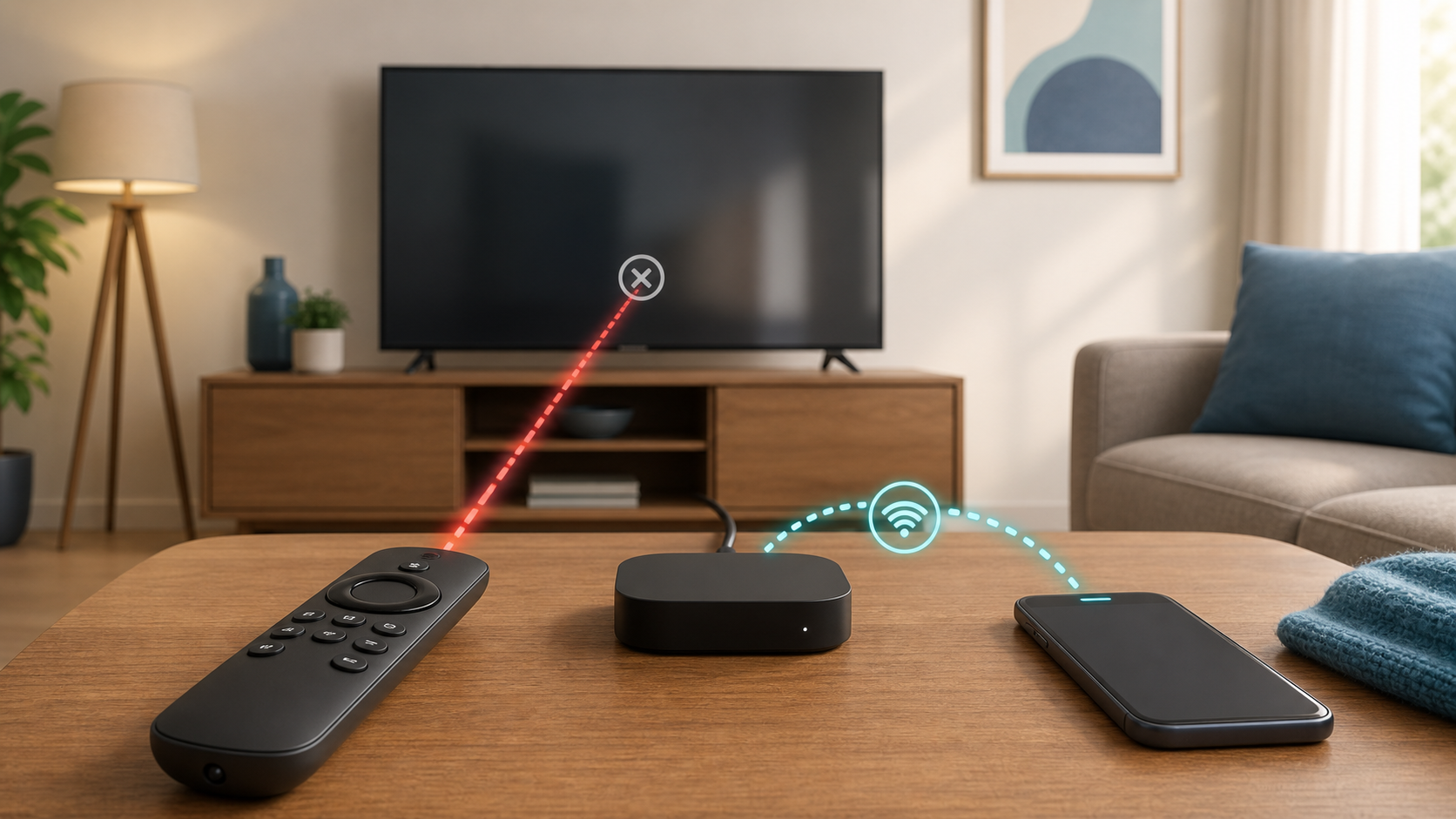
Start with the symptom, not a factory reset
Check Home, the arrow buttons and Back before changing settings. Working navigation means the remote can still send those commands; it does not confirm that TV power, volume or every other button works. A single failed button calls for a comparison with another controller, not an immediate factory reset of the Roku player.
| What happens | Check first | What the result tells you |
|---|---|---|
| No buttons work | Batteries or charge, then remote type | Separate remote power from infrared or pairing issues |
| It works only when aimed toward the receiver | Clear line of sight | An infrared command may be getting blocked |
| Navigation works but volume does not | TV-control setup | Navigation and TV audio control need separate checks |
| Pairing light flashes but no message appears | Put both Roku and Voice Remote in pairing mode | A flashing light alone does not confirm pairing |
| Phone app works but physical remote does not | Remote power, path or pairing | The player can accept app commands; test the physical remote next |
Identify a Simple Remote or Voice Remote
According to Roku’s remote identification guide, a microphone or magnifying-glass voice button near the directional pad identifies a Voice Remote. A Roku Simple Remote lacks that voice button. Voice models differ in their batteries, charging and TV controls; do not assume the presence of a power button makes two remotes interchangeable.
A Simple Remote supplied for a Roku TV can have TV power and volume buttons, while a player remote can have a different button set. Match a replacement to the actual TV or streaming-player model, not just the Roku name or a similar-looking case.
Replace or recharge the remote power
For replaceable-battery models, Roku’s battery guide says to use the AA or AAA type marked inside the compartment, replace both cells together and use a fresh matching pair. With the batteries out, press any two buttons before inserting the replacements, negative terminal first. Follow the marked orientation; the two cells may face different directions.
Do not open a rechargeable remote’s electronics housing to fit loose batteries. If the remote becomes hot, Roku says to stop using it, disconnect charging if applicable and let it cool on a hard, nonflammable surface. Do not remove hot alkaline batteries. Seek support rather than continuing to charge or pair a damaged remote.
Fix a Roku Simple Remote
Roku’s Simple Remote setup guide requires pointing at the receiver with nothing blocking the infrared signal. You do not need a pairing or sync procedure. Check the battery pull tab on a new remote, battery orientation and the visible front of the TV or compatible player.
For compatible Roku Express, Express 4K and Premiere players, Roku’s missed-button-press guide recommends exposing the player’s flat front face. Try a different angle; if that helps, remove the obstruction or adjust the player’s position. Do not assume moving a Streaming Stick or buying any infrared remote makes it compatible. Check that model’s supported remote first.
Restart a Roku Voice Remote
Roku’s remote troubleshooting guide separates a rechargeable remote’s restart from pairing: hold its Pairing button for 20 seconds, or Back and Home for 20 seconds if it has no Pairing button, then wait for the light to stop flashing. This is not the five-second pairing step below. Follow the exact model’s charging instructions before trying again.
Restart the Roku player or TV
The official Voice Remote pairing guide says to unplug the player or TV, wait at least five seconds and reconnect. Let the Home screen load before pairing. Do not interrupt an update, and use a normal power restart rather than the recessed factory-reset button.
If the Roku screen itself is blank, fix power and HDMI first. A remote cannot make an unpowered player respond. If the TV is online but one streaming app cannot load, use the separate guide for a smart TV connected to WiFi without internet rather than repeatedly pairing the remote.
Pair a Roku Voice Remote again
Make sure both ends are ready. With another working remote or the app, the pairing guide uses Settings > Remotes & devices > Add devices > Remote > Continue. Without one, restart the Roku device as above. Then put the Voice Remote into pairing mode: hold Pairing for five seconds if present, or Back and Home for five seconds if not, until the status light flashes.
Wait for the television’s pairing message, then check Home and the arrow buttons. If pairing fails, confirm both the device and remote are in pairing mode together before retrying. Do not run a Simple Remote through this process or substitute a button combination from another brand.
Use the Roku mobile app as a temporary remote
Roku’s mobile-remote instructions describe installing the official app, signing in, connecting to the Roku device and selecting Remote. The app’s available buttons vary by device; successful navigation does not prove it can operate every TV power or volume function.
The phone connection guide requires the same local network. Check the network names; cellular data alone does not meet that requirement. On an iPhone, review the official app’s Local Network permission. If the Roku has lost WiFi after a reset or first setup, the app cannot simply discover it and supply the missing connection. Use a compatible physical remote instead.
Do not turn off router isolation, weaken WiFi security or disconnect a work VPN to force app discovery. On a managed network, ask its owner for an approved setup. The one-device WiFi checklist is for a Roku that is offline while other devices work, not for repairing infrared buttons.
Fix Roku remote volume and power buttons
For a Voice Remote that supports TV controls, Roku’s TV-control setup instructions use Settings > Remotes & devices > Remotes > your remote > Set up remote for TV control. Follow the on-screen sound test at a comfortable volume. This is separate from pairing for navigation. For a Simple Remote supplied with a Roku TV, use that TV’s model-specific support rather than assuming the Voice Remote menu applies.
The power and volume troubleshooting guide distinguishes infrared from HDMI-CEC control. Aim at the TV’s sensor for infrared. For CEC, follow the TV maker’s instructions and note any setting you change. Support varies: a TV may accept power but not volume commands. Test its original remote too, so you do not mistake a TV or audio-system fault for lost Roku pairing.
Check the player’s power arrangement
Roku’s power-control guide notes that a player using the TV’s USB port may lose power when the TV turns off. It then cannot send a command to turn the TV back on. In that situation, use the player’s supported wall-power arrangement. This is a power-control limitation, not proof of a broken remote. Let any system update finish before disconnecting power.
When only one button fails
Compare the same navigation command using the phone app or another compatible remote. If it works there, the player can process it, but that does not identify the physical button’s internal fault. Do not pour cleaner into the remote or open a rechargeable housing. Follow the exact remote’s exterior-cleaning instructions or contact support if a button remains stuck.
Confirm the fix before changing anything else
- Check Home, Back and movement in both directions.
- Test from your usual seat; an infrared remote must still point toward its receiver.
- If the remote supports TV controls, test volume and mute separately from navigation.
- If the menus work but a streaming app fails, note the app or network error instead of repeating remote pairing.
When to replace the remote
Contact Roku with the device model, remote type and the buttons that fail after these checks. Stop using damaged or overheating hardware. If you need a replacement, confirm the exact TV or player appears in its compatibility information and keep the working alternative until setup succeeds. A similar-looking remote is not enough.
Sources
This guide uses the official Roku pages linked beside each procedure. We did not test a particular remote, measure a repair success rate or compare replacement products. Product-specific instructions take priority over a general button sequence.


