
If Android says Private DNS server cannot be accessed, check the saved provider hostname and whether the same error follows you onto another trusted network. On a personal phone, an Automatic mode comparison can help isolate a custom resolver problem, but it changes how DNS is handled. Save your original settings first and keep required privacy or parental controls in place.
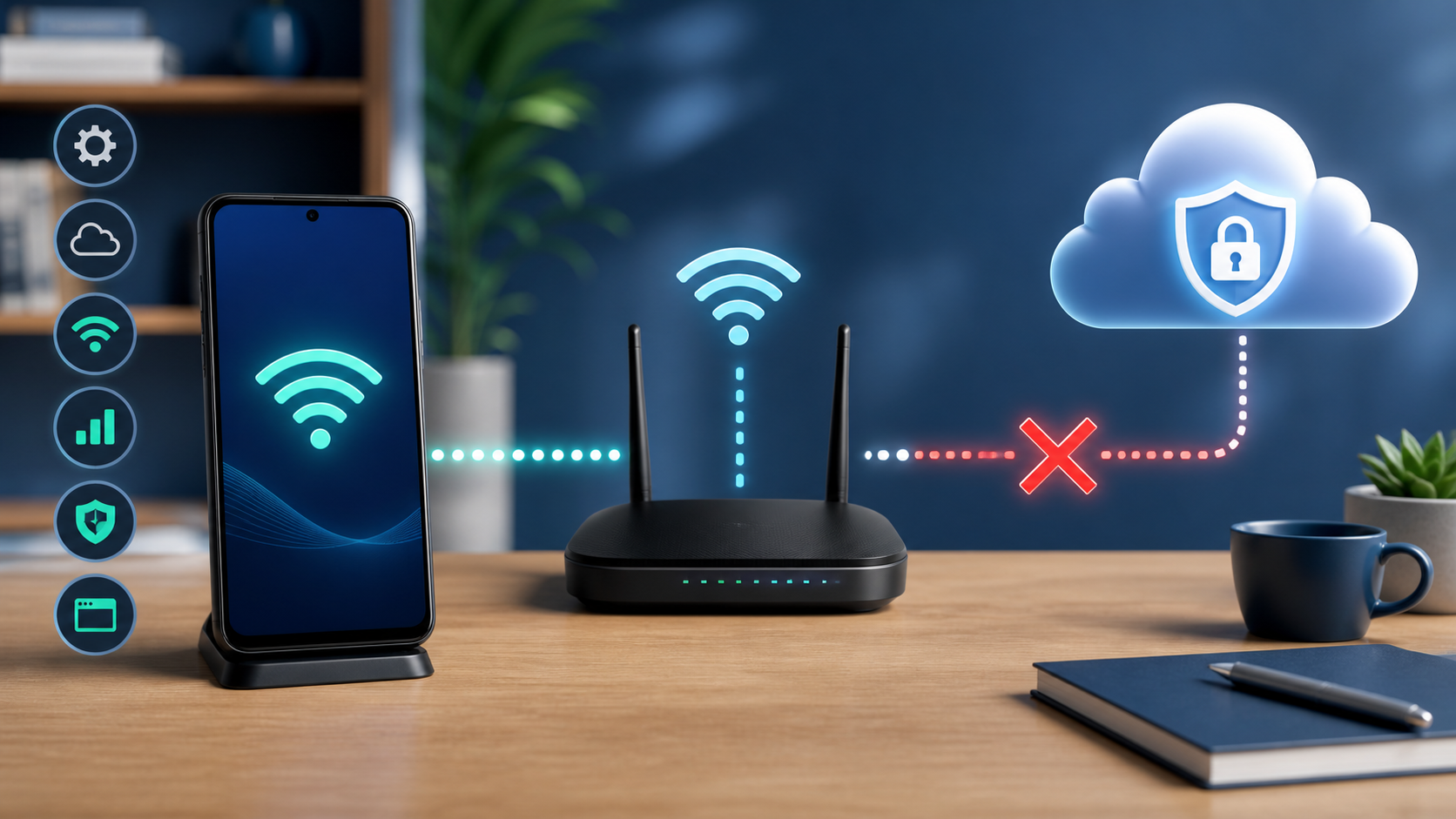
| Comparison result | What to investigate | Next move |
|---|---|---|
| Automatic works; the custom hostname fails | Hostname, resolver service or path to that resolver | Verify the exact hostname and provider status |
| Custom Private DNS works on mobile data only | The current WiFi path or its policies | Compare another trusted WiFi network |
| Custom Private DNS works on WiFi only | Mobile connection, carrier path or app interaction | Check cellular service and the VPN vendor’s DNS guidance |
| Automatic also fails | Possibly a broader connection problem | Compare another device and use Android connection checks |
What the Private DNS message means
DNS turns a name such as example.com into the network address a phone needs. Android’s Private DNS feature can protect those lookups with DNS over TLS. When you choose a specific provider hostname, Android expects to reach that encrypted resolver. If it cannot, the phone may report no internet even though it has joined WiFi successfully.
This is different from weak WiFi. A strong WiFi symbol only confirms the radio link to the router. It does not prove that the configured resolver is reachable. Google also notes that Private DNS protects DNS questions and answers, not all phone traffic.
Save the current hostname before changing it
Open the Private DNS setting and copy the current provider hostname exactly. On Pixel phones, Google’s current path is Settings > Network and Internet > Private DNS. Other Android makers may place it under Connections, More connection settings or a similar menu. Search Settings for Private DNS if the path differs.
- Record whether the setting is Off, Automatic or Private DNS provider hostname.
- Copy the hostname, including every dot and hyphen.
- Do not replace a provider hostname with a random IP address. Android’s provider-hostname field expects a hostname.
- Do not remove a work profile or organization policy from a managed phone.
1. Test Automatic mode
Only do this if you control the phone and do not depend on a required custom DNS filter or organization policy. Save the hostname, select Automatic and open two ordinary websites without signing into sensitive accounts. Google recommends keeping Private DNS on, but Automatic is not a promise that every lookup stays encrypted. Google’s Android documentation describes a fallback to ordinary DNS when the network resolver cannot use the encrypted connection.
If Automatic restores access, the comparison points toward the custom resolver path; it does not identify one cause with certainty. Restore the intended provider setting after the comparison and work through the checks below. If encrypted DNS or a particular filter is essential, keep that requirement and use a supported connection instead of leaving it bypassed. If nothing loads in Automatic mode either, skip to the broader connection section.
2. Verify the provider hostname
Return to the service or app where you obtained the Private DNS hostname. Compare it character by character with the saved value. Account-based filtering services may issue a unique hostname, so a generic hostname copied from a forum can remove account rules or fail completely.
- Use the provider’s current setup page, not a screenshot from another user.
- Check whether the provider reports an outage or account problem.
- Paste the verified hostname into the provider-hostname field and save it.
- Test two websites again before changing anything else.
Google Public DNS, for example, documents dns.google as its Android provider hostname. That example proves the field format. It is not a reason to switch providers if you intentionally use another service.
3. Compare WiFi with mobile data
Keep the verified custom hostname selected. If you have permission to use mobile data and understand any roaming or data charges, turn WiFi off and test over cellular, then turn WiFi back on and test the same two sites. Make the comparison when you are not in a call or relying on navigation. Different results help narrow the network path, but do not prove that the carrier or router deliberately blocks it.
- If both paths fail, check the hostname, provider status and supported phone configuration.
- If only home WiFi fails, compare another trusted network you are authorized to use. A local rule or upstream problem may affect the resolver connection.
- If only mobile data fails, check the carrier connection and the current DNS guidance for any VPN or security app.
Turn off mobile data while judging a WiFi test. Otherwise, Android may fall back to cellular and make a broken WiFi path look healthy.
4. Check whether public WiFi requires sign-in
A hotel, airport or cafe may require a sign-in page before normal internet access. Confirm the correct network and sign-in process with its operator. If a required privacy setting prevents that process from working, use a trusted alternative connection or ask the operator for help rather than weakening it just to get online.
If you have already completed a permitted Automatic comparison and the custom hostname still fails after sign-in, give that result to the network operator or DNS provider. Do not install a certificate or configuration profile from an unknown page, force an HTTPS warning to continue, or bypass network access rules.
5. Check your VPN and DNS app’s supported setup
Check which app is supposed to handle DNS before changing several settings. Google’s Public DNS page includes a warning that VPN and DNS-changing apps override the Private DNS setting on Android 9, and says this behavior changed in Android 10. That is not evidence that every current Android VPN behaves the same way. Use the app vendor’s instructions for your Android version, chosen DNS service and VPN mode.
Keep required VPN, firewall, parental-control and device policies enabled. If the app reports a conflict, share the error and your comparison results privately with its support team. Do not post an account-specific resolver hostname or diagnostic log publicly. On a managed phone, ask the administrator which resolver and network are supported.
6. Check the home network without weakening security
If the custom hostname works on mobile data and another trusted WiFi network but fails at home, check your provider’s status page and the router’s documented restart procedure. A restart interrupts everyone using that connection, so choose a suitable time and restart only equipment you control. Do not press a factory-reset button, unplug fiber connections or power-cycle shared building equipment. Wait for the normal internet status before testing again.
Do not turn off the router firewall, expose a DNS service to the internet or copy command-line fixes intended for a different router. Some networks intentionally enforce their own resolver. If the network belongs to a school, office, apartment building or hotel, its administrator must decide whether custom encrypted DNS is allowed.
7. Restart and update the phone
Restart Android after saving the intended Private DNS mode. Install a pending system update over a working connection. A normal restart does not erase your saved network settings.
Do not factory-reset the phone for this message. A factory reset erases far more than the DNS setting and does not repair an unavailable provider or network policy.
If Automatic mode also has no internet
The exact Private DNS path is no longer the only suspect if Automatic also fails. Check another device on the same WiFi, test mobile data with WiFi off and forget and rejoin the network. The Android connected-without-internet guide provides that broader order.
If other home devices work, use the one-device WiFi checklist. If several home devices fail, check the provider and router before making more changes to one Android phone.
Use a network reset only after the comparisons
Android’s reset options vary by manufacturer and can remove saved WiFi networks, Bluetooth pairings and mobile-network preferences. Before using one, make sure you know the WiFi password and any carrier or VPN setup you must restore. A reset is reasonable only when the phone fails on several trusted networks after the hostname, Automatic mode, VPN and updates have been checked.
If the error remains, send the phone maker or DNS provider your Android version, exact error wording, when it happens, and whether the saved hostname works on WiFi and mobile data. Keep account identifiers private. Those results are more useful to support than a list of resets, and they let you preserve the settings you actually need.
Sources
- Google Pixel Help: Private DNS and network settings
- Google Public DNS: Android configuration, fallback and version-specific VPN notes
- Android Developers: How provider-hostname mode handles an unreachable resolver
- Google Android Help: Connect, disconnect and forget WiFi networks
- Google Android Help: Fix internet connection problems


