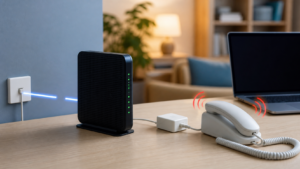
If your internet disconnects when the landline rings, first confirm that your service is DSL and uses the same copper phone line. A missing, faulty, or incorrectly connected DSL filter is a common cause. Watch the modem’s DSL or broadband light during a test call, then check every phone-line device before changing WiFi settings.
Make sure this is a DSL problem
| What you observe | Where to look first |
|---|---|
| DSL or broadband light goes out when the phone rings | Filters, phone devices, jacks, inside wiring, or the provider line |
| DSL light stays steady, but only one device loses WiFi | That device or its WiFi connection |
| Every WiFi and Ethernet device loses internet while the DSL light stays steady | Router, gateway, or provider session |
| You have cable, fiber, cellular, or satellite internet | Do not buy DSL filters; check the gateway, power, and provider instead |
| The problem began after adding a phone, fax, alarm, or answering machine | That device and its filter or splitter |
DSL carries internet service over telephone wiring. A filter separates ordinary phone equipment from the DSL signal. This article does not apply to a phone that connects to a cable or fiber gateway instead of sharing a traditional DSL line.
1. Watch the modem while the phone rings
Call the landline from a mobile phone. Watch the modem or gateway without touching it. Note whether the DSL, broadband, or link light starts blinking, changes color, or turns off. Use the label and light meanings in your provider’s manual because models differ.
If the DSL light loses synchronization at the moment the call arrives, the break is on the shared phone-line path. If the light stays normal, check a wired device as well as WiFi. The broader WiFi disconnection checklist can help when the radio link, rather than DSL, is dropping.
2. Check every device connected to the phone line
Do not inspect only the phone that rang. Walk through the home and list everything plugged into a phone jack. Phones, fax machines, answering machines, caller ID boxes, satellite receivers, dial-up modems, medical devices, and alarm systems may share the line.
AT&T and BT say phone-side equipment on a shared DSL line may need a filter. A hardwired alarm or medical device may require the provider, alarm company, or a qualified installer. Do not disconnect a safety system just to run an unsupervised test.
3. Confirm the filter is in the correct place
- A single-port filter normally sits between the wall jack and a telephone-side device.
- A dual-port filter has separate phone and DSL connections. Match the labels on that filter.
- Do not place an ordinary phone-only filter between the wall and the DSL modem.
- A professionally installed whole-home splitter may separate DSL and phone wiring at the entry point, so individual filters may not be required.
Do not assume a filter works because it looks intact. A filter can fail after years of service, and a recently moved cable may be in the wrong port. Replace only with a compatible filter or splitter recommended for the service.
4. Isolate one phone-line device at a time
If it is safe to do so, unplug the phone-side devices and their filters while leaving the DSL modem connected in its normal supported layout. Call the landline again. If DSL remains online, reconnect one device and filter, make another test call, and continue until the problem returns.
A dropout that returns with one device points to that device, its cable, jack, or filter. Swap in a known compatible filter before blaming the modem. NETGEAR advises checking filter installation when ADSL works with the telephone equipment disconnected but fails when that equipment is connected or used.
5. Listen for noise and inspect simple wiring faults
Static, clicking, or crackling on a corded phone can support a line or filter diagnosis. Reseat accessible phone cords, look for damaged plugs, and avoid very long or crushed extension leads. Do not open a provider box or touch exposed wiring.
If the problem follows one wall jack, leave that jack unused and tell the provider what you observed. If every jack behaves the same way even after the removable phone devices are isolated, inside wiring or the provider line needs a proper line test.
6. Do not factory-reset the router for a ringing-line fault
A factory reset erases network settings but cannot repair a missing filter, bad jack, or copper-line fault. One normal modem restart may clear a temporary session problem, but repeat the phone-call test afterward. If the DSL light still drops with the ring, keep the evidence and stop resetting equipment.
If the failure is unrelated to calls and affects all devices, use the WiFi versus internet outage checks before contacting support.
What to tell the internet provider
Call the provider when DSL loses synchronization with only the modem connected, when the line is noisy, when a wall jack appears faulty, or when the filters and removable devices have been isolated without fixing the problem. Report whether incoming calls, outgoing calls, or both trigger it. Include the modem light that changes, the jacks tested, and whether the line stays stable with phone devices disconnected.