
An orange light on an Echo speaker means the device is in setup mode or is trying to connect to the internet. If the light appears during first setup, it may be expected. If it stays orange on a previously working Echo, start by checking whether the device lost its WiFi connection.
Do not factory reset it immediately. The light alone does not tell you that the speaker is broken, and a reset creates more setup work if the real problem is a router outage or a changed password.
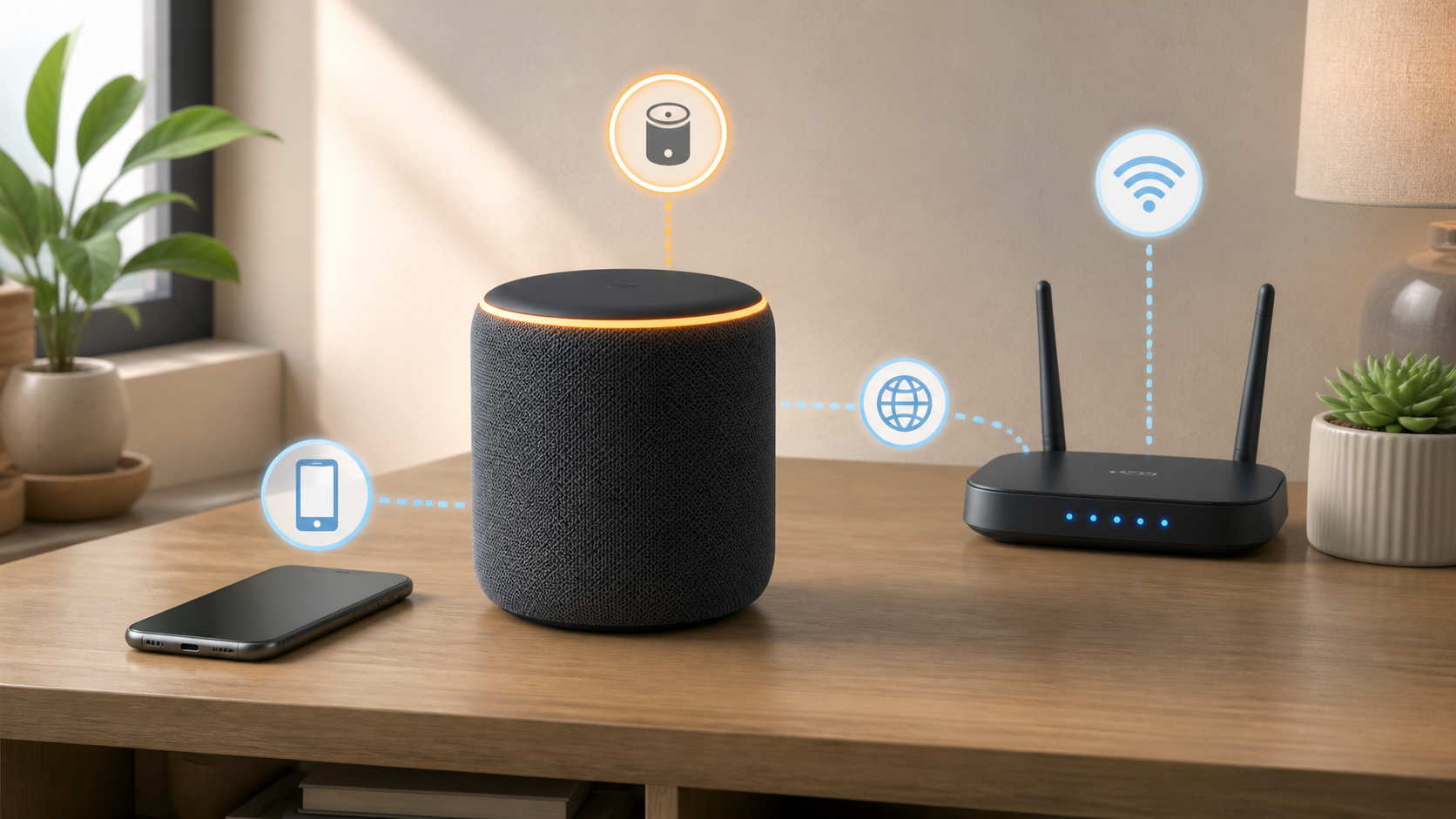
What the Echo orange light means
Amazon’s Echo speaker light guide identifies orange as setup mode or an attempt to connect to the internet. The guide applies to Alexa+ and the original Alexa. Orange is different from the slow yellow notification burst and from the green call or Drop In indicator. Check the color and device type before following a fix.
| When orange appears | Likely situation | Best first action |
|---|---|---|
| First setup | The Echo is ready to be added | Continue in the Alexa app |
| After changing the router or password | Saved WiFi details are no longer valid | Update the Echo network |
| After an internet outage | The speaker is trying to reconnect | Test another device first |
| After a reset | The speaker has returned to setup mode | Complete setup again |
| Only briefly during startup | A temporary connection attempt | Wait, then test a request |
1. Decide whether setup mode is expected
Think about what happened just before the light appeared. A new or reset Echo needs setup. A device moved to a different network may only need updated WiFi details. Use the account that owns the Echo, and follow its setup prompts rather than adding a second copy of the device.
If the speaker worked normally yesterday and nobody reset it, treat orange as a connection symptom. You should not repeat first-time setup until you know whether the home network is working.
Amazon’s setup connection checklist also calls for the latest Alexa app. If you use an eero Built-in Echo, the eero network must already be installed before you connect that Echo to it. Do not treat a speaker waiting for setup as a reason to rebuild a working mesh network.
2. Check whether the whole internet connection is down
Open a current webpage on a computer connected to the same home WiFi. If you use a phone, confirm that the browser is using WiFi rather than falling back to mobile data. If several devices cannot get online, check the wider network or provider connection first. Use the WiFi versus internet outage checklist before changing Echo settings.
- If no device sees the WiFi name, inspect router power and status.
- If devices join WiFi but no sites open, check for a modem or provider outage.
- If other devices work normally, continue with Echo-specific checks.
- If only one part of the home has trouble, test the Echo closer to the router.
3. Restart the Echo once
If the Echo is not updating, unplug it from power, wait 30 seconds and reconnect its supplied power adapter. That is the restart in Amazon’s Echo setup troubleshooting guide. Let startup finish before testing a request. If the device announces an update, leave it powered and follow the app’s instructions instead of interrupting it.
A restart may clear a temporary connection problem; it is not a guaranteed repair. If orange returns, note whether it appears before setup, after you enter the password or only once the device reaches its usual room.
4. Confirm the correct WiFi name and password
A router replacement, renamed network or changed password can leave the Echo with obsolete details. Amazon’s WiFi update instructions use this app path: Devices, your Echo, Device Settings, then Change or remove a Wi-Fi network. Choose a saved network or Join another Wi-Fi Network, and finish the prompts. Labels may vary with your app version.
If you have an Echo Show or another screen model, use the on-device network instructions instead. Amazon documents Settings, Device Options, then Network, with menu differences on some devices. The Echo Spot (2024) also has a WiFi-off icon that can start an app-based change through its QR code. Follow the instructions for that exact model; a speaker’s light ring and app path are not universal across all Echo hardware.
- Select the exact home network, not a similarly named guest or extender network.
- Enter the current case-sensitive WiFi password.
- Do not confuse the WiFi password with the Amazon account or router admin password.
- Never post a password in a support forum or share it with an unknown helper.
5. Compare the Echo with one working device
If a phone works on the same WiFi in the same room, the internet service is less likely to be the only cause. The Echo may have an old credential, a weak local signal or an incomplete setup state. The one-device WiFi troubleshooting guide helps separate a device problem from a network-wide failure.
A successful phone test does not prove the speaker hardware failed. Phones and smart speakers may have different placement, saved networks and radio behavior.
Use the result to choose the next check. If orange disappears and Alexa answers, retry the feature you needed. If the problem returns only in one room, investigate coverage. If setup repeatedly rejects the network, check the selected name and password before resetting anything.
6. Improve the connection without moving everything
For one test, place the Echo in the same room as the main router with open space around both devices. Amazon’s Echo WiFi troubleshooting guide recommends checking router distance and nearby interference. If the light clears in the test location, investigate coverage at the original position; this does not prove that the speaker or router needs replacing.
Move the speaker back only after it is working. A temporary close-range test is more informative than changing router channels, security modes and device settings at the same time.
Do not force a particular WiFi band just because a generic guide recommends it. Echo capabilities vary by model, and routers handle band names differently. Use the combinations supported by the exact Echo and router. If separate network names are available, a brief test on each supported name can identify a compatibility or coverage difference without weakening network security.
7. Restart the home network only when needed
If several devices have trouble or the router is unresponsive, restart the modem and router according to the provider or manufacturer instructions. First check that nobody needs the connection for a call, alarm, medical device or other service, and that no equipment is updating. Wait for internet access to return on another device before checking the Echo again.
Avoid pressing the router reset button. A normal power restart preserves the network name and password, while a factory reset may erase provider and household settings.
8. Check for networks that need a sign-in page
Hotel, dormitory, apartment and workplace networks may require a browser sign-in, device registration or administrator approval. A smart speaker cannot always complete the same portal flow as a phone. Ask the network operator whether smart speakers are supported instead of trying to bypass access controls.
9. Use factory reset as a late step
If the earlier checks fail, start with Amazon’s Echo reset model selector. Match the device name and generation before using any button sequence. Some models distinguish a reset that retains smart-home connections from a full factory reset. Read what the selected procedure erases, and make sure you can complete setup afterward.
Do not reset other working smart-home products just because the Echo is orange. If the speaker will not enter setup, will not power normally or cannot connect even beside a working router, contact Amazon support with the exact Echo model and the steps already tried.
What to do after the orange light goes away
Ask the Echo for the time or weather, then try the feature that originally failed. Confirm that the Alexa app shows the device online. If it connects but later drops again, record when it happens and which other devices are affected. That recurring pattern belongs to a disconnection investigation, not another setup reset.
When to contact Amazon support
Contact support if setup still fails beside a working router with the correct WiFi details, or if the app reports a registration problem. Give the exact Echo model, Alexa app version, light pattern and any on-screen error. Say whether other devices can get online and what changed before the problem began. Do not send passwords, account verification codes or unredacted household screenshots.


