
If your Fire TV remote is not working, check that Fire TV has power, fit fresh batteries of the type specified for your remote, then try holding Home for about 10 seconds to pair. If navigation works and only volume or TV power fails, check Equipment Control instead. Those symptoms do not call for the same fix.
This guide covers a Fire TV or Fire Stick remote that will not respond or pair. The phone app can provide temporary navigation when both devices are on the same WiFi. A remote reset comes later and must match the remote model; it is not a factory reset of the streaming device.
Identify what still responds
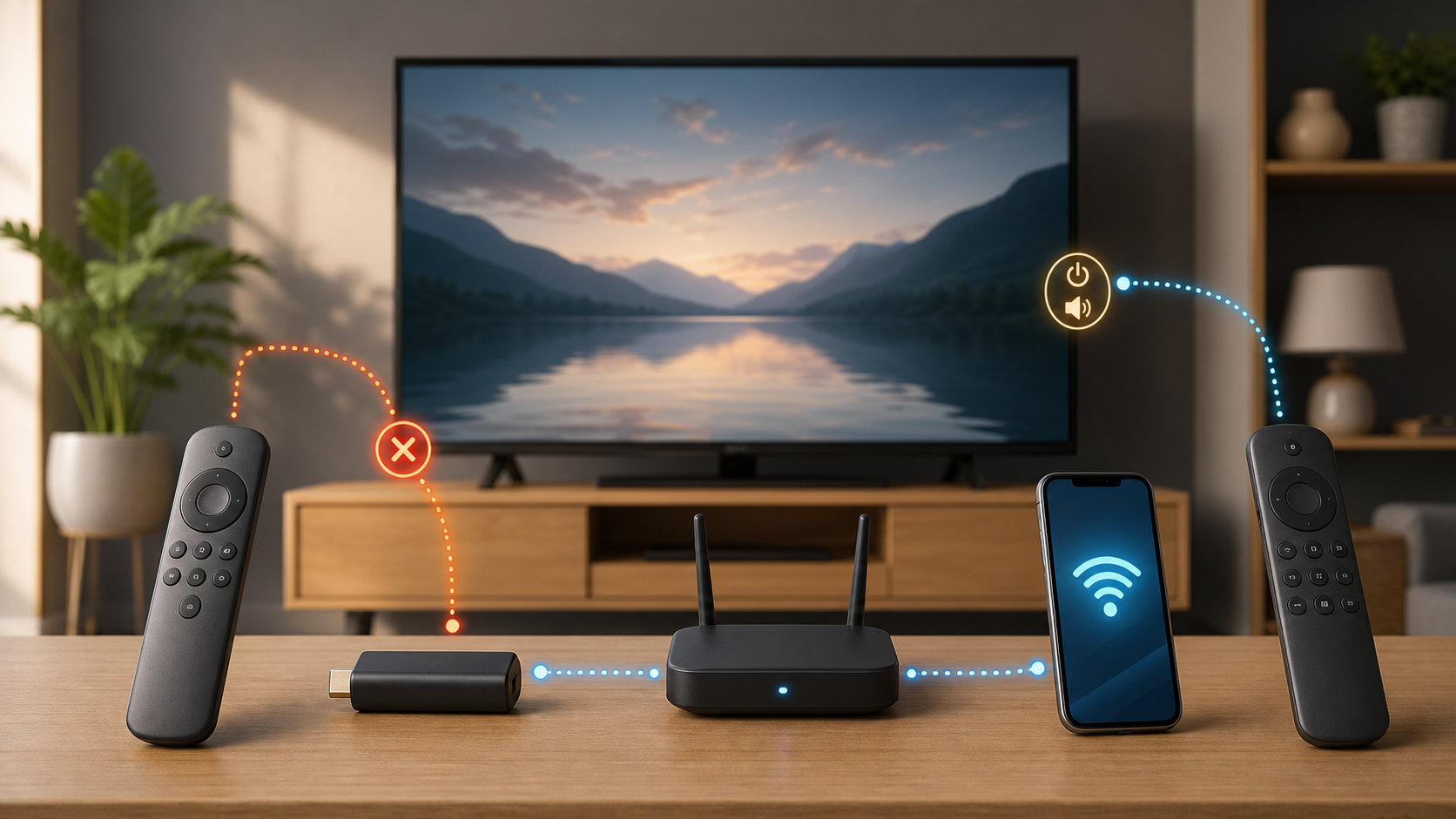
Press Home and watch the television and any indicator on the remote. A blank screen calls for a power and input check first. When the Fire TV home screen is visible but no navigation button works, start with batteries and pairing. Working navigation with failed volume or TV power points to TV control, not a completely dead remote.
| What you see | Best first check | Likely path |
|---|---|---|
| Blank or no-signal screen | Fire TV power and television HDMI input | Device or display, not the remote |
| Home screen is visible but no buttons respond | Fresh batteries, then Home pairing | Remote power or wireless pairing |
| Phone app works but physical remote does not | Remote batteries and pairing | Fire TV is running and on the network |
| Navigation works but volume, mute or TV power fails | Equipment Control settings | Separate television-control path |
| Every Fire TV app is slow or offline | Device and network status | Not primarily a remote problem |
Confirm that Fire TV has power
Use the power arrangement specified for your exact player. Amazon’s power and frozen-screen guide recommends the supplied cable and adapter where provided. However, its current streaming-player specifications describe Direct Power from a TV USB port for the Fire TV Stick HD (2026) and Fire TV Stick 4K, 3rd generation (2026). A blanket rule against every TV USB port is not correct.
Check that the TV input matches the HDMI port holding the player and that its power cable is secure. A Fire TV Smart TV has its own television power setup rather than a separate stick. If the screen never loads, follow that model’s power instructions before diagnosing the remote. If another remote or the phone app can navigate, concentrate on the physical remote.
Replace both remote batteries
For the replaceable-battery models covered by Amazon’s battery replacement guide, install a fresh pair of AAA alkaline batteries in the marked direction. The cover may slide or use a latch. Do not force a different remote’s cover or assume a third-party accessory takes the same cells.
Do not mix an old cell with a new one. If you find leaking, swollen or unusually hot batteries, stop using the remote and follow the battery maker’s handling and disposal guidance. Do not scrape corrosion or keep repeating pairing with damaged batteries.
Try the normal Home-button pairing
Stay within 10 feet (3 meters) of Fire TV and hold Home for about 10 seconds, then follow the on-screen prompt. Amazon’s pairing instructions also suggest removing the batteries for 30 seconds and retrying if pairing fails. Confirm that Home and the directional buttons actually work, rather than treating a brief light as proof.
Give the device time to finish starting before repeating the attempt. Do not press several reset combinations in quick succession. Fire TV Basic Edition and first-generation voice remotes have different reset instructions from most current Fire TV remotes.
On compatible LED-equipped remotes, Amazon’s troubleshooting mode can distinguish a low battery from an unpaired remote or a player issue. Follow its activation and exit instructions. Its color meanings apply while that mode is active, not to every light seen during ordinary use. No light does not by itself prove that a remote without an indicator has failed.
Restart the Fire TV and pair again
If Fire TV has frozen, Amazon’s frozen-screen guide says to disconnect its power, wait 60 seconds and reconnect. Do this only when the device is not installing an update. Once it finishes starting, retry Home-button pairing. This is a restart, not the factory-reset option in Settings; leave your account, apps and saved network intact.
Use the mobile app as a temporary remote
Use the official Fire TV app from the Apple App Store or Google Play Store. Amazon’s mobile-remote setup requires the phone and Fire TV on the same WiFi network. Sign in to your Amazon account, choose the remote icon and Set Up New Fire TV, then follow the prompts. App layouts can vary.
A phone using cellular data alone does not meet that same-WiFi requirement. Check the network names; do not disable router isolation or other security protections to force discovery. On a managed network, ask the owner about an approved setup. If Fire TV itself has lost WiFi, use the one-device WiFi troubleshooting guide or a compatible physical remote to restore its connection.
Once app navigation works, Amazon’s app-assisted pairing guide uses Settings > Controllers & Bluetooth Devices > Amazon Fire TV Remotes > Add New Remote. Select the intended remote. Do not remove another household member’s working controller just to experiment; ask before changing shared accessories.
Check whether this is a Fire TV WiFi problem
A paired remote can navigate menus even when online apps cannot load. If the remote works but videos buffer or the Fire TV shows an offline message, leave the remote alone. Run the device’s network check and compare another device on the same WiFi. The smart-TV internet troubleshooting guide covers that separate failure.
Fix volume, power or mute separately
When arrow, Home and playback buttons work, use Amazon’s separate volume, power and mute instructions: Settings > Equipment Control > Manage Equipment > TV. Under Change TV, check the displayed brand and correct it if necessary. Amazon explicitly excludes Fire TV Smart TVs from these instructions; use the television model’s support guidance instead.
Test the television’s original remote. If that remote also cannot change volume or power, troubleshoot the TV or sound system. If a soundbar or receiver owns the room audio, check that Equipment Control identifies the active device. Avoid changing every HDMI control option at once.
Phone-app navigation is not proof that phone volume or power control is supported. Amazon’s app volume and power guidance says those controls depend on compatible Fire TV hardware and the TV’s HDMI-CEC support. Follow the setup only if the app offers it, and note existing settings before making a change.
When only one button fails
For a navigation command, try the same action in the mobile app or with another compatible remote. If it works there, that narrows the problem to the physical remote, but it does not establish whether the cause is dirt, damage or an internal fault. Follow the maker’s exterior-cleaning instructions; do not spray liquid into button gaps or open the electronics housing.
Use Amazon’s model-specific reset only later
The official remote reset guide has separate branches for most Fire TV remotes, Basic Edition, and Alexa Voice Remote, 1st Generation. Identify the remote before following a sequence. The usual Left, Menu and Back combination is not the first-generation voice remote’s combination, and pressing the buttons alone omits the guide’s power and battery steps.
Resetting the remote is different from factory-resetting Fire TV. A Fire TV factory reset removes account and app data and is not a reasonable early step for one unresponsive accessory. If the phone app and device work, keep the player settings intact.
Check replacement compatibility
Before buying a replacement, note the Fire TV device model and generation. Confirm compatibility on Amazon’s current accessory page or with support. A remote that looks similar may not support the device, voice features or TV controls. Keep the old remote until the replacement pairs and every needed button works.
What to check after each attempt
- Press Home and move the selection in both directions to confirm navigation.
- Open a menu and use Back to check that another button responds.
- At a comfortable listening level, test volume and mute separately if the remote supports them.
- If navigation works but playback fails, record the app or network message and stop repeating remote resets.
When to contact support
Contact Amazon when a compatible remote will not pair after fresh batteries, a player restart and the correct reset branch. Have both model details ready, plus whether the app works and which buttons fail. Stop using a remote that overheats or has battery or liquid damage; ask support about service or a compatible replacement. Contact the television maker when its own remote also cannot operate TV power or audio.
Sources
This guide is based on the Amazon documentation linked beside each procedure. We did not test a particular remote, measure a repair success rate or compare replacement products.


