
If a Nintendo Switch controller will not connect, check its charge, wake the console and use Controllers > Change Grip/Order to pair it. For a Joy-Con on Switch or Switch OLED, also check whether it registers while attached. That separates a wireless pairing problem from an attachment problem before you clear saved controllers or pay for repairs.
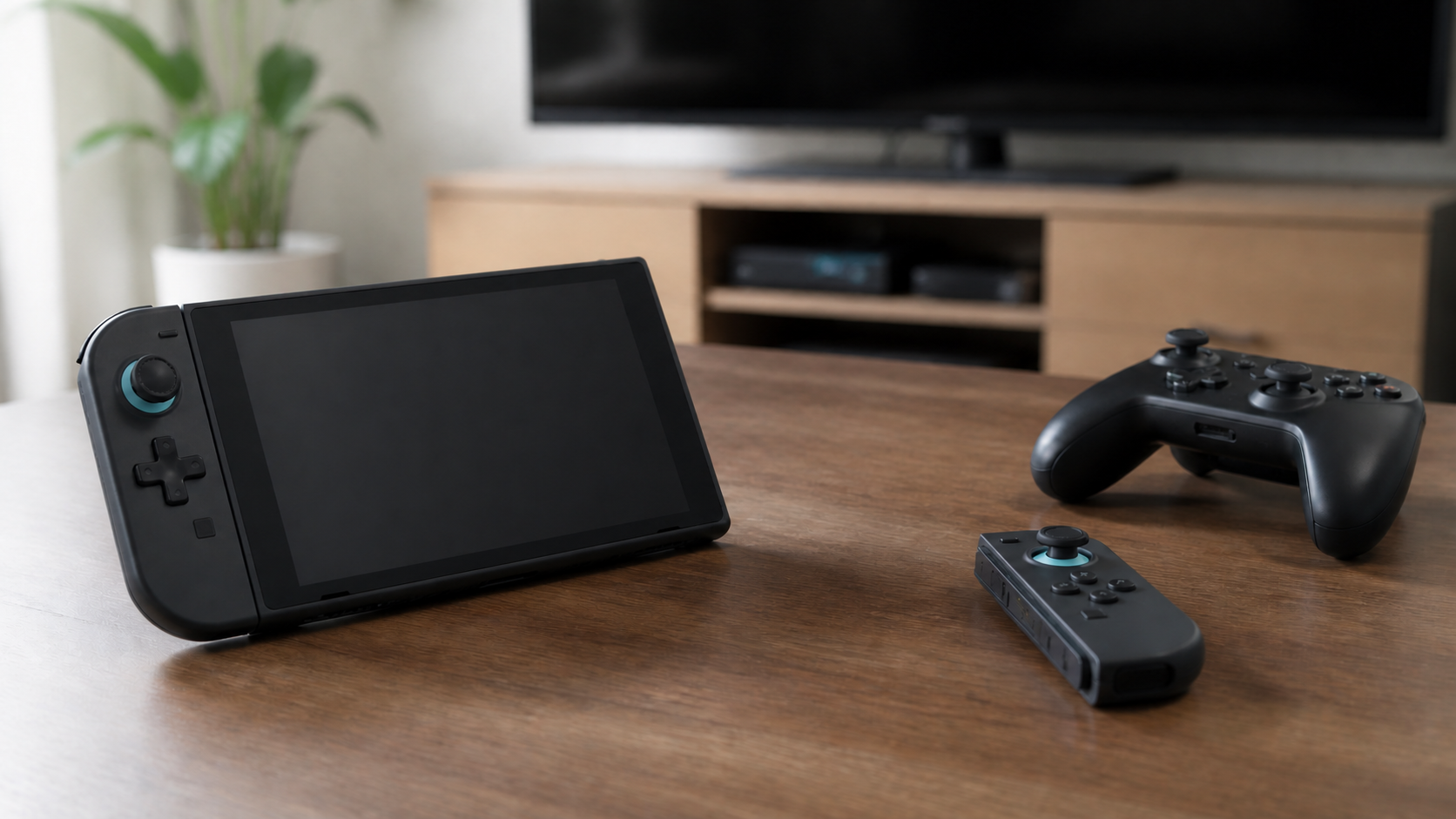
This guide covers original Joy-Con and Nintendo Switch Pro Controllers on Switch, Switch OLED and Switch Lite. Switch Lite cannot accept attached Joy-Con; use wireless pairing and a compatible charging accessory instead. Its built-in controls are a separate repair issue. Switch 2 and Joy-Con 2 have different hardware, so do not apply these rail-based checks to them. Third-party controllers need their maker’s exact mode and pairing instructions.
Start with the exact symptom
| What happens | Start here |
|---|---|
| Joy-Con is not detected while attached to Switch or OLED | Check correct attachment, one controller at a time |
| Joy-Con works attached but not wirelessly | Check charge, then pair through Change Grip/Order |
| Joy-Con will not connect to Switch Lite | Use wireless pairing, not an attachment test |
| Pro Controller does not appear | Check charge and the documented sync or USB pairing path |
| Controller works in HOME but not in a game | Check the game’s supported controllers, grip and player order |
| No wireless controller works | Restart, check software and review any connected Bluetooth audio |
Wake and charge the controller
Turn on the console using its own POWER button before pairing; Nintendo’s instructions say pairing is not available while it is off or asleep. Press a normal controller button and check the Controllers screen for battery status if it is recognized. A light or charging icon alone does not prove that button input is working.
For attached Joy-Con, Nintendo’s charging instructions specify a Switch or OLED console connected to its AC adapter and powered on or in Sleep Mode. Switch Lite owners need a compatible accessory such as the Joy-Con Charging Grip or Charging Stand. The ordinary grip is not interchangeable with a charging accessory. Charge a Pro Controller by its documented method, not by attempting to attach it to a rail.
Stop if the controller or battery is swollen, leaking, damaged or unusually hot. Do not open the case or bypass a charging fault.
If the Joy-Con is not detected while attached
- Save your game and let any active update finish. Restart the console normally.
- Detach the Joy-Con and work on one controller at a time.
- For that Joy-Con, press SYNC once, then press another button to turn it back on.
- Attach it in the correct orientation, fully seated without forcing it. Check whether the HOME or Controllers screen shows it as attached.
- If necessary, detach and reattach it a couple of times. If available, compare another compatible Joy-Con for the same side on that rail. Left and right controllers cannot be swapped between rails.
Nintendo’s attached Joy-Con troubleshooting distinguishes detection while attached from wireless use. A working right controller does not, by itself, prove that the left rail is healthy. If no spare is available, record that limitation rather than guessing which part failed.
Inspect the rail without scraping it
Look for a controller that does not seat fully, a visibly damaged rail or debris that prevents normal attachment. Power the console off before a close inspection. Do not bend contacts, insert metal tools or drip cleaner into the rail. If the rail is loose or damaged, stop the home troubleshooting and arrange service.
If it works attached but not wirelessly
Open Controllers on the HOME Menu, then Change Grip/Order. With the Joy-Con detached, hold its SYNC button for at least one second while that screen is open. Confirm the grip when prompted. Nintendo’s Joy-Con pairing guide shows the button location and on-screen steps. Use that diagram if you are unsure which small button is SYNC.
If it still fails, Nintendo’s wireless-only Joy-Con troubleshooting recommends checking battery charge, reducing distance and checking interference. Test near the console with an unobstructed path. Do not disable the household network or unplug devices other people are using. Keep the attached and wireless results separate in your notes.
Set the controller order again
A controller that navigates HOME may need a different grip or player position for a game. In Change Grip/Order, register how you intend to hold it: L on the left Joy-Con plus R on the right for a pair, or SL plus SR on each Joy-Con for separate horizontal use. Follow the game’s supported play modes rather than assuming every game accepts one sideways Joy-Con.
Pair a Pro Controller through the correct path
With the console awake, open Change Grip/Order and hold the Pro Controller’s SYNC button for at least one second. For Switch or OLED, Nintendo also documents Pro Controller USB pairing through the dock using the included HAC-010 cable. Switch Lite requires a licensed accessory for that USB path; it does not use the standard TV dock.
If USB pairing fails, Nintendo’s Pro Controller sync troubleshooting includes pressing SYNC once, pressing another button to wake it, and trying another supported cable or dock USB port before testing wireless pairing. Disconnect only the controller cable for this comparison, not storage or power during an update. A controller-shaped accessory from another maker may need different steps.
Pair with the console you intend to use
If the controller was recently used elsewhere, make sure you are looking at the intended console’s HOME screen, then pair it there again. Do not power off another person’s active game or computer to test a theory. Save work first if you need to stop an old host you control, and change only the connection involved in the test.
Check Bluetooth audio before clearing pairings
If an additional controller will not connect while Bluetooth headphones are in use, check Nintendo’s controller pairing FAQ: Bluetooth audio limits the system to two wireless controllers. A left and right Joy-Con count separately when used wirelessly. Disconnect the Bluetooth audio device if you need another controller; do not mistake that limit for a broken controller.
Nintendo’s wireless troubleshooting also offers System Settings > Controllers and Sensors > Disconnect Controllers. This clears saved controller pairing information, so be ready to pair the controllers again and keep a working way to use the console available. Try charging, ordinary pairing and a restart first for one failing controller. Do not initialize the console or erase games for this test.
Install current console and controller updates
Save your game first. To restart normally, hold the console’s POWER button for at least three seconds, then choose Power Options > Restart. A brief tap only puts it to sleep. Do not force power off while an update is running. Nintendo’s system update and restart guide also covers System Settings > System > System Update; an online download needs internet.
For controller firmware, use System Settings > Controllers and Sensors > Update Controllers after updating the console. Nintendo’s controller update instructions require the controller to be paired and powered on. A completely unrecognized controller cannot be repaired merely by selecting that menu. Get any third-party controller update only from its maker for the exact model.
Compare another controller or console
| Result | What to tell support |
|---|---|
| Another compatible same-side Joy-Con works on that rail | The first controller fails an attachment comparison |
| Two same-side Joy-Con fail on one console rail | The console and controller connection needs assessment; this is not proof of one failed part |
| Problem Joy-Con works attached but not wirelessly | Report the wireless pairing, charge and interference checks |
| No wireless controller pairs after a restart | Report console software, controller models and Bluetooth audio use |
Do not change the router for a controller link
The controller pairs locally with the console. Start with controller and console checks, not a DNS change or router factory reset. An attached-detection fault is not evidence that you need a faster internet plan. Wireless interference can still deserve a separate check, as Nintendo’s wireless guide explains. If the controller works and only the console’s internet connection fails, use the one-device WiFi troubleshooting guide.
If every home device loses service at the same time, check the separate WiFi or internet outage steps. Keep network and controller symptoms in different tests.
When the controller needs assessment
Request Nintendo support when one controller still fails after charging, correct pairing, restart, current updates and a comparison with another controller or rail. Note whether it fails attached, wirelessly or both. That distinction tells support more than a general report that the controller does not work.
Sources and scope
The linked Nintendo pairing, charging and troubleshooting instructions are the basis for this guide, not hands-on testing of every console or controller. Repair arrangements vary by country; use support for your region. No controller, rail or battery failure is confirmed by these comparisons alone, and the generic illustration is not a Nintendo service diagram.


