
If your PS5 controller is not connecting, turn on the console, connect the controller directly with a data-capable USB cable, then press the PS button. A charging light alone does not prove that the cable can carry pairing data. Check power, the cable and the console port before resetting the controller or paying for a replacement.
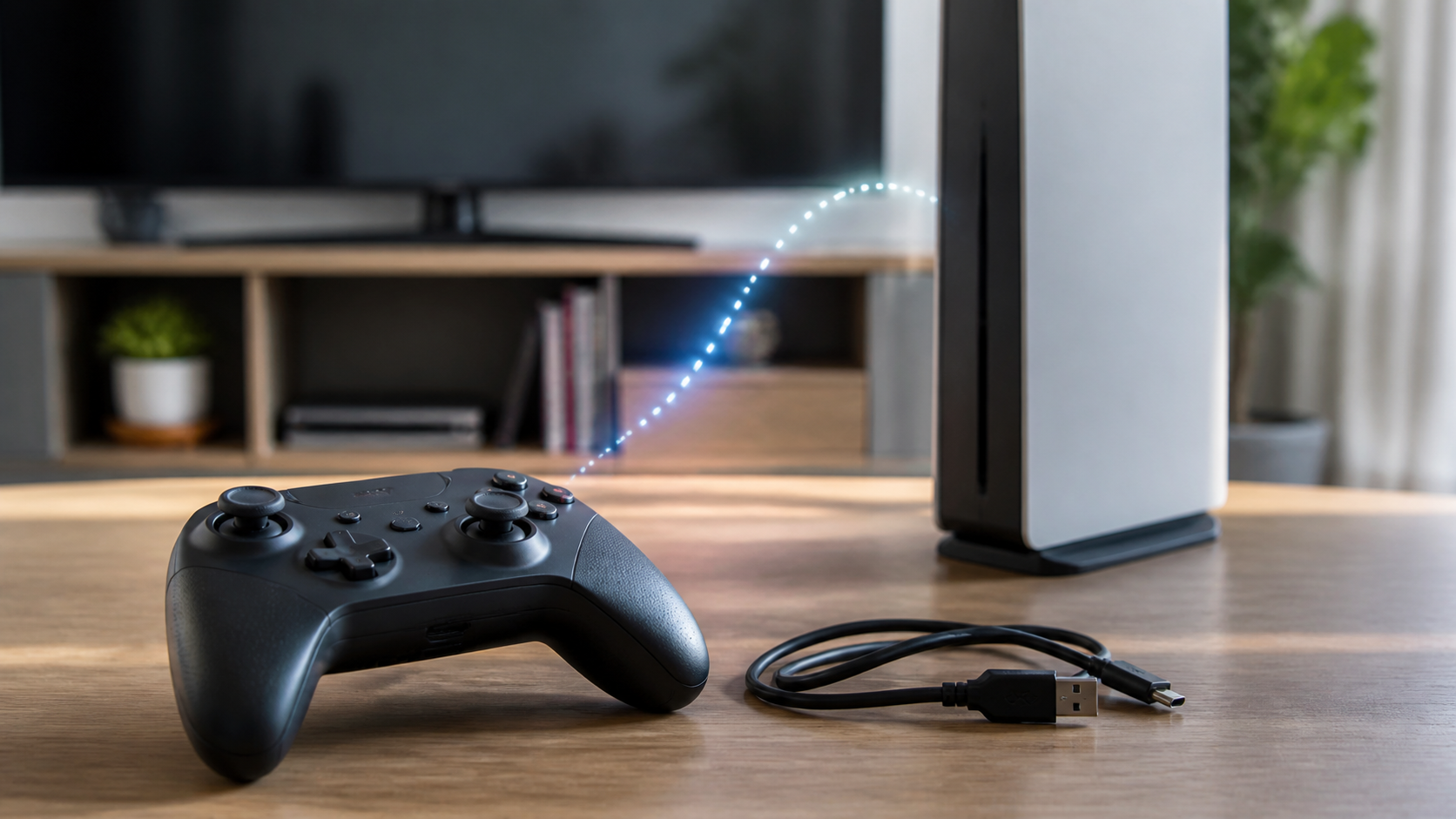
These steps are for a standard DualSense wireless controller connecting to a PS5. A DualSense Edge, third-party controller or other accessory can have different reset and setup instructions. Use that product’s manual rather than applying every button sequence below to it.
Match the symptom before you reset anything
| What you see | Best first check |
|---|---|
| No light or response | Charge it, then test another supported USB cable and port |
| Light flashes but it never connects | Try USB-assisted pairing and check the intended host |
| It works only while the cable is attached | Check charge, communication settings, pairing and controller software |
| One controller fails but another works | Compare them using the same cable and port |
| No controller works | Check the console, ports and system software |
Try the official USB-assisted pairing steps
- Turn on the PS5 console.
- Connect the controller directly to the console with the USB cable supplied with the console, or another cable that supports both power and data.
- Press the PS button once.
- Wait for the light bar and player indicator to respond.
The CFI-ZCT2W DualSense instruction manual uses this first-pairing sequence and warns that not every USB cable functions properly. The cable helps establish the pairing; input while a cable is attached does not, by itself, prove whether the console is using USB or Bluetooth for communication.
A charging cable may not carry pairing data
A controller can show a charging light through a cable that does not complete the data connection needed for pairing. PlayStation’s DualSense connection and charging guide recommends the included cable or a replacement labeled charge and sync or charging and data, rather than charge only. Test a known data-capable cable before assuming the controller is broken.
Connect directly to the console during this test. Remove a hub, extension or charging stand from the controller’s path. If a hub also holds storage, stop transfers and safely disconnect that storage before unplugging the hub.
Try another console USB port
If the first attempt does nothing, move the same known data-capable cable to another compatible console port. PlayStation’s PS5 USB port guide lists DualSense support; the available connector types vary by console model. Inspect the plugs for looseness or damage, but do not force a plug, put metal tools into a USB port or spray liquid into it. One successful port comparison narrows the fault without proving which part is damaged.
Give a fully drained controller time to charge
Leave the controller connected using the approved charging setup, then repeat the PS-button test. If it did not charge overnight in rest mode, check USB power before blaming the battery. PlayStation’s rest-mode charging instructions place Supply Power to USB Ports under Settings > System > Power Saving > Features Available in Rest Mode. Available charging options depend on the console model.
Stop using the controller if it is swollen, leaking, unusually hot or physically damaged. Do not open it to reconnect the battery. Use PlayStation repair or an appropriate service provider.
Disconnect the controller from its previous device
A DualSense can also pair with supported phones and computers. If it reconnects to one of those instead of the PS5, disconnect this controller on the old host or use its documented device slot. Avoid switching off that host’s whole Bluetooth radio if someone needs its keyboard, mouse or other accessory. Repeat the console’s USB-assisted pairing steps afterward.
Current DualSense multi-device instructions describe assigned pairing slots and ways to switch between hosts. Do not treat a controller returning to its last host as proof that its radio is broken. Use the instructions matching its current software rather than guessing a button combination.
Restart the console without factory resetting it
Save your game and let updates finish. If another controller works, use the console’s normal Restart PS5 option. If none works, follow PlayStation’s PS5 power-control instructions for the physical power button and wait for shutdown before turning it on again. Do not pull the AC cord while the console’s power indicator is lit or blinking.
Do not choose Reset PS5 for an accessory problem. A factory reset removes far more than a controller pairing and gives little diagnostic value at this stage.
Reset the controller only after cable checks
If the cable, port and power checks do not restore pairing, use the official DualSense controller reset procedure. For the standard DualSense covered by that guide:
- Turn off the PS5 and disconnect the controller’s USB cable.
- Locate the small reset hole next to the Sony logo on the back of the controller.
- Use a pin or similar tool to press the reset button inside that specific hole for at least five seconds. Do not probe other openings.
- Reconnect the controller to the PS5 with the official USB cable and press the PS button.
Check the diagram in the official guide if you cannot identify the reset hole. Do not open the controller or try a reset sequence intended for a different product.
A controller reset is not a PS5 factory reset. It cannot repair physical damage to a socket or battery. If the same symptom returns after the documented retry, record the result and compare hardware instead of resetting repeatedly.
Use a second controller as a clean comparison
If you can borrow another working standard DualSense, compare it using the same cable and console port. Change one part at a time. If the second controller works, the first controller needs closer attention, but that alone does not identify a failed battery, socket or radio.
| Comparison result | What it suggests |
|---|---|
| Second controller connects with the same cable | First controller or its saved state needs attention |
| Neither controller connects with one cable | Cable or port remains suspect |
| Both respond with cables attached but fail after unplugging | Check charge, communication settings, pairing and console software |
| First controller also fails on another supported host | Controller service deserves consideration; the home router is not the next test |
Update the console and controller software
Once you can control the console, check PS5 system software updates under Settings > System > System Software > System Software Update and Settings. For controller software, PlayStation lists Settings > Accessories > Controller (General) > DualSense Wireless Controller Device Software. Keep power connected and let the update finish. Avoid unofficial firmware or tools that ask you to bypass normal protections.
If it connects to another device but not the PS5
A successful connection to a supported phone or computer shows that at least one input path works. It does not prove that the PS5 pairing is healthy. Disconnect this controller on that host, select the intended console connection and retry USB-assisted pairing. Reserve the controller reset for when those earlier checks fail.
If the controller reconnects to the other host immediately, remove or disconnect that saved entry before trying the console again. Keep the controller close to the PS5 during the comparison.
If it works by cable but not wirelessly
Check the battery charge and offered controller software first. PlayStation’s general controller settings guide includes Communication Method, which determines how the controller communicates with the console. Check that setting before labeling a cable-attached session a successful USB-only test.
Then retry without the cable close to the console. If another controller works wirelessly in the same location but this one does not, give support that comparison. If both fail, check the console side as well. A blue or flashing light alone cannot identify which component failed, and the console’s power-indicator guidance is not a diagnosis of the controller’s light.
Do not troubleshoot the home router for a local pairing failure
The controller connects locally to the console. Restarting the router, changing DNS or buying faster internet will not repair a controller that cannot pair. If the controller works but the console alone cannot reach online services, use the one-device WiFi checklist instead.
If online play drops after the controller is working, diagnose the network separately with the PS5 WiFi disconnecting checklist. Keeping the two failures separate prevents unrelated router changes.
When to request controller repair
Contact PlayStation support when a controller remains unresponsive after charging, direct USB pairing with a known data cable, another console port, a documented reset and current software. Record which cables, ports and controllers you tested. That short list is more useful than repeating random resets.
Sources and scope
This guide follows the linked PlayStation support pages and the identified DualSense manual. It is not a hands-on repair test or a guarantee that a reset will fix hardware. The comparisons help you describe the fault to support without opening the controller, erasing the console or changing unrelated router settings.


