
If your Bluetooth mouse is not connecting, check its battery, selected mode and pairing state before deleting anything. Make sure it is a Bluetooth model, not a receiver-only mouse. If the computer already says Connected but the pointer will not move, check the sensor, surface and input response instead of repeating the pairing process.
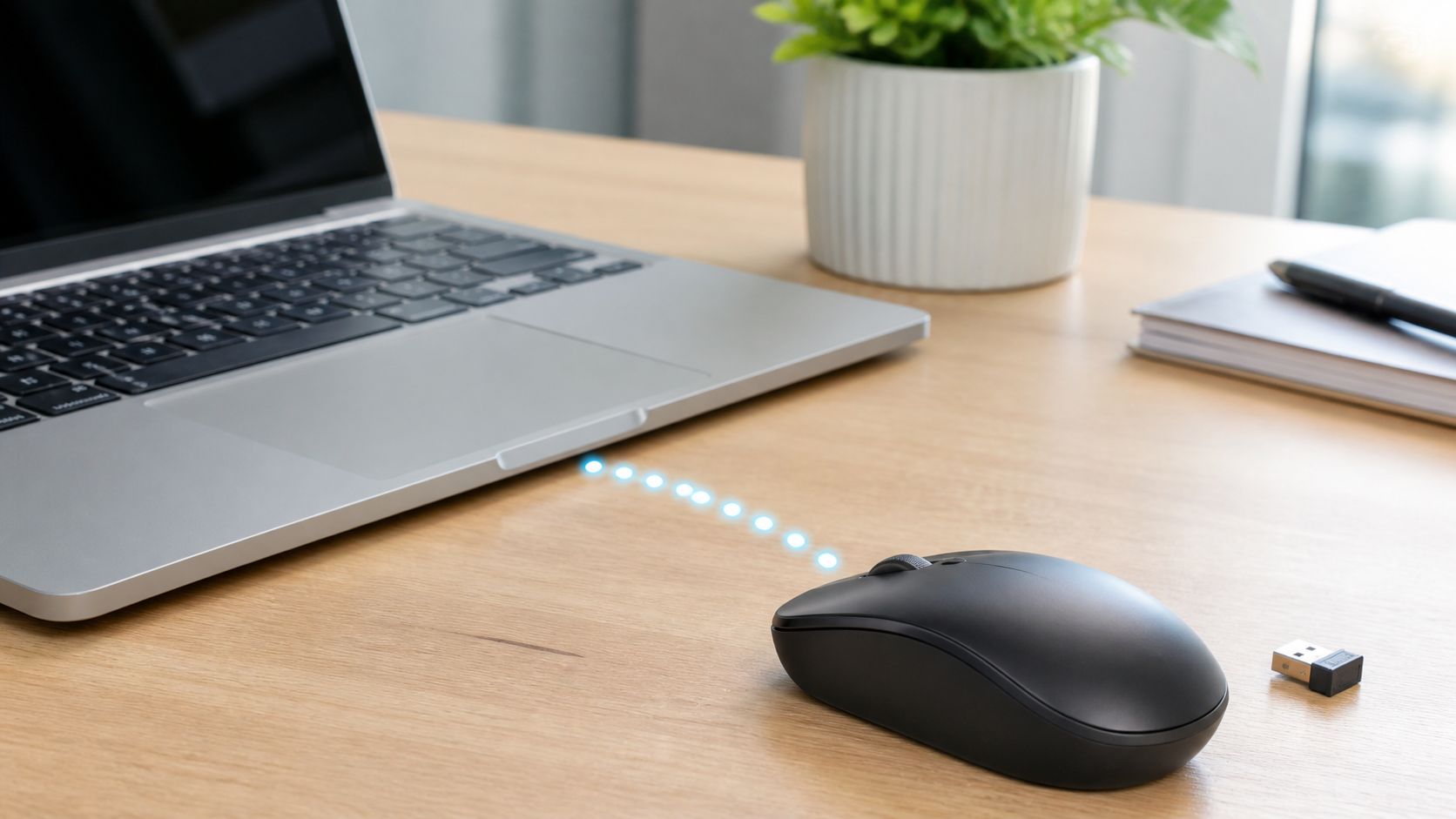
Match the symptom before changing anything
| What happens | Start here |
|---|---|
| The mouse never appears in Bluetooth | Confirm power, Bluetooth mode and discoverability |
| It appears but pairing fails | Check the selected channel and old host, then retry a saved pairing if needed |
| It says connected but the pointer does not move | Test buttons, sensor and surface before a reconnect |
| Bluetooth is missing on the computer | Check whether this computer has a working Bluetooth adapter |
| The mouse came with a USB receiver | Check receiver mode, compatibility and the USB path |
Keep a temporary way to control the computer
Before removing a saved mouse or restarting the computer, make sure the trackpad, touchscreen, keyboard navigation or another mouse works. If your keyboard also uses Bluetooth, turning the computer’s Bluetooth off can disconnect both. Keep a working local control method available before changing the radio.
Save open work before a restart. On a work or school computer, ask IT if Bluetooth or USB accessories are restricted. Do not disable security tools or remove company-managed settings to force a mouse connection.
Confirm that the mouse uses Bluetooth
Some wireless mice use only a small USB receiver. Others support Bluetooth and a receiver but require a switch underneath to select the active channel. A receiver-only mouse will never appear in Bluetooth settings, even when its light turns on.
Check the model label and manual. Do not assume that any receiver from the same brand will work. Some receivers and mice need an exact compatible family or a maker-provided pairing tool.
Restore power and wake the mouse
Charge the mouse or install fresh batteries in the correct direction. Switch it off, wait briefly and turn it on again. Move it and click once to wake it. A visible light does not confirm that the battery can maintain a connection. Microsoft’s Surface and Microsoft mouse troubleshooting guide includes battery checks and power cycling, but its button timings and indicator patterns apply to its supported models, not every mouse.
Stop using a battery that is swollen, leaking, damaged or unusually hot. Follow the mouse maker’s service and disposal instructions.
Select the correct mode and device slot
A multi-mode mouse may have separate settings for Bluetooth, a receiver and more than one computer. Select the intended mode before pairing. If the mouse has numbered channels, choose the slot assigned to this computer.
Use the model’s documented pairing action. Turning the mouse on is not always enough to make it discoverable, and holding an unknown button can switch slots or clear saved pairings.
Stop an old device from reclaiming it
A mouse may reconnect to the last phone, tablet or computer before the new host can pair with it. Use the mouse’s documented device slot or disconnect this mouse on the old host. Turn off the old host’s Bluetooth only if doing so will not disconnect controls or accessories someone needs. Then put the mouse into pairing mode beside the intended computer.
Replace a stale saved pairing
If a normal reconnect fails, and you have another way to control the computer, remove or forget only this mouse. Put it into pairing mode and add it again. Microsoft’s guide for Bluetooth devices listed but not connecting in Windows includes that retry. It also explains the Windows 11 Get Help Bluetooth troubleshooter when the problem is not limited to one saved device.
Remove only the mouse you are repairing. A full network or Bluetooth reset erases more saved connections and is not a sensible first step.
If Windows 11 cannot find the mouse
- Open Start > Settings > Bluetooth & devices.
- Check that Bluetooth is on. If Airplane mode is enabled, check which radios it has turned off.
- Put the mouse into its documented pairing state and select its intended device slot.
- Choose Add device > Bluetooth, then select your mouse by its model name.
- Follow the actual prompt. Do not guess a universal PIN or keep selecting an unidentified nearby device.
If there is no Bluetooth control at all, first check this computer’s specifications and whether a USB Bluetooth adapter has been unplugged. A missing radio is a different problem from a visible radio that cannot pair one mouse. For a supported adapter that is not working, use Windows Update or the computer or adapter maker’s instructions. Avoid random driver tools, registry edits and uninstalling every Bluetooth device.
If the same computer also lost its Bluetooth keyboard, the Windows and Mac Bluetooth keyboard checks cover a safe fallback input method before removing pairings. A failure affecting several accessories is a reason to check the host, not buy several replacements.
If a Mac cannot find the mouse
- Open Apple menu > System Settings > Bluetooth and make sure Bluetooth is on.
- Make the mouse discoverable using its own instructions.
- Find its name in the list and choose Connect.
- If an existing entry will not reconnect, use another working input method, Control-click that mouse’s name, choose Forget, then pair it again.
Apple’s Mac Bluetooth pairing guide also covers cable-assisted pairing for Magic Mouse. For a compatible rechargeable Magic Mouse, connect the appropriate cable to the Mac and mouse, switch it on, and follow Apple’s instructions. Disconnect the cable before using that mouse. A third-party charging cable or mouse does not necessarily support this pairing method.
Connected but no pointer movement is a different problem
Test in the computer’s own settings or a local app, not only inside a remote desktop or browser page. Click once in a harmless area and try the wheel. If clicks work but movement does not, pairing may be intact. Try a plain mouse mat and check that nothing covers the sensor opening. Clean only as the mouse maker permits; do not spray liquid into it or open the housing.
If neither clicks nor movement work, try a normal disconnect and reconnect. If the pointer moves but scrolling feels reversed or unusually slow, inspect the mouse settings instead of repeatedly forgetting the device. Microsoft’s mouse hardware checks for Windows cover obstructed sensors, power, USB paths and cross-testing on another PC. A restart is reasonable after saving work when the whole computer’s input seems stuck.
Test the mouse and computer separately
- Pair another known-compatible Bluetooth accessory with the computer.
- Pair the mouse with another supported personal computer or tablet, using a spare device slot if available.
- Test close to the host with a charged battery and no metal object between them.
- Try without an unnecessary hub or dock, but eject storage and stop transfers before disconnecting anything.
If every Bluetooth accessory fails on one computer, the host needs attention. If the mouse fails on more than one supported host, its power, mode, pairing control or hardware becomes more suspect. Change one condition at a time so the result means something.
Follow the USB receiver path when Bluetooth is not involved
- Use the receiver supplied for that mouse or one confirmed compatible by the maker.
- Insert it directly into another working USB port.
- Select receiver mode on the mouse.
- Remove a hub or dock from the first test.
- Run the maker’s pairing utility only when the product instructions require it.
A receiver problem will not be fixed in the computer’s Bluetooth menu. Likewise, a Bluetooth mouse does not need a USB receiver unless the model supports both methods.
Do not start with the WiFi router
A Bluetooth mouse sends input directly to its host and does not need internet access. Restarting or resetting the router will not repair a stale mouse pairing. If the same computer also has a separate connection problem, use the guide for WiFi that fails on one device. If every device is offline, check whether you have a WiFi problem or an internet outage.
Nearby radio interference can still contribute to dropouts or jumpy movement. Apple’s wireless interference guidance recommends bringing Bluetooth devices closer together and moving USB 3 or Thunderbolt 3 equipment away from wireless devices. Try a small, reversible placement change after power and pairing checks. This is not a reason to factory-reset the router or change every network setting.
When to contact support or replace the mouse
Contact the maker when the mouse cannot enter its documented pairing state, fails on more than one supported host with known-good power, or has a damaged switch, sensor or battery compartment. For computer support, record whether Bluetooth appears in Settings and Device Manager, whether another accessory pairs, and what changed before the failure.
Sources and scope
This guide follows the linked Microsoft and Apple support instructions and uses symptom checks to separate pairing, input and receiver faults. It is not a hands-on test of a particular mouse. Follow the exact model’s manual for pairing buttons, channel selection, charging and cleaning. A result on one computer narrows the problem; it does not guarantee which part needs replacement.


