
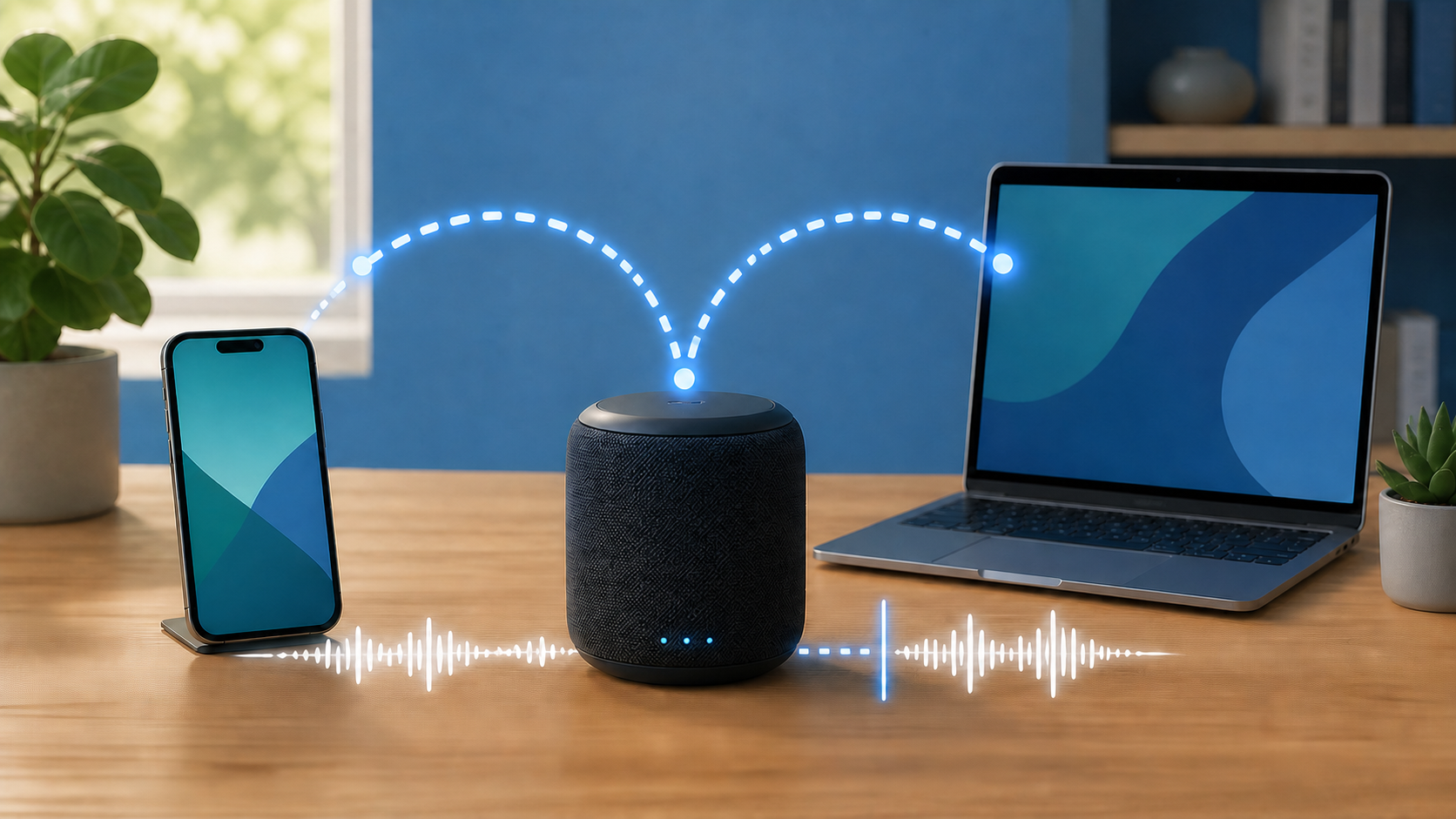
If your Bluetooth speaker is connected but has no sound, first choose it as the active audio output while a local music file or recording plays. Then check volume on the source device and speaker. A Connected label does not guarantee that media is going to that output. Compare another app and a second source device before deleting drivers or resetting the speaker.
Start with the exact symptom
| What happens | Best first check |
|---|---|
| Speaker says Connected, but phone still plays sound | Select the speaker in the audio-output menu |
| No sound from any source | Check speaker power, input and volume |
| Only one app is silent | Check that app’s player, mute and output settings |
| Local audio works but streaming is silent | Check the app and internet path |
| Speaker works with another phone | Focus on the first source device |
Use a local sound for the first test
Use a local audio file or a non-private voice recording that you know plays on the phone or computer. A saved media file avoids waiting for an online stream or subscription check. Do not use a system alert or a speaker’s own startup chime as the only proof of media playback: these can follow a different path.
If the local file reaches the speaker but a music or video app does not, you have confirmed that one media path works. Check whether the silent app is paused, muted, signed out, blocked from playing the title or waiting for internet access. If other apps also cannot load on WiFi, use the one-device WiFi checklist instead of re-pairing a working speaker.
Check the speaker itself
- Confirm that the speaker is powered on and has enough charge for a test.
- Raise its physical volume gradually.
- Make sure it is using Bluetooth rather than an auxiliary, USB or other input.
- Disconnect any audio cable that may switch the input automatically.
- Stop if the battery is swollen, leaking, damaged or unusually hot.
Button actions and indicator lights differ by model. Use the speaker manual rather than holding an unknown button combination that might clear every saved connection.
Select the speaker as the audio output
Pairing creates a relationship between devices. It does not guarantee that the speaker is the current output. Open the source device’s sound or media-output control while audio is playing, then choose the Bluetooth speaker by name.
On Windows 11, select Start > Settings > System > Sound, then choose the speaker under Output. Microsoft’s connected-without-sound checklist also describes selecting the output from the taskbar sound control. Check it again after reconnecting if audio goes back to the computer.
On iPhone, start the audio, open the playback destination control in the player, Lock Screen or Control Center, and select the speaker. Apple’s Bluetooth audio playback guide explains this selection. Its guide also notes that output returns to iPhone when the accessory moves out of range, so reconnecting does not replace checking where sound is going now.
On a Pixel or an Android phone with similar controls, open Settings > Connected devices and the settings beside the saved speaker. If a Media audio switch is available, check that it is on. Google’s Bluetooth music troubleshooting guide distinguishes media audio from phone-call audio. Menu names vary by manufacturer and version, so use the phone maker’s instructions if you do not see these controls.
Raise volume at both ends
Set the phone or computer to a modest audible level, then adjust the speaker. Some combinations keep the two volume controls linked, while others do not. Also check the app’s own player volume and the browser tab if the sound comes from a website.
Avoid jumping straight to maximum volume. If the connection begins working suddenly, an extreme setting can produce an uncomfortable burst of sound.
Make sure the source is actually playing
Watch the playback timer. If it does not move, the app may be paused, buffering or waiting for an account check. Try a second app and a local file. On a computer, also check whether the application has been muted in the system volume mixer.
If every online service stops at the same time, test another website and device. The WiFi or internet outage guide separates a local speaker problem from a home connection failure.
Stop another device from taking the speaker
A speaker that remembers several phones, tablets or computers may reconnect to the wrong one. On devices you control, disconnect the speaker from the other source’s Bluetooth menu, then connect the intended source. Avoid turning Bluetooth off wholesale if that would interrupt a keyboard, hearing device or another accessory you need. For a speaker with multipoint support, pause playback on the other source when it is safe to do so; do not interrupt someone else’s call.
Do not assume every speaker supports multipoint or handles it in the same way. The model manual should say whether two active sources are allowed.
Reconnect before removing the pairing
Disconnect the speaker from the Bluetooth menu, wait until the device reports that it is no longer active, then reconnect it. This keeps the saved pairing while refreshing the current connection. If you later toggle Bluetooth itself, account for other connected accessories and restore it after the comparison.
Restart the source device and speaker normally if reconnecting changes nothing. Test the local file again before moving to a more disruptive step.
Test the speaker with another source
Connect the speaker to another compatible phone, tablet or computer and play a local sound. Use a device you control so you do not expose private notifications or calls through the speaker.
| Result | What it suggests |
|---|---|
| Speaker works with the second source | The first source’s output, app, software or Bluetooth state needs attention |
| Speaker is silent with both sources | Check speaker input, charge, firmware and hardware |
| First source works with another speaker | The original speaker or its pairing is the narrower suspect |
| No Bluetooth audio device works with the first source | The source device’s Bluetooth audio system may need repair |
Remove and pair again only after the comparisons
Remove or forget the speaker from the source device, put the speaker into its documented pairing mode and add it again. This clears the saved relationship, so check the manual first if several household devices depend on that pairing.
Google’s instructions for a Bluetooth speaker paired to a Nest or Home device also begin with volume checks, then use a documented unpair-and-reconnect path when audio remains silent. The exact menu is specific to that ecosystem, but the order is useful: verify simple audio controls before deleting the connection. See Google’s Bluetooth speaker playback guidance.
Use the supported Windows repair path
On Windows 11, run the Bluetooth troubleshooter offered through Get Help, confirm the output again and install Windows updates. If a driver update is still needed, use Windows Update or the computer maker’s support page for the exact model. Avoid random driver-download sites.
The current Microsoft page covers removing and re-adding the device, Bluetooth toggling, Windows updates and updating the adapter driver through Device Manager. It does not make a generic registry or service modification a prerequisite. On a managed computer, ask IT before changing drivers or system settings. Use the instructions for your Windows version rather than an old workaround from an unrelated device.
Update only from the maker’s app or support page
Check for phone, tablet or computer updates. If the speaker maker supplies firmware through its official app, keep the speaker charged and follow that model’s instructions. Do not interrupt a firmware update or install firmware meant for a similar-looking model.
Know when the speaker needs service
Contact the speaker maker when the unit remains silent with two known-working sources, produces no documented startup sound, cannot hold power, shows physical damage or fails immediately after an approved firmware recovery. Tell support which sources you tested, whether local audio played, which output was selected and whether the speaker worked over a cable if the model supports one.
If the speaker works with a second phone but not the first, give support that comparison and the first phone’s output and app results. If it stays silent with both, report the input, volume, charge and pairing checks you completed. Neither result calls for a router reset when the failed test uses local Bluetooth media.
Sources and method
This guide uses the official Microsoft, Google and Apple instructions linked above, not hands-on tests of every speaker. The Google Home steps apply when a Nest or Home device sends audio to an external Bluetooth speaker. For phone and computer playback, use the matching output controls; speaker buttons, inputs and firmware remain model specific.


