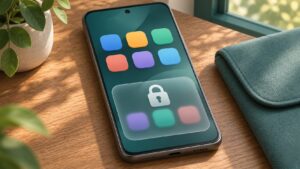
To hide apps on Android, first decide whether you want fewer visible icons or a separate, locked place for an app. Samsung offers both Home screen hiding and Secure Folder. Supported Android phones also offer Private Space. These options do different jobs; removing an icon is not the same as protecting the app behind another lock.
This guide uses current Google and Samsung U.S. instructions, checked November 6, 2026. Menus depend on your phone and software. It explains the built-in options without recommending a downloaded app hider or claiming hands-on device tests.
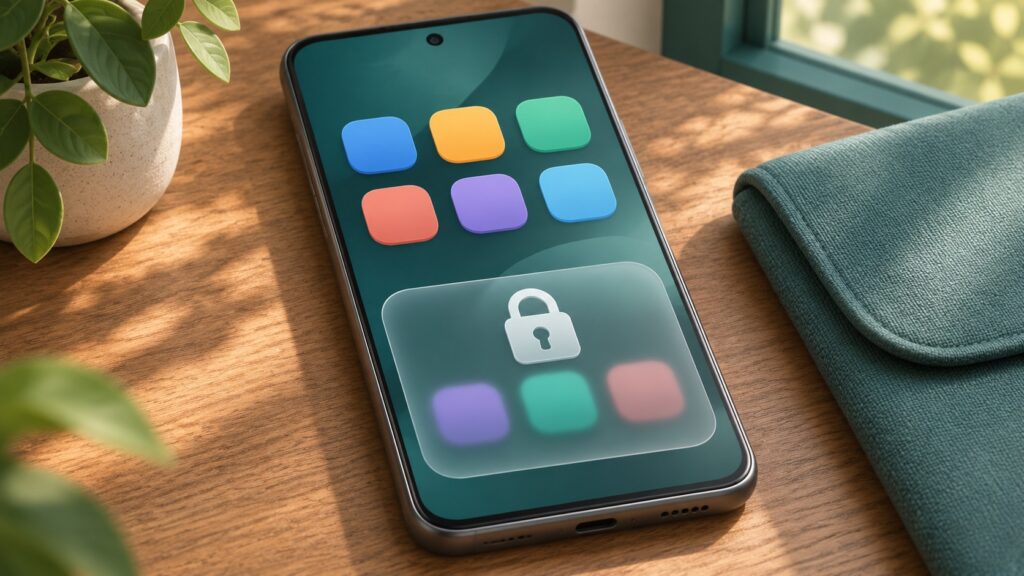
Removing an icon only tidies the Home screen
If you just want a less crowded Home screen, Google’s Home screen customization instructions describe touching and holding an item, then dragging it to Remove. The app stays installed. You can still find it in the full app list and add its shortcut back later.
Uninstall is a different action: it removes the app from the device. Read the label before confirming, especially if an app holds notes or other information you have not saved elsewhere. A normal folder that groups icons is useful for organization, but do not treat it as an extra password prompt.
Hide apps on Samsung without uninstalling them
For icons you do not want on either the Home or Apps screen, follow Samsung’s hide and unhide apps instructions:
- Touch and hold an empty area of the Home screen, then open Settings.
- Choose Hide apps on Home and Apps screens.
- Select the apps, then tap Done.
To undo this, return to that setting, remove the app from the Hidden apps selection and tap Done. Samsung says this removes icons rather than the installed apps. Use it for decluttering, not as proof that someone with your unlocked phone cannot access the app.
Hiding an icon also is not a plan for reducing background internet use. If that is your goal, our Android Data Saver guide covers the separate mobile-data setting.
Use Private Space on a supported Android phone
Google’s Private Space guide requires Android 15 or later and a supported device. Managed devices and supervised main accounts are excluded; manufacturers can disable the feature. Check Settings rather than assuming every updated phone has it.
- Open Settings, then Security & privacy and Private space.
- Authenticate, complete setup and choose the space’s lock.
- Unlock the space and use + Install to install an app there.
This installs a separate instance; it does not move the original app’s data. Lock the space to hide its apps. Its settings also let you hide the container when locked. Google recommends a dedicated account to reduce data appearing elsewhere through account syncing.
Locked Private Space apps stop running and cannot show notifications. Do not put an app there if you depend on its background operation. Device backup does not preserve its local app data, and deleting the space deletes that data. It also is not guaranteed to be undetectable through other apps or computer access.
Use Samsung Secure Folder for a separate app copy
On a supported Galaxy, Samsung’s Secure Folder guide provides a separate passcode-protected area. If the device does not support it, the option will not appear.
- Open Settings, Security and privacy, More security settings, then Secure Folder.
- Follow setup, sign into your Samsung account if prompted, and choose a lock.
- Inside Secure Folder, tap Add apps, select an app and tap Add.
The added app is a copy. Do not assume adding it removed the version outside the folder. Review Auto lock Secure Folder and Notifications: Samsung allows notifications from secured apps even while the folder is locked. Hiding its icon through Add Secure Folder to Apps screen is another setting, not the lock itself.
Samsung also says Secure Folder no longer supports making new backups, although it can restore older ones. Check the offered recovery option during setup and confirm how your important data is saved before relying on the folder.
Test access before removing your original app
Start with an app you can afford to experiment with. Sign in inside the protected area and check that the content you need is present. Lock the area, return to the regular app list and see what remains accessible. Send yourself a harmless test notification if the app supports it. Then check the result after unlocking again.
Do not uninstall the original just to complete the hiding process. First confirm your login, recovery method and any local files you need to retain. If you cannot explain which copy holds your data, stop before deleting either one. Changing the icon is easy to reverse; recovering unsaved information may not be.
Safe Folder in Files by Google cannot hide installed apps
The similar name causes confusion. Google’s Safe Folder documentation describes protecting files with a PIN or pattern and explicitly excludes moving installed apps into it. It is not a substitute for Private Space or Samsung Secure Folder.
Choose the tool for what you want to protect: Remove for a shortcut, Samsung’s hide setting for icons, a supported protected space for a separate app, or Safe Folder for files. Before lending someone your phone, verify the result instead of relying on a folder name or a missing icon.