
If your Android phone says it is connected to WiFi but apps cannot load, first find out whether the problem is the phone or the home network. Check another device on the same WiFi, then work through the phone’s saved network, VPN or Private DNS, time settings, and network reset. These steps are safer than changing router settings at random.
First check whether the WiFi problem is local
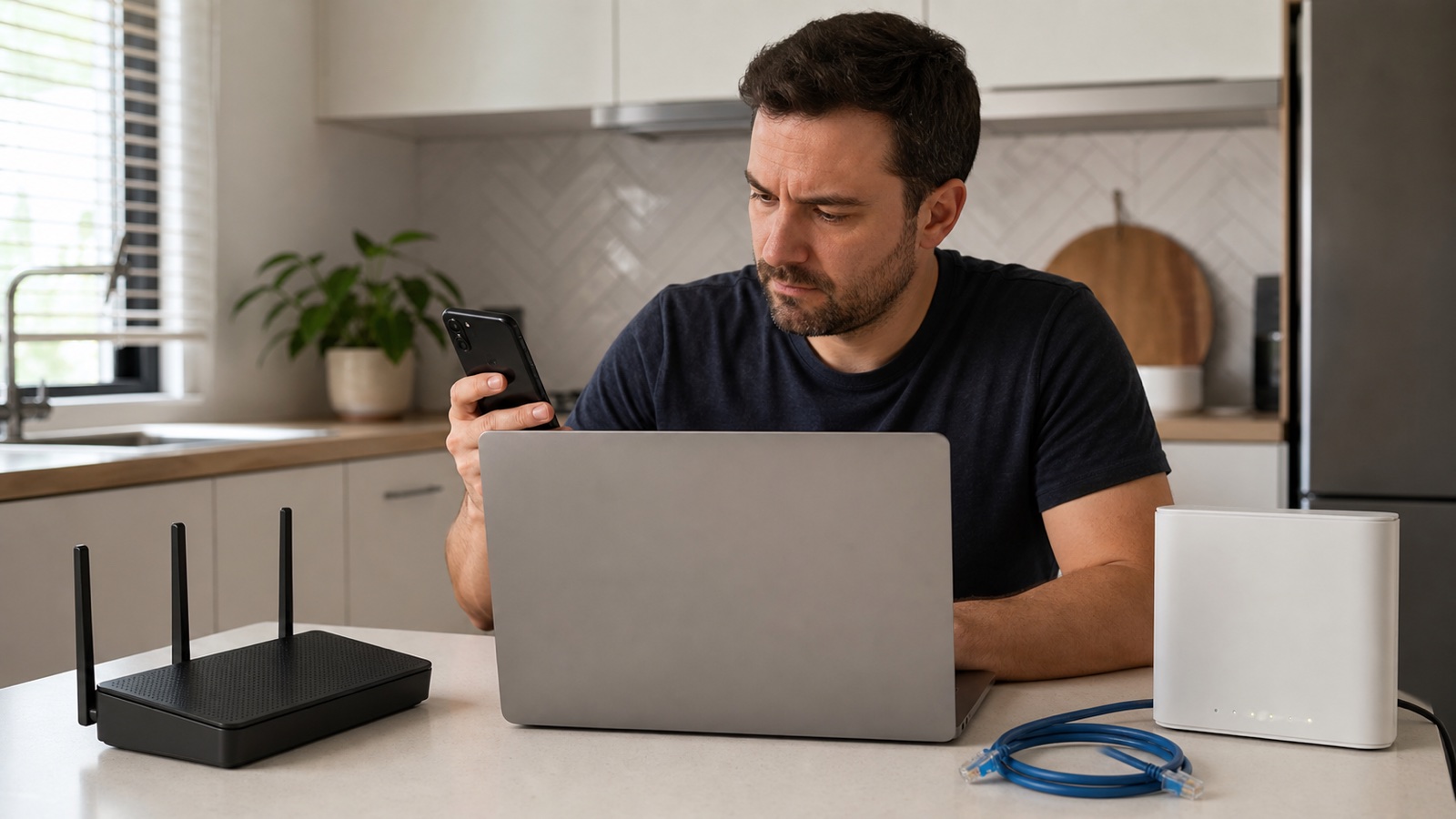
Connect a laptop or another phone to the same network and open two different websites. If every device is offline, restart the modem and router and check the service status before changing Android settings. If other devices work, the phone has a local connection problem.
Turn off mobile data for one minute so the test uses WiFi only. Open a browser, not just one app. If websites work but one app does not, update that app, check its permissions, and test again later. If nothing loads, continue with the phone steps below.
Forget the network and join it again
- Open Settings, Network and internet, then Internet or WiFi. Menu names vary by phone maker.
- Tap the connected network, choose Forget, and confirm.
- Restart the phone, select the network again, and enter the WiFi password carefully.
This creates a fresh local profile and requests a new address from the router. If the phone asks whether to stay connected without internet, choose the normal connection only after you have confirmed that the router actually has service.
Check VPN, Private DNS, and date and time
A VPN, ad blocker, or custom Private DNS can stop name lookups while the WiFi link still appears connected. Temporarily turn off the VPN and set Private DNS to Automatic. Test one website, then restore your preferred setting if it was not the cause. Do not install a random “WiFi fixer” app that asks for broad access to your traffic.
Set date and time to use the network-provided or automatic option. An incorrect clock can cause secure websites and app sign-ins to fail even though the phone has an IP address.
Try a different band or location
Move within a few feet of the router and test again. If the connection works near the router, interference or weak signal is more likely than an Android software fault. Some older phones and smart devices work more reliably on 2.4 GHz, while a newer phone may prefer 5 GHz. If your router shows separate network names, try the other band once and compare.
| What you see | Most useful next check |
|---|---|
| Only this Android phone has no internet | Forget and rejoin WiFi, then test VPN and Private DNS |
| Every device is offline | Check the modem, router, ISP status, and cables |
| Works near the router only | Test signal, interference, and the other WiFi band |
| Websites work but one app fails | Update the app and check its permissions or service status |
Use a network reset as the last phone step
Android’s network reset removes saved WiFi networks, Bluetooth pairings, and some mobile network settings. Use it only after the simpler tests, and make sure you know the WiFi password first. Search Settings for “reset WiFi” or “reset network settings,” confirm the warning, restart the phone, and join your network again.
Google’s Android guidance recommends checking the WiFi connection, restarting the phone and router, and testing another network. If the phone fails on several known-good networks after updates and a reset, contact the phone maker instead of changing router security.
Quick checklist
- Test another device on the same WiFi.
- Forget the network and join it again.
- Turn off VPN and set Private DNS to Automatic for one test.
- Check automatic date and time.
- Try the other WiFi band or test near the router.
- Use Android network reset only after saving the password.
If the issue affects every device, use our broader WiFi connected but no internet guide to separate the router, modem, and ISP checks.
Source
See Google’s Android internet connection troubleshooting guide for current menu guidance and device-level checks.


