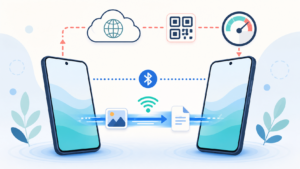
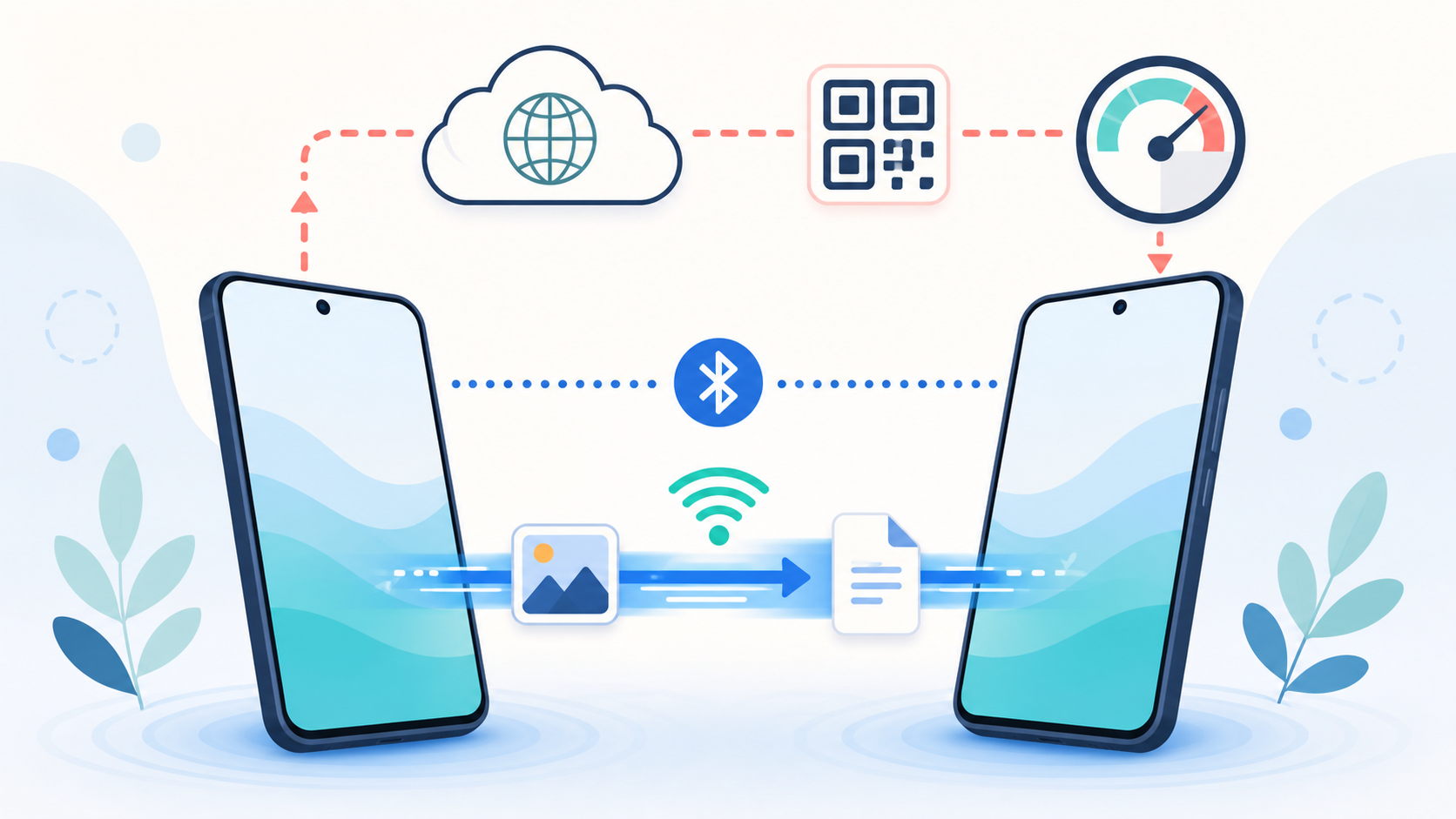
Yes, Quick Share can send files from Android to an iPhone. Compatible phones can send directly to AirDrop. Other phones can use a QR code that opens an online download page. Choose the method first: the setup and internet requirements are different.
This guide follows current Google, Samsung and Apple instructions checked November 6, 2026. It explains individual file sharing, not moving every app, message and account to a new phone. No transfer speeds or device tests are claimed.
Check whether your Android phone supports AirDrop
Use Google’s current Quick Share and iPhone compatibility list to check your exact model. Examples include Pixel 8a, listed Pixel 9 and 10 models, and Galaxy S24, S25 and S26 models. Selected foldables and other brands also appear. Having a Quick Share icon does not by itself establish AirDrop compatibility; software, carrier and regional availability can differ.
If your phone is supported, try the direct method below. If it is not supported, look for the QR option instead of repeatedly searching for an iPhone that cannot appear as a nearby recipient on that setup. Check the available option on your updated phone before relying on it for a trip or an event.
Send from Android to iPhone through AirDrop
Keep the phones nearby with WiFi and Bluetooth enabled. Apple’s AirDrop preparation instructions also say to disconnect Personal Hotspot. Do that before starting a direct nearby transfer, rather than changing your home router.
- On the receiving iPhone, open Settings > General > AirDrop and select Everyone for 10 Minutes.
- On the compatible Android phone, select a photo or file, tap Share, then Quick Share.
- Select the nearby iPhone. Ask its owner to accept the AirDrop notification.
On a compatible Samsung Galaxy, an additional control matters. Samsung’s sharing guide places Share with Apple devices in Settings > Connected devices > Quick Share. Enable it for the transfer. If that option is missing, check model support and software rather than assuming the receiving iPhone is faulty.
Confirm the recipient’s device name with the person beside you before sending. Google describes this Quick Share to AirDrop connection as direct and peer to peer, rather than a file upload through its servers. That statement applies to this direct route, not the QR download method.
Send from iPhone back to Android
On a compatible Android phone, open Quick Share in Receive mode. On the iPhone, select the file, tap Share > AirDrop, and choose that Android device. Accept on the receiver. Samsung users should also check Share with Apple devices.
This is the reverse direct-transfer workflow in Google’s iPhone sharing guide. The QR method below sends Android files to an iPhone browser; it is not an instruction to upload iPhone files through the same QR page. Do not assume success in one direction proves that every model, app or file supports the reverse route.
Use a QR code when direct sharing is unavailable
Google’s Quick Share help describes an internet-based alternative for devices without AirDrop support. Both phones need internet access.
- On Android, select the files in Quick Share and choose Use QR code.
- Use the iPhone camera to scan the displayed code and open the link.
- Let the Quick Share webpage transfer the files, then download or save them. Check that the item opens before ending the sharing session.
Google says the encrypted files remain available to download for 24 hours, without using your Google Drive storage. The Android-to-Apple limit is 10 GB per 24 hours. Some downloads are ZIP files; videos use Download. Open the saved item to confirm that it arrived.
Unmetered WiFi is preferable for a large online transfer. If either phone uses cellular, charges may apply. In Quick Share settings, check Use mobile data; check the iPhone’s connection separately. Turning data off does not make this online method work offline.
If the iPhone does not appear or the transfer fails
- Check the sharing method. AirDrop discovery and a QR webpage are different paths. For the latter, check internet access on both phones before spending time on nearby-device discovery.
- Reopen the receiving settings. Apple’s Everyone for 10 Minutes setting expires, so a receiver that was visible earlier may no longer be visible.
- On Galaxy, check updates and Share with Apple devices. Samsung’s guide also notes that WiFi can temporarily disconnect while sharing with Apple devices; that alone does not establish a router outage.
- Try one small photo already on the phone, with the other person watching for the acceptance prompt. If that succeeds, compare the original file and destination instead of resetting every connection at once.
If the Android phone also has ordinary internet problems, use our one-device WiFi troubleshooting checklist. If the receiving iPhone cannot save more files, check iPhone storage versus iCloud space. Those are separate checks from whether the two phones support direct sharing.
Afterward, close the receiving screen and restore your usual visibility choice. Accept files only from the person you intended to share with. Before sending a large batch, verify the receiver, the transfer route and where the first file was saved.