If websites think you are in another city, your internet connection is not necessarily misrouted or hacked. A site may use your public IP address for a rough estimate, ask the device for location permission, read a saved account location, or remember an earlier choice. First find which type of location is wrong.
Identify the location source
| What you see | Likely source | Best first check |
|---|---|---|
| An IP lookup shows a nearby city | IP geolocation database | Compare another reputable lookup and ignore small city differences |
| Search results show the wrong area | IP estimate, device location, or Google setting | Check the location note at the bottom of the results |
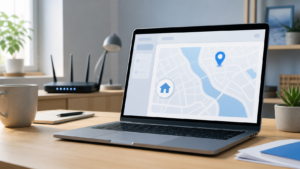
| A map places your blue dot incorrectly | Device location and browser permission | Check permission, WiFi, Bluetooth, and precise location |
| One shopping or weather site is wrong | Saved site choice, cookie, or account profile | Check the site’s delivery, store, or location setting |
| Many sites show a distant city or country | VPN, proxy, work network, mobile carrier, or stale IP data | Compare with the VPN off and on another connection |
Do not use a stranger’s IP lookup page as proof of your exact home address. An IP location is often an estimate for the connection, provider, or regional gateway. It is different from a phone’s GPS-based position.
1. Check whether the result comes from your IP address
Google says the location note below search results may show that an area came from your internet address. If it does, the result is based on an IP estimate rather than a precise reading from the device. A city in the same region can be normal, especially on mobile, fixed wireless, business, or provider-managed networks.
Different websites use different databases and update schedules, so two sites can place the same public IP in different cities. Restarting a router may result in a different public IP on some services, but it is not a reliable correction and can make no difference at all.
2. Turn off a VPN or proxy for one comparison
A VPN normally presents the location of its exit server to websites. A work VPN, privacy relay, browser VPN extension, proxy, or security service can therefore make a site see another city or country. Pause only a service you recognize, reload the page, and turn it back on after the test if you need it.
Do not remove a required work or school profile. On a managed device, ask the administrator whether traffic exits through another office or region. That behavior may be intentional.
3. Compare WiFi with mobile data
Open the same page on a phone over home WiFi, then turn WiFi off and try mobile data. If the displayed area changes with the connection, the site is probably using network-based information. Mobile carriers may send traffic through a regional gateway that is far from the phone.
If the result stays wrong on both connections in one browser or account, look at browser permission, saved site data, and account settings instead. Avoid resetting the home router for a result that follows the account.
4. Review location permission on the affected device
A website can ask the browser for device location. Microsoft explains that Windows may combine GPS, nearby WiFi access points, cell towers, an IP address, and a default location. Apple says its Location Services may use GPS, Bluetooth, WiFi hotspots, and cellular towers. The available sources and accuracy depend on the device.
Open the browser’s site settings and check the permission for that website. On a desktop computer without GPS, setting the correct default location in Windows can help apps that use the operating system’s location service. On a phone, confirm that Location Services and the app’s precise-location option match what you want to share.
5. Check the site and account before clearing everything
Retail, weather, news, and streaming sites may store a selected city, home area, delivery address, or preferred store. Check that setting while signed in and signed out. If only one site is wrong, remove its saved location or site data instead of clearing every cookie and login in the browser.
For Google Search, the location note below the results helps explain whether the area came from the device, home or work setting, past activity, or internet address. For a blue-dot problem in Google Maps, follow Google’s location-accuracy checks rather than treating it as an IP issue.
6. Decide whether the wrong location actually needs correction
A nearby city in an IP lookup is not, by itself, evidence of a slow or broken connection. It matters when a service shows the wrong country, blocks content you should receive, chooses the wrong store, flags logins, or keeps rejecting a valid address.
Take screenshots of the exact site, displayed area, date, public IP shown by that service, and whether the result changes on another connection. Contact the website first if only that site is wrong. Contact your ISP when many independent services show the same seriously incorrect region and no VPN or proxy is active. The ISP may confirm how the address block is registered, but it cannot force every database to update on the same day.
When this is a connection problem instead
A wrong city label alone does not mean WiFi is failing. If one device also cannot load ordinary sites, use the one-device WiFi checks. If every device loses access or the modem shows a provider-link problem, follow the WiFi versus internet outage checklist.