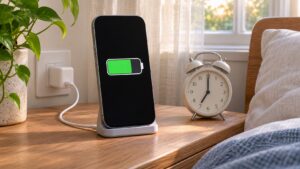
iPhone StandBy not working? On standard, non-folding models, use a charging, locked phone placed sideways and still, with StandBy enabled. A clock that later goes dark needs a different check from StandBy never starting.
Apple’s current guidance checked November 12, 2026. Menus and behavior depend on the model and iOS version. The checks below use published instructions, not a test of a particular phone or charging stand.
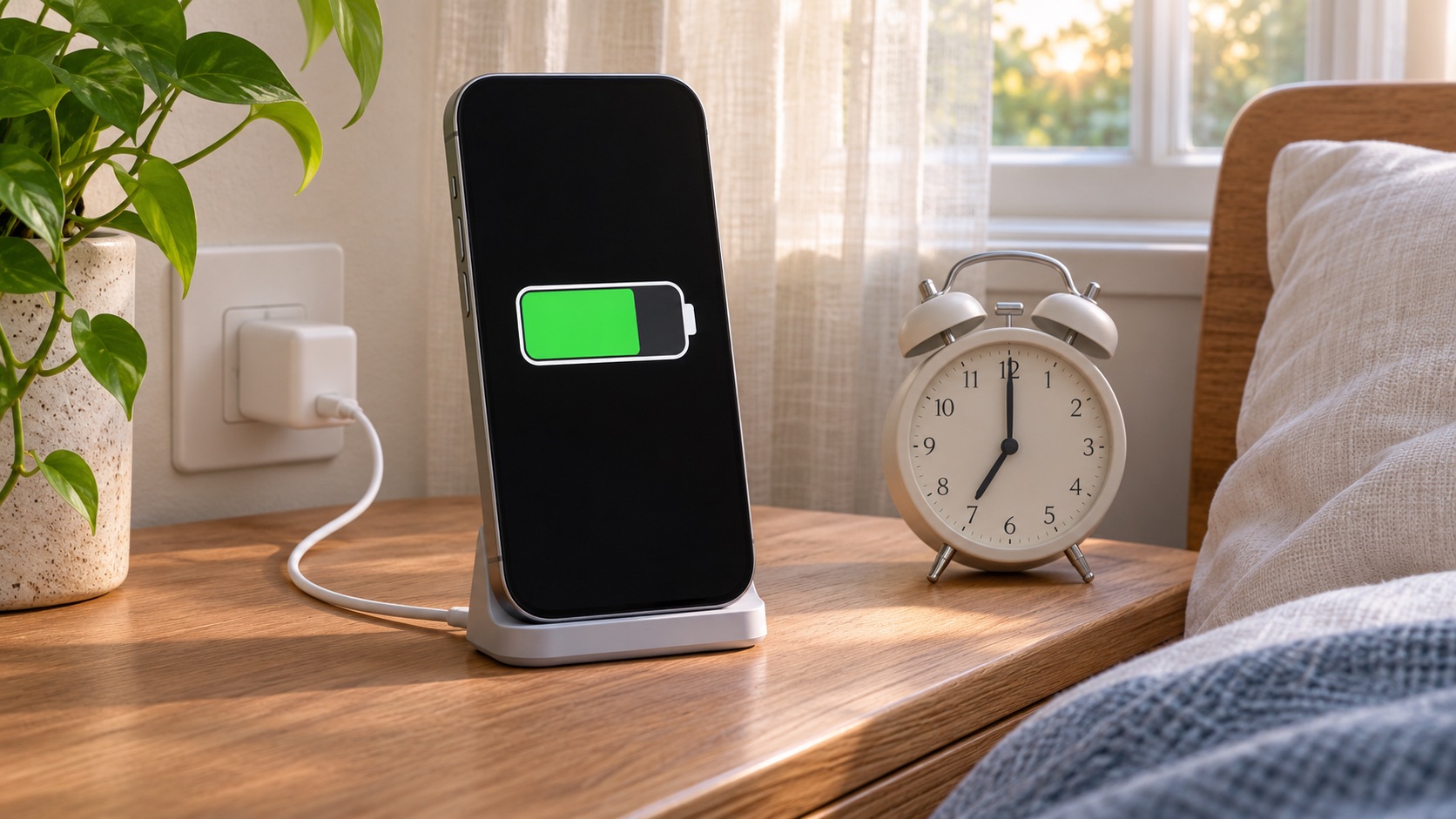
First, see whether StandBy starts at all
Follow Apple’s StandBy guide for your iOS version:
- Turn on StandBy in Settings.
- Connect a charger.
- Lock the phone, put it sideways and leave it still.
- Swipe to a clock view.
Apple’s iOS 27 guide gives iPhone Duo separate folded-position and optional charging-only controls. Check those instead of applying the standard setup.
Changing one thing at a time makes this check useful. If the clock works with a simple cable connection but not on your usual stand, you have narrowed the problem to that setup. It does not yet prove that the stand itself is defective.
A dark screen is not always a failure
Without Always-On display, wake StandBy with a tap, table nudge or Siri. On other models, check StandBy > Display for Automatically, After 20 Seconds or Never. Missing options may reflect model support.
| What you see | Next check |
|---|---|
| StandBy never appears | Setup, position and charging connection |
| Clock appears, then screen goes dark | Display support, timeout and power settings |
| Display becomes dim and red at night | Night Mode, rather than a broken screen |
Apple’s Always-On display guide lists normal reasons for the screen to switch off, including Low Power Mode, Sleep Focus, the phone being covered or face down, and usual bedtime. It also lists CarPlay, Continuity Camera and being away from a paired Apple Watch. These are not evidence that an accessory has failed.
On a supported phone, check Always On Display under Settings > Display & Brightness. Compare what happens in a well-lit daytime check with what happens overnight. If you temporarily change a power or Focus setting to compare behavior, restore the setting you normally need afterward. Do not remove your lock-screen passcode to troubleshoot a bedside clock.
Check Low Power Mode without changing everything
Apple’s Low Power Mode instructions put the switch at Settings > Battery > Power Mode on iPhone 15 and later, or Settings > Battery on iPhone 14 and earlier. The battery icon is yellow when it is active. Supported Adaptive Power setups can also enable it below 20%.
That is a reason to check the current switch rather than remember what you selected yesterday. Our Adaptive Power and Low Power Mode comparison explains the distinction. This is a display-behavior check, not a recommendation to abandon battery-saving settings permanently.
Separate a charging problem from a slow charger
Apple’s charging-speed guidance distinguishes a Slow Charger message from an Incompatible Charger message. The former can mean that another charger would be faster, not that the current one is broken. With iOS 26, the latter indicates a connected charger that is not charging. Check Settings > Battery rather than inferring a disconnect from a dark display.
If charging itself is unreliable, follow Apple’s cable, adapter and outlet checks. Do not use damaged accessories. Try a firm connection to a different outlet or a different suitable cable and charger. A charging pause near 80% can also reflect charging management; our Charge Limit versus Optimized Battery Charging guide covers that separate issue.
If StandBy still never starts after the relevant setup and charging checks, note your exact model, iOS version and whether the problem happens with another charging setup before contacting Apple. If only one widget is wrong while the clock works, report that narrower symptom. A full reset is not a useful first step for either case.