
Nano Banana is Google’s image-generation and editing feature in Gemini. You can try it without a paid AI plan, including uploading a photo and asking for changes. Paid plans offer more access, not unlimited edits. Start with a non-sensitive picture, keep the original and check the result before sharing it.
This guide covers adult personal-account users in the United States. We checked Google’s public documentation and U.S. subscription page on November 12, 2026; we did not test image quality or purchase a plan.
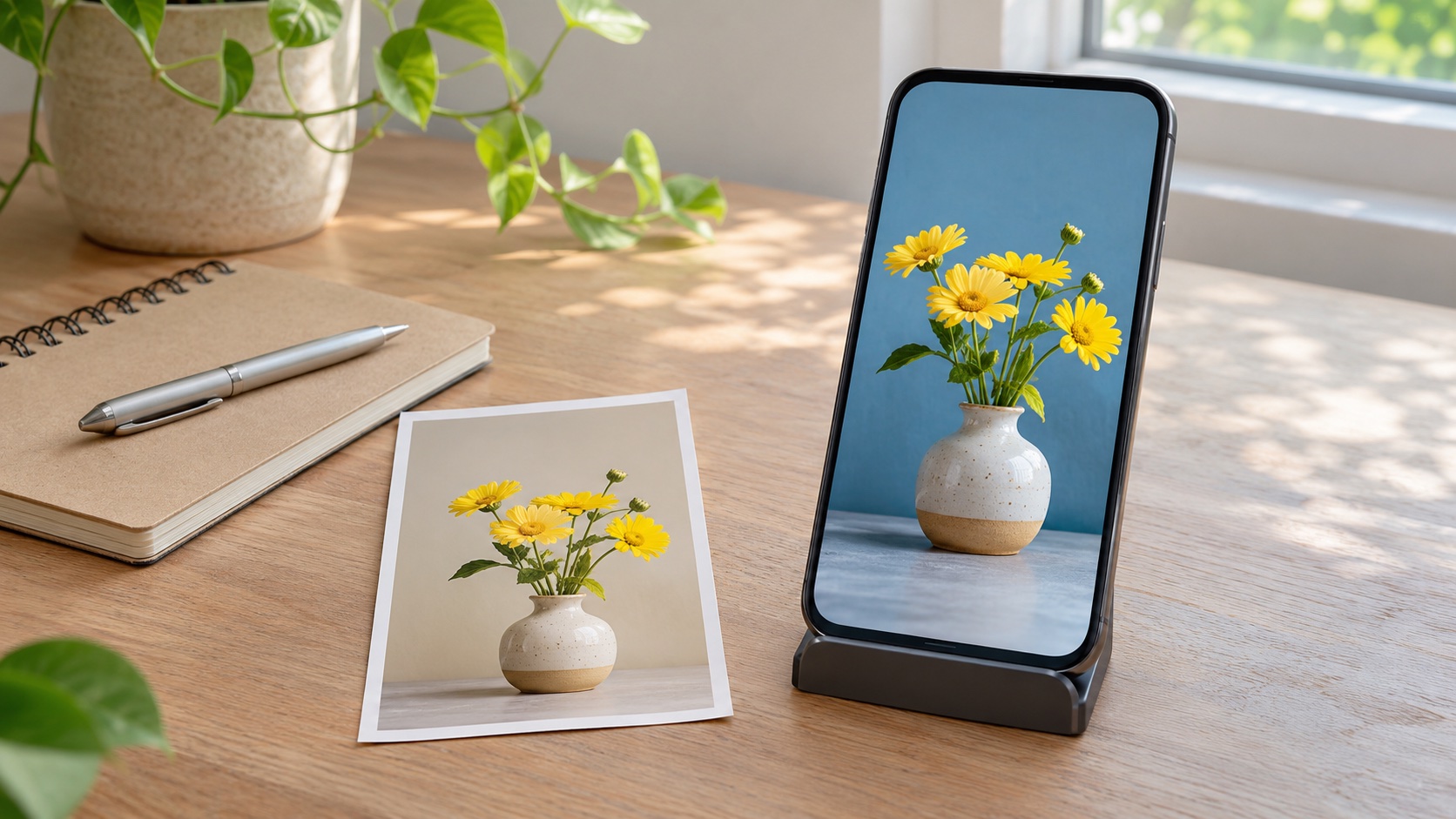
Where to find Nano Banana in Gemini
Use Google’s Gemini app or website rather than assuming every app with “Nano Banana” in its name is a Google product. Google’s image-generation overview currently distinguishes free Nano Banana 2 from Nano Banana 2.1 with a Google AI plan. Its help pages still use some older model labels, so follow the options offered in your own account.
Google’s image-editing instructions require sign-in and restrict editing to users aged 18 or older. Supported app, country and language rules also apply. A missing option does not automatically mean you need a subscription.
Edit a photo from your Android phone
- Open Gemini. In the composer, tap Add files, then Photos or Files to choose your picture.
- Describe one specific change and what should stay unchanged. For example: “Change the wall behind the vase to pale blue. Keep the flowers, vase and framing unchanged.”
- Submit the request, then compare the result with your original. Inspect details you did not ask to change, especially faces, lettering and product shapes.
- Keep the version you want before requesting another change. Give the next instruction a clear target instead of asking to “make it better.”
Those attachment controls are documented in Google’s Android upload guide. For an image already in Gemini, use Menu > Library, select it and tap Chat to request an edit. In the mobile app, touch and hold a generated image and choose Save to download it; Share creates a public image link.
For a birthday invitation, a useful request is: “Leave empty space above the cake for text I will add later.” Adding the exact event details yourself gives you a final chance to catch a wrong date or address. Treat these as prompt ideas, not tested examples or guaranteed results.
Is Nano Banana free, and what do paid plans cost?
The U.S. Gemini subscription page lists image generation and editing in the $0 plan. Its displayed monthly prices include:
| Plan | Displayed U.S. monthly price |
|---|---|
| Google AI Plus | $4.99 |
| Google AI Pro | $19.99 |
| Google AI Ultra | From $99.99; a $199.99 tier is also listed |
These are public monthly listings checked on the date above, not a personal offer or a tax-inclusive checkout quote. Other storage variants and offers can differ. Before subscribing, confirm the exact plan, any introductory period, renewal charge, taxes and annual upfront total if choosing annual billing. None of the figures here is an annual prepaid price. Our Google AI Plus versus Pro comparison explains the broader storage and sharing choices.
Google documents More > Redo with Pro for paid subscribers. It also warns that reaching the Nano Banana 2 image quota prevents additional Pro redos. Don’t buy a plan on the assumption that the Pro button bypasses every limit.
Check your actual limit instead of counting daily images
Google’s current Gemini usage-limit guidance describes an allowance affected by the request, model, feature and chat length. It refreshes every five hours until the weekly limit is reached. That is not a promise of a fixed number of free pictures per day, and Google’s Search or developer API limits are not interchangeable with Gemini app limits.
On the Gemini website, open Settings > Usage Limits. Gemini also shows warnings near the limit and a refresh notice when you reach it. Check that notice before repeatedly retrying. A paid subscription still has limits, and access can change.
If an attachment fails, check the file separately: Google’s upload guide allows supported non-video files up to 100 MB and up to 10 files per prompt, subject to availability. Try one ordinary photo first. A file-size error and an exhausted generation allowance need different fixes.
Check photo privacy before you upload
Google’s Gemini Privacy Hub says that when Keep Activity is on, chats and uploads are saved and can help improve services, including AI training with human review. With it off, future chats are not used to train models unless you send feedback, but Google still retains them for 72 hours for service and safety purposes. Turning it off does not mean zero retention.
Use a harmless practice photo rather than an ID, confidential work image or intimate picture. Ask permission before editing someone else’s photo. You do not need to connect your entire Google Photos account just to try a device upload. Our Gemini history and activity guide explains the separate controls. Save and review the finished image before making a public sharing link.