Leave iPhone Adaptive Power on if you want automatic adjustments on unusually busy days. Turn it off if you prefer to control those changes yourself, or want to compare a specific problem with the feature disabled. It is different from Low Power Mode and is not a substitute for checking what is draining your battery.
This guide uses Apple’s current documentation, checked November 10, 2026, for U.S. readers. It explains the settings and trade-offs, not a hands-on battery benchmark or a promise of extra hours.
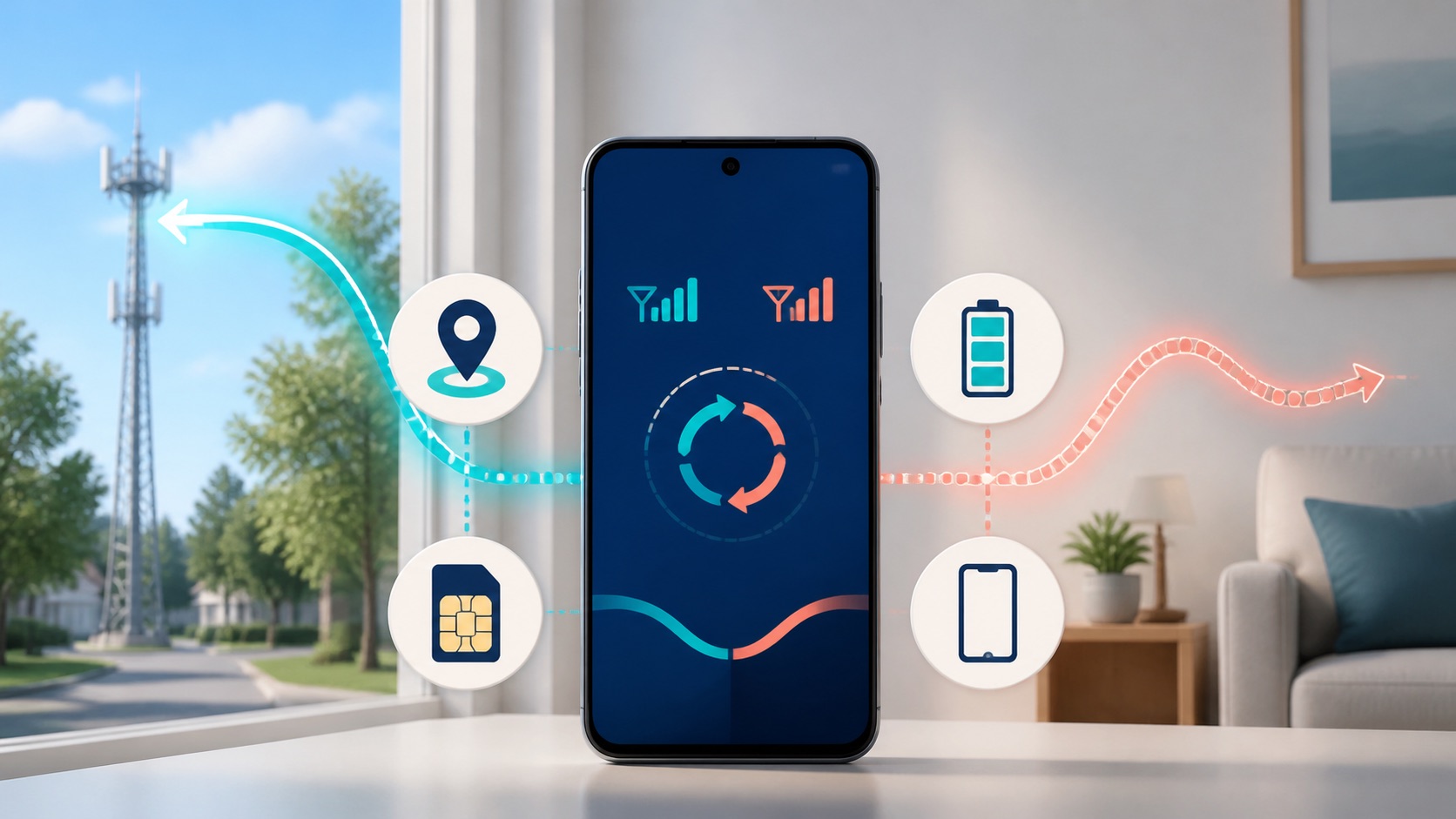
Check whether your iPhone supports Adaptive Power
Apple’s battery-drain guidance lists iOS 26 or later and a supported phone: iPhone 15 Pro or Pro Max, iPhone 16 models, iPhone 17 models, iPhone Air, iPhone 18 models or iPhone Duo. An older phone running a recent iOS version does not automatically gain this feature.
Default settings also differ. Apple’s Adaptive Power instructions list the iPhone 16 range and iPhone 15 Pro models as off by default, while newer listed models have it on. Check the switch rather than assuming your phone matches someone else’s screenshot.
Turn it on or off, then allow time to learn
- Open Settings and tap Battery.
- Open Power Mode and change Adaptive Power.
- Choose whether you want Adaptive Power Notifications on the same screen.
- Leave your other settings unchanged while checking whether the adjustment suits your daily use.
Apple says Adaptive Power needs at least seven days to learn charging habits before it engages. An enabled switch does not mean the feature must intervene immediately. Turning its notifications off only silences those alerts; it does not turn the feature off.
The feature can adjust performance, slightly reduce brightness and limit background activity. Apple says it does not manage performance during tasks requiring maximum performance, such as camera use or gaming with Game Mode on. That is not a guarantee that every app will feel identical with every power setting.
Adaptive Power and Low Power Mode solve different problems
Adaptive Power reacts to your usage patterns. Low Power Mode is the more direct choice when you want to reduce power use now. Apple’s Low Power Mode explanation identifies changes you may actually notice:
- Automatic downloads, email fetch and Background App Refresh turn off.
- iCloud Photos pauses temporarily.
- The battery icon turns yellow, and Low Power Mode turns off when charging reaches 80% or more.
Adaptive Power can turn on Low Power Mode around the 20% battery threshold. If a background task stops near that point, check whether Low Power Mode is active instead of blaming Adaptive Power alone. On iPhone 15 and later, its separate switch is under Settings, Battery, Power Mode; on older models, look directly under Battery.
Do not confuse saving battery with saving mobile data
Low Data Mode is a separate setting for reducing network use. You can set it independently for cellular and Wi-Fi connections. It can lower streaming quality and pause downloads, backups and some background updates. Turning Adaptive Power off does not necessarily undo those restrictions.
If a photo upload or download is waiting, check the power and data settings separately before assuming Wi-Fi is broken. Our iPhone Low Data Mode guide covers the network-specific controls. For the separate choice between 5G Auto and 5G On, use our iPhone cellular-mode comparison.
Judge the result using your Battery history
Open Settings, Battery, then View All Battery Usage and select a day. Apple’s battery-usage guide explains how to review app and system activity, including time on screen and in the background. Look at those details before drawing a conclusion from the battery percentage alone.
Compare similar days with a similar starting charge, screen use and connection conditions. If you change Adaptive Power, brightness, cellular mode and several app settings together, you cannot tell which change mattered. A longer day of navigation or video is not a fair comparison with a quiet day at home. This is a practical comparison method, not a controlled test or a promised saving.
Also check for an Ongoing iOS Update or Ongoing Device Setup insight. Apple notes that background work after an update can affect battery life for a few days. Weak Wi-Fi or cellular signal can increase energy use too. If Battery Health shows Service, follow Apple’s service guidance rather than expecting a power-mode switch to restore battery capacity.