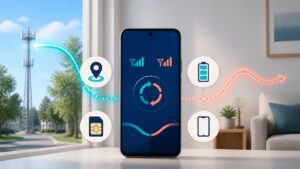
Use Google Maps to share a live location between Android and iPhone. Choose who can see it and for how long. Before heading out, have the recipient check the share on their own phone.
This guide follows Google’s and Apple’s current help, checked November 6, 2026. It is a setup guide, not a hands-on accuracy or battery test. Only share your own location with people you trust.
Choose a meeting place or a live location
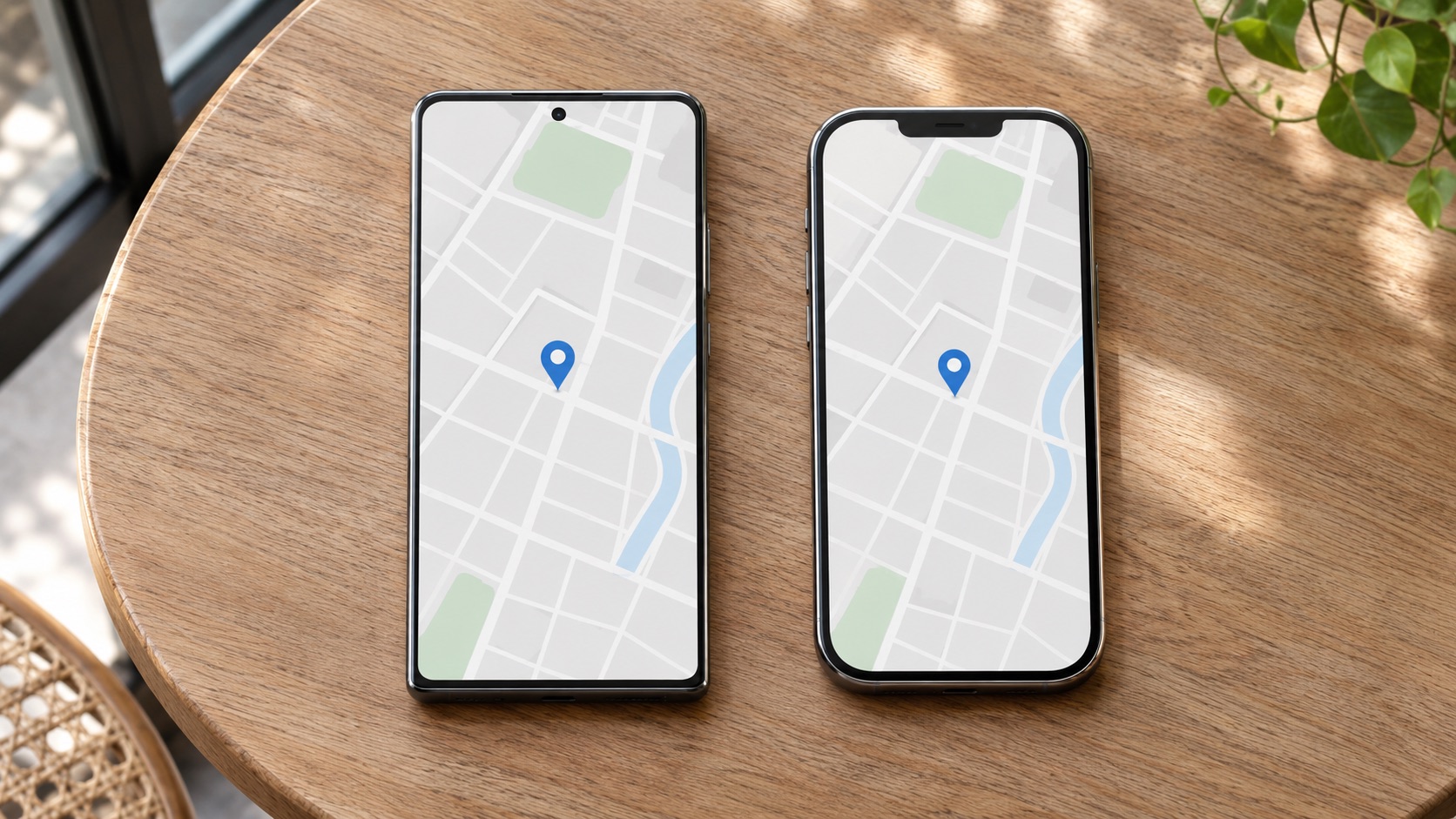
If you only need to meet at a cafe or station entrance, send that place rather than your movements. Google’s map-sharing instructions let you search for a place or drop a pin, open its name or address, and choose Share. That sends a map location, not a continuing report of where your phone goes.
A live share is useful when you want someone to follow your progress to a meeting. Agree on the purpose first. For a single pickup, a limited duration is a better starting choice than leaving access open indefinitely. Do not treat sending a pin and starting a live share as interchangeable.
Start a live share in Google Maps
- Open Google Maps on the sharing phone and sign in.
- Tap your profile picture, then Location sharing and New share.
- Choose the duration and the intended contact’s profile.
- Tap Share and ask the recipient to confirm it opens.
Google provides the steps for Android and iPhone. For ongoing contact sharing, add the recipient’s Gmail address to Google Contacts. The link option also supports recipients without a Google Account, but anyone holding that link can view the share for up to 24 hours.
Check whether you selected a named person or created a link before sending it. Avoid posting a live-location link in a public group. If you want to see each other’s locations, ask the other person to set up their own share rather than exchanging account passwords.
Review location access on the sharing phone
Android
Google’s device-location guide places the main switch under Settings > Location > Use location. Turning that switch on does not replace each app’s permission. Menu wording can differ by phone maker.
Under app location permissions, review Google Maps. Allow all the time permits background access; Allow only while using the app limits access to active use. Precise location is a separate choice. Read the permission request and choose the access you intend to allow, rather than giving every app unrestricted location access.
iPhone
Apple’s Location Services instructions use Settings > Privacy & Security > Location Services. Select Google Maps to review access. While Using the App and Always have different meanings: Always allows location access in the background. Some apps offer fewer choices. Precise Location controls whether an app gets your specific or approximate location.
If Maps asks for more access, read why it wants it. Check the receiving phone after the sharing phone’s screen is locked. This is a useful preparation check, not proof that every later update will arrive instantly. You can change app access again when you no longer need the share.
Keep an internet connection available
Google’s Location Sharing requirements include an active internet connection and device location. The setting is specific to a device and account. Check the phone you will actually carry, especially after changing phones or signing into several Google accounts.
A downloaded map does a different job. Google’s offline-map guide explains how a saved area can support navigation without internet. It does not replace the connection required to send a live share. Arrange a meeting point in advance if you expect a stretch without service.
Also distinguish a location estimate from an exact position. Google’s location-accuracy guide explains that a wider blue circle means less certainty and that buildings can affect the result. For a pickup, agree on an entrance or landmark rather than relying only on a dot.
Understand what the other person can see
Google says shared information includes your name, profile picture, location and battery status. It may include recent places, and Maps may show how you are traveling. A location near a business can occasionally be labeled as that nearby business. Treat this as more access than a one-time address message.
Google also documents arrival and departure notifications. These are unavailable for link-based sharing and some accounts. Where supported, someone can add a notification about a shared location; the person sharing receives an email about it. Review notification permissions as well as who can view you.
Supervised accounts work differently. If you are setting this up for a child, check the account’s permitted options rather than bypassing supervision. Our Family Link on iPhone guide explains why a parent’s iPhone and a child’s iPhone have different support.
Stop sharing and check before your next trip
In Google Maps, return to Location sharing, select the person and tap Stop. Do this on your own share when the meeting is over.
- Confirm the recipient, not just the messaging app you used to send a link.
- Check the expiry and visible update time before depending on the shared position.
- Agree on a fallback meeting point and stop the share when it has served its purpose.
A successful setup check does not make a phone a guaranteed safety monitor. If an update looks old, contact the person rather than assuming the map proves where they are now.