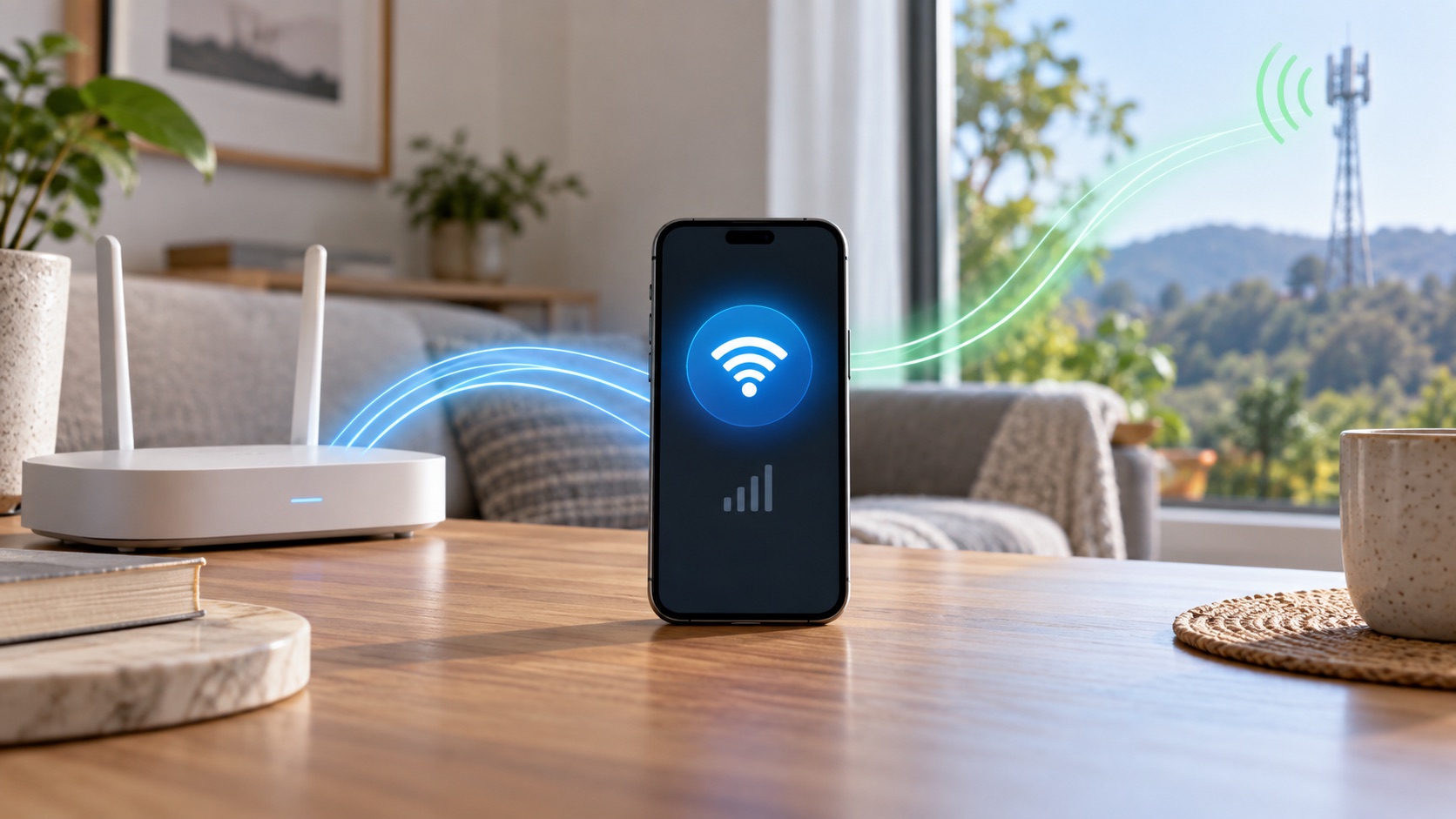
iPhone Connectivity Assist can use cellular data alongside WiFi when the WiFi connection is weak, busy or cannot reach the internet. Consider turning it off if controlling mobile data matters more than keeping that connection working. If you are happy to spend some cellular allowance to avoid a stalled page, leaving it on can be reasonable. Check actual usage before assuming it caused a large bill.
These instructions follow Apple’s current iOS 27 user guide and support pages, checked November 4, 2026. They explain a settings choice, not a measured battery or speed improvement. Older software can show a different name and menu.
What happened to Wi-Fi Assist?
Apple says Connectivity Assist replaces Wi-Fi Assist, which used to be in Cellular settings. The newer control is in Wi-Fi settings. It inherits the old feature’s state when you update: previously enabled assistance stays enabled, while a previously disabled setting does not need to be switched on. See Apple’s Connectivity Assist explanation.
This matters when following an older tutorial. Not finding Wi-Fi Assist at the bottom of Cellular does not, by itself, mean your phone has lost the feature. Look for the current name before changing unrelated network settings.
Should Connectivity Assist be on or off?
| Your situation | A sensible starting point | What to check |
|---|---|---|
| Your mobile plan has a small allowance or charges by usage | Start with assistance off | Remaining data and whether WiFi still works where you need it |
| WiFi often stalls and you accept some cellular use | Consider leaving it on | The feature’s usage counter, rather than a guessed data cost |
| You rely on a particular router configuration or network filter | Turn it off for that network | The network-specific control as well as the main setting |
| You only noticed a large historical data total | Check dates before changing several settings | The period covered by the counter and the carrier’s bill |
An unlimited plan is not a reason to ignore usage entirely. Review your own plan’s terms and the amount of data you normally use. This setting does not set a spending cap, refund an earlier charge or decide whether a particular carrier feature costs extra.
Change the main setting or just one WiFi network
- Open Settings on the iPhone.
- Choose Wi-Fi and make sure WiFi is on.
- Scroll down to Connectivity Assist and choose on or off.
For a particular connected network, open its information button next to the network name in Wi-Fi settings. Apple’s guide to managing WiFi settings includes a separate Use Connectivity Assist control there. This is useful when you want a different choice for a trusted home network than for WiFi elsewhere.
Apple specifically suggests disabling assistance for a network when you need to stay on WiFi for a router configuration, such as an ad blocker. You do not need to edit DNS addresses or remove a network filter to make that choice. On a managed work or school network, ask the administrator which configuration they require.
Check data use before judging the result
Apple’s current internet-connection guide says the iPhone displays how much cellular data Connectivity Assist has used. Note that figure before resetting it. It is more relevant to this question than an unexplained lifetime total for every app.
- Save the assistance counter and the date you checked it. Also note which SIM supplies data if you use two lines.
- Pick your preferred setting and use the phone normally. Avoid a large download or speed test just to investigate a small amount of unexpected data.
- Compare the counter again after a comparable period. If you reset it to start a new check, keep the earlier record and reset date.
- Compare any disputed charge with the carrier’s billing dates and records, not only the phone’s displayed total.
For a broader breakdown, go to Settings > Cellular to inspect app usage. Apple’s cellular data guide also explains per-app access and recommends the carrier for the most accurate usage information for a billing period. Turning cellular access off for a chosen app is a separate control from Connectivity Assist.
Why it may not activate
Apple lists exceptions: Connectivity Assist is not used during international roaming, in cellular Low Data Mode, or with some third-party audio and video streaming apps. Do not assume that a stationary counter means the feature is broken, or that an exception protects you from every possible travel charge.
Cellular Low Data Mode and the Low Data Mode for a WiFi network are separate settings. Apple’s Low Data Mode guide explains that distinction and the background activity it can restrict. If your main goal is reducing routine usage rather than choosing connection assistance, use our iPhone Low Data Mode decision guide.
This guide does not claim that switching assistance off adds a particular number of battery hours. A data counter can help you investigate data use; it does not establish a battery-life improvement. Choose the setting for your connection and allowance rather than an unverified before-and-after claim.
If WiFi feels worse after turning it off
Without assistance, a weak WiFi connection may remain weak instead of getting help from cellular. That is the trade-off, not evidence that the switch damaged the phone. Try the same ordinary task closer to the router before deciding whether to keep assistance off.
If the problem is unexpected cellular use across apps or devices, our phone-using-data-on-WiFi troubleshooting guide covers the broader checks. You can change your assistance preference without resetting the iPhone, deleting an eSIM or changing the whole household’s network.