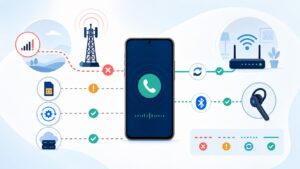
ERR_PROXY_CONNECTION_FAILED means Chrome tried to send traffic through a configured proxy but could not reach it. The proxy may come from Windows or macOS, a VPN, an extension, security software, or a work or school policy. Do not reset the router or remove managed security first. Compare browsers and networks, then check only the setting that matches the result.
| What you find | Area to investigate | Next step |
|---|---|---|
| Chrome fails, another browser works | Chrome profile, extension, or policy | Compare a public page in Guest mode if permitted; review extensions |
| Every browser fails on one device | System proxy, VPN, or security app | Identify who supplies the device’s proxy settings |
| The error began with a VPN change | VPN connection or proxy feature | Check service status and an approved server while keeping protection on |
| The device works on an authorized hotspot | A difference in network routing or proxy availability | Report the comparison; it does not prove the router is faulty |
| The device is managed | Organization policy or proxy outage | Record the error and contact IT |
What the Chrome proxy error means
A proxy is an intermediary between your browser and the website. Chrome normally follows the proxy configuration supplied by the operating system, a policy, or another network component. Chromium’s proxy documentation explains that an unreachable configured proxy can cause requests to fail with this exact error.
The message does not prove that your internet service is down. It also does not identify who created the proxy setting. A company may require one, while a home user may have a leftover setting from a personal VPN or an extension. Your first job is to find the scope.
1. Check more than one website
Open two unrelated, familiar websites. If one fails but the other opens normally, the proxy connection is probably not broken for all traffic. Check the failing service’s status page and retry later. If every site displays the same code, continue with the comparisons below.
Write down when the error began. A recent VPN update, browser extension, security-app change, workplace login, or move to another network can point to the owner of the setting. Do not install a free proxy from a search result. That changes who can handle your browsing traffic without fixing the original configuration.
2. Compare Chrome with another browser
Open the same public sites in another current browser on the same device, if your organization permits it. If both browsers fail, investigate the system proxy, VPN, security software, or network. If only Chrome fails, compare a Guest window on a personal, unmanaged computer. Keep required VPN and security tools running.
- Save work and restart Chrome.
- Install any available Chrome update through Chrome’s normal update control.
- On an unmanaged Windows or Mac computer, select the profile icon, then Guest, and try the same public page.
- Open the Chrome menu, choose Extensions, then Manage extensions. Note recent changes or a reported corruption.
- If Chrome reports an extension as corrupted, use its Repair option or the provider’s official support instructions. Leave security, VPN, proxy and managed extensions in place.
Google documents Guest mode and extension management. Guest mode uses a separate browsing session, so a working page there is a clue, not proof that an extension caused the error. Cookies and sign-in state differ too. It does not repair the system proxy. If Chrome says “Managed by your organization,” follow Google’s managed-browser check and ask the administrator before changing anything.
3. Check the VPN connection without turning protection off
If the error began after a VPN update or server change, check the provider’s service status and the connection message in its app. Install an official app update, or select another server permitted by the provider and your organization. Keep the VPN, kill switch and security filtering enabled. Retry the same public page after each approved change.
The VPN connected but no internet checklist helps identify the affected connection. For this error, ask the provider whether its software supplies a proxy and whether that proxy service is available. If the VPN belongs to an employer, give IT the exact code rather than changing its required configuration.
4. Check the Windows proxy setting
On Windows 11, open Settings, choose Network & internet, then Proxy. Microsoft’s Windows proxy guide distinguishes automatic detection, a setup script and a manual server entry. Identify which method is in use before editing it.
- A setup script supplies the proxy configuration from a URL. A manual entry uses a server address and port. They are different settings, not interchangeable fixes.
- If an app supplied the entry, compare it with that app’s current official instructions. Use the app’s repair or update procedure, not an address copied from a forum.
- If your organization supplied the script or manual address, leave it in place. Ask IT to confirm the required values and service status.
- Windows can also have separate proxy settings for a VPN connection. Report which connection is affected rather than assuming the main Proxy page covers it.
- If an app or policy restores a setting, identify its owner instead of repeatedly trying to override it.
Do not edit the Windows registry or run a copied network-reset script for this error. Those steps can remove useful evidence and break VPN or virtual-network software.
5. Check proxy settings on a Mac
On macOS, open System Settings, choose Network, select the active network service, click Details, then Proxies. Apple’s Mac proxy settings guide lists automatic discovery, automatic configuration files, web proxies and SOCKS proxies.
On a personal Mac, record which options are selected. If a proxy came from an app you no longer use, follow that app’s official removal instructions. Otherwise, compare its server, port or configuration URL with the provider’s instructions. If the Mac is managed, or the address belongs to work or school, leave it unchanged. An administrator may need to restore the proxy service or correct the policy.
6. Fix the error on a Chromebook
Google’s Chromebook loading-error guide links ERR_PROXY_CONNECTION_FAILED to proxy settings. Open Settings, select the current network, choose the network name again, then Proxy. Google warns that changing the setting can break the connection if you do not know the required values.
A work or school Chromebook may prevent you from changing the proxy. That is expected behavior, not a reason to bypass management. Send the administrator the network name, time, exact error and whether another network works.
7. Compare your home WiFi with a hotspot
On your own device, compare the same public websites using your own trusted phone hotspot, only if this is permitted. Keep required VPN and security protection active and allow for mobile-data charges. Do not use a hotspot to get around workplace restrictions.
If the error follows the device, investigate its browser and proxy configuration. If the page works on the hotspot, report that difference to whoever owns the proxy or original connection. A change of network can change proxy availability or routing; it does not by itself prove a broken router or ISP fault.
If every other device works on home WiFi, keep the troubleshooting on the one problem device. The one-device WiFi guide covers saved networks, automatic IP settings and router access controls without starting with a factory reset.
8. Treat an unexpected proxy as a security clue
An unexpected entry can come from a legitimate VPN, filtering extension, parental-control tool or security product. It can also come from unwanted software. Review recently installed apps and extensions, then run the security scan built into your operating system or a trusted security product.
Do not download a registry cleaner or a tool that promises to repair every proxy error. If the setting returns, note which process, extension or policy appears to control it. That evidence is more useful than repeatedly clearing the address.
When DNS is not the first fix
This error points to the proxy path. A proxy hostname can itself fail to resolve, so DNS can be involved, but changing to a public DNS server does not automatically fix an unreachable or misconfigured proxy. First confirm the required proxy with its owner. If Chrome instead reports a separate name-resolution error, use the Windows 11 DNS checklist and keep the tests separate.
What to send support
- The exact error code and time
- Chrome and operating-system versions
- Whether another permitted browser works
- Whether an authorized Guest comparison changes the result
- Whether an authorized hotspot comparison changes the result
- The VPN connection status and results from permitted servers, with protection still on
- Which proxy method is selected and which app or organization supplies it
- Whether the browser or device says it is managed
Send configuration details only to trusted IT or the relevant provider. Redact passwords, tokens, private script URLs and internal server addresses from public screenshots or forum posts. Contact the proxy owner for a managed device, the app provider for an app-supplied proxy, or your ISP when several devices have a broader connection failure on the same line.
Sources
- Chromium: Proxy support documentation
- Google Chromebook Help: This web page is not available
- Microsoft Support: Use a proxy server in Windows
- Apple Support: Change proxy settings on Mac
- Google Chrome Help: Browse as a guest
- Google Chrome Help: Install and manage extensions
- Google Chrome Help: Check if Chrome is managed