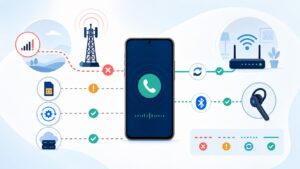
ERR_ADDRESS_UNREACHABLE means Chrome cannot reach the destination IP address, often because a network route is missing. It does not prove that the whole internet is down. Check the exact URL, try the same destination on another device, then compare the current connection with a trusted second network. These comparisons help narrow down a bad address, a device problem or a problem with the connection.
What ERR_ADDRESS_UNREACHABLE means
Chromium’s network error list describes ADDRESS_UNREACHABLE as an IP address that cannot be reached, usually because there is no route to the specified host or network. In plain language, Chrome knows where it is trying to go, but the current network path does not lead there.
This is different from ERR_NAME_NOT_RESOLVED, which points to hostname lookup, and ERR_CONNECTION_REFUSED, which means the connection attempt was refused. Clearing cookies is unlikely to repair a missing route.
| What the comparison shows | Likely area | Next useful step |
|---|---|---|
| One public site fails on every network | Bad address, destination or upstream route | Check the official URL and site status |
| The site works through phone data | Home router, ISP path, filter or VPN | Compare the current network path |
| Another home device opens it | One device or browser path | Check that device’s connection, VPN and proxy |
| A local router page fails | Wrong local address or wrong network | Reconnect to the intended router |
| Every destination fails on every home device | Home connection or provider | Check equipment and outage status |
Check the full address first
Read the hostname or numeric address in Chrome’s address bar. Open the site’s home page from a fresh search result instead of an old bookmark. If the failed address is a string of numbers, confirm it with the device manual or service owner. Do not copy a replacement IP address from a forum.
For a router, printer, camera or other local device, make sure your phone or computer is connected to the same home network. A saved bookmark may point to an address the device no longer uses. The router’s official app or connected-device list is safer than guessing common private addresses.
Compare another destination and another device
Open two familiar public websites. If both work, the device has an internet route and the failure is narrower. Next, try the original destination from another phone or computer on the same WiFi. If it works there, focus on the first device rather than restarting every network box.
If only one device fails, use the one-device network checklist. Check whether that device has joined the intended WiFi, received an address and gateway automatically, and can use another browser or app.
Try a trusted second connection
Turn off WiFi on a phone and try the public site through cellular data. You can also connect the computer briefly to a trusted phone hotspot if your plan allows it. Keep the URL and device the same so the network is the only major change.
If the destination opens on the second connection, that points toward a problem with the original network path, including its router, provider, VPN or filtering. It does not identify which part is at fault. If independent connections fail, check the destination’s official status page or contact its owner.
Use this comparison for public websites, not private addresses belonging to a home router or printer. Private addresses are not routed across the public internet. They normally cannot be reached directly over cellular data; remote access needs a separate, approved arrangement such as a VPN into that network.
Test VPN and proxy routes
A VPN changes the network path used by your device. On your trusted home network, and only if the provider’s instructions permit it, disconnect a personal VPN for one brief test and reconnect afterward. Avoid this test on public WiFi or when the VPN protects traffic that must stay private. If the page opens only without the VPN, check another provider-approved location or ask its support team. Company resources may require a work VPN: keep the approved configuration and ask IT rather than bypassing it.
On Windows, open Settings, choose Network and internet, then Proxy. Microsoft separates automatic detection, setup scripts and manual proxy entries. Record a personal manual setting before changing it. Leave school and work configurations to the administrator.
Rejoin the correct home network
A laptop can stay connected to a guest network, extender or travel router that lacks the route you need. Compare the WiFi name with a working device. If it is wrong, join the intended network. If it is correct but only this device fails, turn WiFi off and on before removing the saved network.
Forget and rejoin the network only after confirming the WiFi password. This removes the saved connection and may also remove custom settings for that network. Do not assign a random static IP, gateway or DNS server. An incorrect gateway can create the same unreachable result.
Check the router and provider when several devices fail
If several home devices cannot reach the destination but cellular data can, check the provider’s outage page through the phone. Look at the documented status lights on the modem, ONT, gateway and router. Do not interpret a light color without the exact model guide.
When other public sites also fail, follow the WiFi versus internet outage guide. If no outage is reported, perform one normal restart in the provider’s recommended order. A factory reset erases network settings and is not a sensible response to one unreachable address.
Keep Windows Network reset for last
Use Network reset only after the narrower checks fail on one Windows device. It removes network adapters and their settings, then reinstalls the adapters after a restart. You may need to reinstall or set up VPN software and virtual switches. Save your connection details first; ask IT before resetting a managed computer. On Windows 11, find it under Settings > Network & internet > Advanced network settings > Network reset.
Turning off the firewall, opening router ports or putting the computer in a DMZ is not a routine repair for this browser error. These changes can expose the device. If security software appears to block the connection, ask its vendor or your administrator to check the specific rule while keeping protection enabled. For a managed device, provide the exact URL, time, network used and result of the second-connection test.
Sources
- Chromium source: Network error definitions
- Google Chrome Help: Fix connection and loading errors
- Microsoft Support: WiFi troubleshooting and Network reset
- Microsoft Support: Windows proxy settings
- RFC 1918: Private addresses and internet routing
- Microsoft Support: Windows VPN connections
- Microsoft Support: Firewall and network protection