ERR_CONNECTION_REFUSED means Chrome could not establish a connection to the requested website or service. Google describes it as the page not allowing Chrome to connect, or the page being blocked. Start by checking whether one address fails, every website fails or a local page such as your router login fails. That distinction is more useful than clearing everything at once.
What ERR_CONNECTION_REFUSED tells you
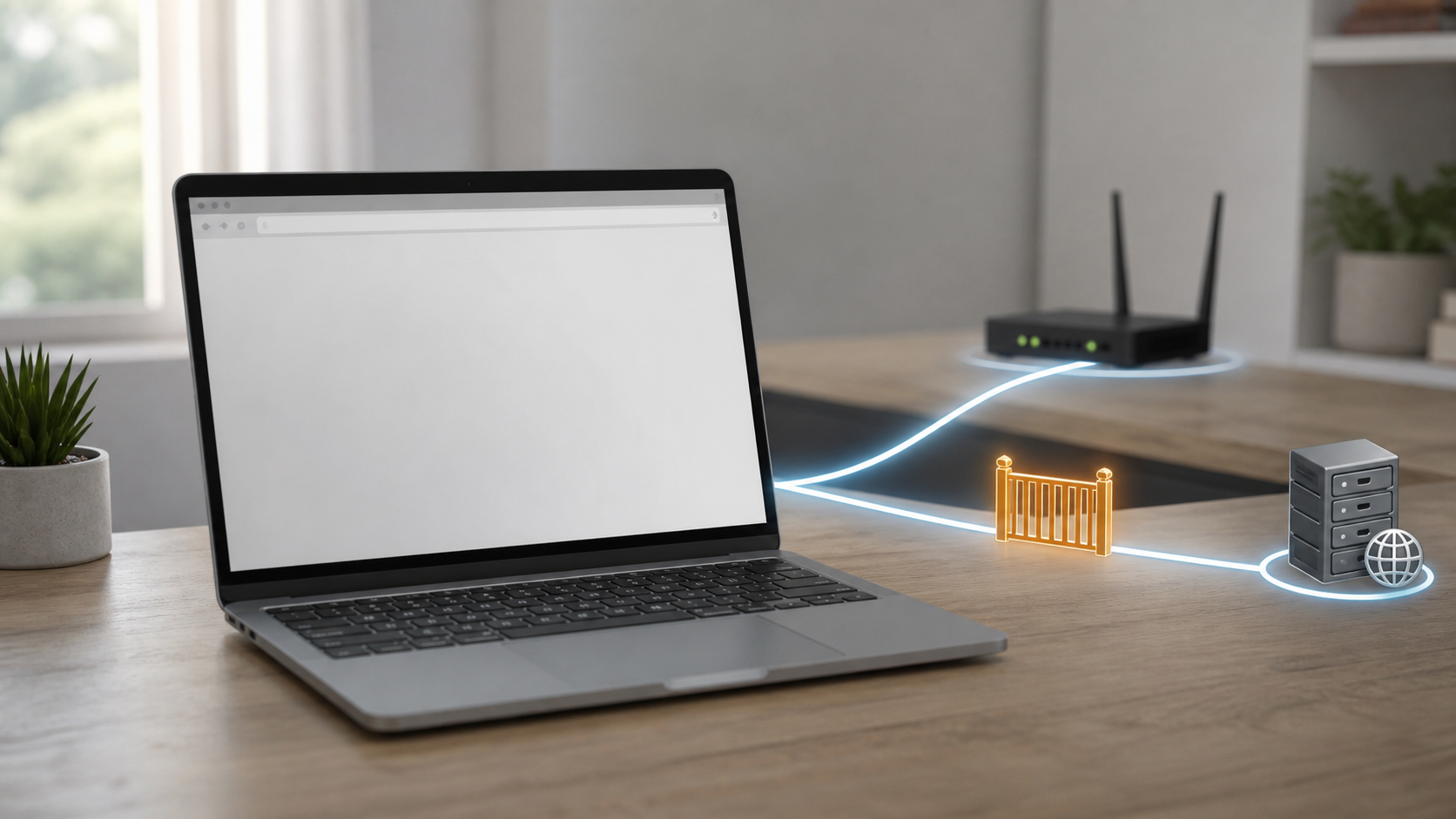
The error is different from a slow timeout. A refusal normally arrives when the destination is unavailable on that address or port, or when a local rule blocks the attempt. Chrome cannot tell you which device or service made that decision.
| What you observe | Most useful next check | Likely boundary |
|---|---|---|
| Only one public site fails | Open it on another device or connection | Site, hosting or filtering |
| Several sites fail only in Chrome | Try Incognito and review extensions | Browser, proxy, VPN or security software |
| Every app and site fails | Check the device and home connection | Device, router or ISP |
| A router or local app page fails | Verify its documented local address and service state | Local device or service |
Check the address and test one other site
Read the full address in the bar. A missing letter, an old bookmark or an added port number can point Chrome to a service that is not running. Remove only an accidental path or port. Do not replace HTTPS with HTTP on a sign-in, banking or account page just to bypass an error.
Reload once, then open two familiar sites. If both work, your internet connection is active. Check the affected site’s official status page or try it on a phone using cellular data. If the same public site refuses every connection, wait or contact the site owner. Router resets will not repair its server.
Compare Chrome with another browser or app
Open the same address in another installed browser. Also try an app that needs the internet. If other software works, close and reopen Chrome and install any available Chrome update. If nothing on the device connects, use the one-device connection checklist instead of treating this as a single browser error.
When every device on the home network is offline, check the modem, ONT, gateway and provider status. The WiFi versus internet outage guide helps separate a local wireless link from an ISP problem.
Use Incognito to test extensions and browser data
Open an Incognito window and load the affected site. Google recommends this test for Chrome connection and loading errors. Most extensions are off there unless you explicitly allowed them in Incognito. If the page works, return to the normal window and test extensions one at a time. Start with VPN, ad filtering and privacy extensions that can change web requests.
Do not remove an extension required by work or school without approval. If an extension is responsible, update it, narrow its site access or leave it disabled while you contact its developer. Clearing all history and saved sign-ins is rarely the first useful step.
Review VPN and proxy settings
A VPN or proxy can send Chrome through a path that refuses the destination. Pause a personal VPN for one controlled test, then restore it. On Windows, open Settings, choose Network and internet, then Proxy. Microsoft documents automatic detection, setup scripts and manual proxy entries separately.
If you did not set a manual proxy and the computer is not managed, record the entry before removing it for a test. A work or school proxy may be required, so ask the administrator rather than changing its script or exceptions. If the site works only when the VPN is off, the VPN provider or destination may be refusing that exit address.
Do not turn off the firewall as a general fix
Security software can block a browser, but leaving the firewall disabled creates a different problem. Check its recent notifications or logs for Chrome and the affected address. On Windows, Microsoft says allowing a known app is safer than opening a port, and an open port remains exposed until it is closed.
Only change a rule you understand. Never open a random port, enable DMZ or disable router protection because a public website refuses a connection. Managed computers may enforce these settings for a reason.
If a router login page refuses the connection
Connect to the router’s WiFi or Ethernet network, then use the exact local address printed in its manual, label or official app. Some models use a private IP address, while others use a local name. A bookmark from an old router may point to the wrong device. The router login address checklist covers this separate local-access problem.
- Turn off cellular data on a phone so the test stays on the home network.
- Remove a personal VPN during the local-page test.
- Try one wired or nearby wireless device.
- Confirm that remote management is not being confused with local access.
- Restart the router once if its normal network service works but the admin page does not.
Do not factory-reset the router until you have the ISP settings, WiFi names and passwords needed to rebuild the network. Contact the router maker if its documented local page still refuses connections from more than one device.
If you own the website or local service
A refusal can mean the web service is stopped, listening on a different address or port, or blocked by a host firewall or reverse proxy. Check the service status and server logs, then confirm that the public hostname points to the intended host. Test from outside the server as well as from the same machine.
Local developers should confirm that the application is running before changing Chrome. The address, protocol and port in the browser must match the service configuration. Do not expose a development server to the public internet merely to make the error disappear.