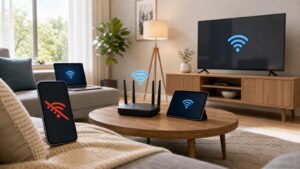
If your VPN says it is connected but websites stop loading, first disconnect it for one controlled test. If the internet returns immediately, your home connection is probably fine and the problem is inside the VPN path, its kill switch, DNS setting, or a virtual network adapter. If the internet still fails with the VPN off, troubleshoot the ordinary WiFi or wired connection first.
1. Separate the VPN from the home connection
Disconnect the VPN and open two ordinary websites. Then try the same sites in a private browser window. If browsing works only after the VPN disconnects, note the VPN app, server, and protocol before changing anything. If every device on the home network fails, check the router and provider instead. Our WiFi or internet outage checklist helps separate a local outage from a single-device problem.
2. Check the VPN kill switch
Many VPN apps include a kill switch that blocks traffic when the encrypted tunnel drops. That protects your traffic, but it can look like the internet is broken. Open the VPN app settings and look for a kill switch, always-on mode, or block internet when disconnected option. Turn it off only for a short test, then turn it back on if you rely on it. Do not leave security settings changed without knowing what they do.
3. Try another server and protocol
A single VPN server can be busy or temporarily unable to reach a service. Disconnect, select another nearby server, and reconnect. If the app offers more than one protocol, test one alternative. Change one setting at a time so you know which change affected the result. Avoid judging the VPN by a single server or a single website.
4. Check DNS and proxy settings
A VPN can send DNS requests through its own resolver. If names fail while a direct IP test works, DNS may be the broken link. Pause any separate Private DNS, ad-blocking DNS, or proxy setting for one test. On Windows, also check that a manual proxy is not enabled. Our DNS troubleshooting guide for Windows 11 explains how to tell a name-resolution problem from a wider connection failure.
5. Test a different network
Connect the same device to a phone hotspot or another trusted network, then try the VPN again. If the VPN works there but not on your home internet, the router, ISP, or network policy may be blocking or disrupting the tunnel. If it fails everywhere, focus on the VPN app, account, or device settings. A work or school network may also restrict VPN traffic, so follow its acceptable-use rules.
6. Restart the app and remove stale adapters only when needed
Quit the VPN app completely and restart the device. Install pending updates from the VPN provider and your operating system. Some VPNs install a virtual adapter that can remain active after an interrupted update. Do not delete adapters at random. Use the provider’s uninstall or repair instructions, because removing the wrong network component can break ordinary internet access.
7. Check the router path
If the VPN fails on every device at home, restart the modem and router once, then test without the VPN. Check whether parental controls, security filters, or a second router were recently enabled. A second router can create routing problems, but a VPN-only failure usually points first to the VPN path or its settings. Our guide to double NAT covers the separate-router case.
What each result means
| Test result | Most useful next check |
|---|---|
| Internet returns when VPN disconnects | Kill switch, server, protocol, DNS, or proxy |
| VPN works on a hotspot but not at home | Router, ISP policy, or home network filter |
| VPN fails on every network | VPN account, app update, or virtual adapter |
| Internet fails even with VPN off | WiFi, Ethernet, router, or provider connection |
When to contact support
Contact the VPN provider with the app version, device operating system, server location, protocol, and whether ordinary internet works with the VPN disconnected. Contact your ISP only after you confirm the connection fails without the VPN or across several devices. Avoid repeated network resets until you have written down the settings you may need to restore.